



The best free small business apps can help you keep track of projects, follow up with customers, send invoices, and create marketing materials while keeping software costs down.
If you run a small business or work for yourself, you probably don’t need a paid subscription for every task. A few well-chosen apps may be enough to organize your day and spend less time on routine administration.
But it’s worth checking what “free” actually covers. An ongoing free plan might limit users, storage, or features, while a free trial provides temporary access before payment is required.
In this guide, we compare useful free apps for small business owners and solopreneurs, explain their main limits, and help you decide which ones fit the way you work.
Best Free Small Business Apps at a Glance
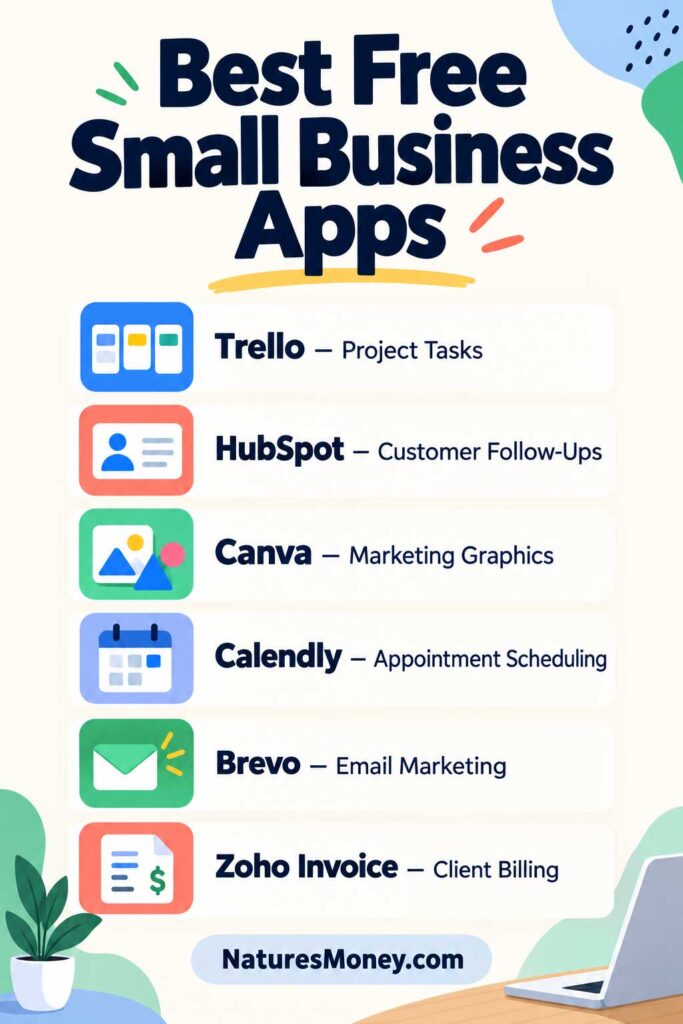
Here’s a quick look at what each app does and the main limit to check before you sign up.
| App | Best For | Main Free-Plan Limit |
|---|---|---|
| Trello | Managing tasks and projects | Up to 10 collaborators and 10 boards per Workspace |
| HubSpot CRM | Tracking customers and sales follow-ups | Up to two users and 1,000 contacts |
| Canva | Creating social posts, flyers, and presentations | Premium templates, assets, and advanced tools cost extra |
| Calendly | Booking one-on-one appointments | One event type and one connected calendar |
| Brevo | Sending email newsletters and campaigns | Up to 300 email sends per day |
| Notion | Organizing notes, checklists, and business procedures | Team workspaces have more restrictions than individual workspaces |
| Slack | Organizing team conversations | Only the most recent 90 days of message and file history are accessible |
| Zoho Invoice | Sending invoices and payment reminders | Payment providers may charge separate processing fees |
| Clockify | Tracking time spent on projects | Up to five users |
| Microsoft 365 for the web | Creating documents, spreadsheets, and presentations | Browser versions have fewer features than paid desktop apps |
Free plans can change. Check each provider’s current features, usage limits, and terms before signing up.
1. Trello: Best for Organizing Tasks and Projects
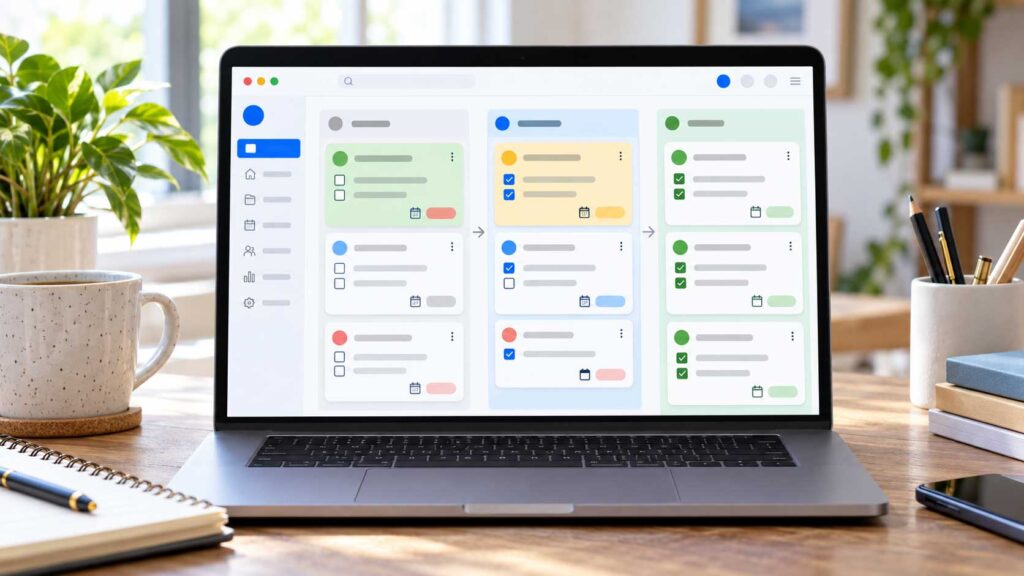
When customer requests, deadlines, and reminders are scattered across emails and handwritten notes, it’s easy to miss something. Trello brings those tasks together on a visual board, making it easier to see what needs attention and what’s already finished.
Each task gets its own card, where you can add instructions, checklists, a due date, and the person responsible. Move cards between columns such as “To Do,” “In Progress,” and “Completed” as work moves forward.
For a small service business, that could mean tracking jobs from the initial request through delivery. For a solopreneur, it might mean organizing client work, website updates, and weekly marketing tasks.
Key Features
Trello’s boards, lists, and cards give you a straightforward way to organize projects. Checklists break larger tasks into manageable steps, while due dates and assignments help clarify what needs to happen next.
Templates provide a starting point for common workflows. Built-in automation can handle selected repetitive actions, and Power-Ups connect boards with other tools.
What Does the Free Plan Include?
Trello’s free plan supports up to 10 collaborators and 10 boards per Workspace, with unlimited cards. It also includes due dates, task assignments, mobile apps, and two-factor authentication.
Attachments are limited to 10 MB per file, and the plan includes 250 Workspace automation command runs per month. Some third-party Power-Ups require a separate subscription.
Pros and Cons
| Pros | Cons |
|---|---|
| Visual boards make task progress easy to follow | Free Workspaces are limited to 10 boards and 10 collaborators |
| Cards keep task details, checklists, and deadlines together | Attachments are limited to 10 MB per file |
| Unlimited cards provide room for everyday task tracking | Automation usage is capped on the free plan |
| Useful for both solo work and small-team projects | Advanced project views and reporting require a paid plan |
| Templates help you set up common workflows | Some third-party integrations cost extra |
Who Should Use Trello?
Trello is a good fit for solopreneurs, freelancers, and small teams that want a simple way to track work. It’s particularly useful when you need to see which tasks are waiting, underway, or ready for review.
If your work involves detailed dependencies, resource planning, or extensive reporting, compare those requirements with Trello’s paid features before committing.
Our Recommendation
Start with one board for your main workflow. Add clear task names, realistic deadlines, and a few useful columns before introducing integrations or automation.
If you’re currently tracking work in emails or scraps of paper, Trello is a simple place to start.
2. HubSpot CRM: Best for Managing Customer Follow-Ups
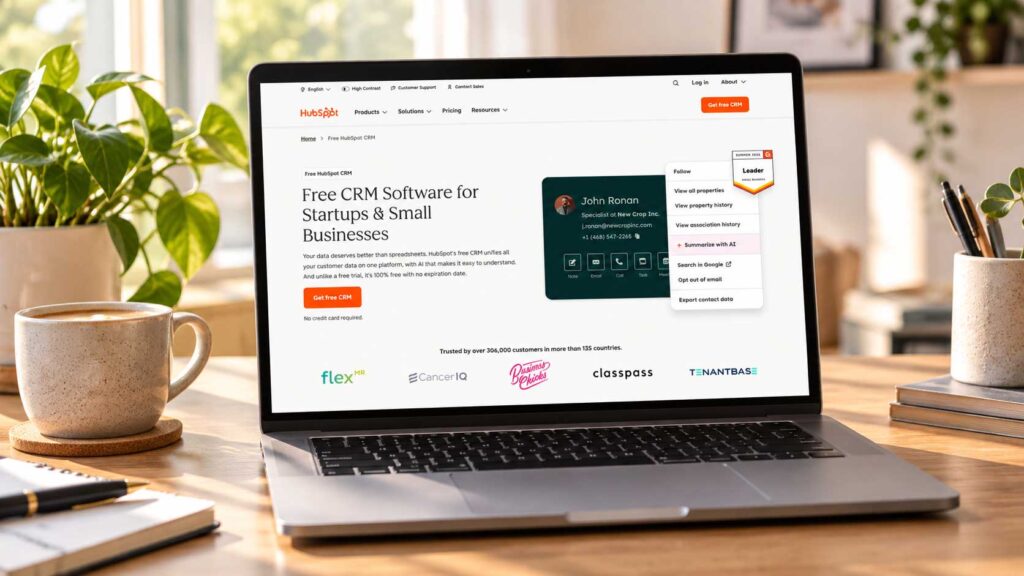
A potential customer asks for a quote. You reply, get busy with another project, and forget to follow up. By the time you remember, the customer may have chosen someone else.
HubSpot CRM gives you one place to organize contacts, track sales opportunities, and manage follow-up tasks. Instead of relying on your memory or searching through email threads, you can review a customer’s record and see what needs to happen next.
For a small service business, that might mean tracking inquiries from the first conversation through an accepted proposal. A solopreneur could use it to organize prospective clients and keep ongoing conversations from slipping through the cracks.
If you’re comparing other options, see our guide to free CRM software for more ways to manage contacts and follow-ups.
Key Features
HubSpot’s contact records help you keep customer details and interaction notes together. Deal tracking lets you organize opportunities by stage, while tasks help you plan the next call, email, or proposal.
Selected email and scheduling tools can also support your sales process. Their availability and usage limits depend on the plan, so check the features you expect to use before building your workflow around them.
What Does the Free Plan Include?
HubSpot advertises its free CRM for up to two users and 1,000 contacts, with no expiration date. The free tools include contact, deal, and task management, alongside selected sales and communication features.
More advanced automation, reporting, customization, and team capabilities require paid plans. Review the specific subscription you would need as your business grows, since upgrading costs depend on the products, seats, and features you choose.
Pros and Cons
| Pros | Cons |
|---|---|
| Keeps customer details, notes, and follow-up tasks together | Free access is limited to two users and 1,000 contacts |
| Deal stages make sales opportunities easier to track | Advanced automation and reporting require paid plans |
| Ongoing free plan gives small businesses time to establish a process | Growing teams may need to upgrade relatively early |
| Tasks help make customer follow-ups more consistent | The wider platform can take time to learn |
| Selected sales and communication tools work alongside the CRM | Paid costs depend on the combination of products and features needed |
Who Should Use HubSpot CRM?
HubSpot is a good fit for solopreneurs and two-person businesses that regularly handle customer inquiries, quotes, or proposals. It becomes particularly useful when a spreadsheet no longer makes it easy to track conversations and next steps.
If you need access for a larger team or expect to exceed the contact allowance soon, compare the relevant paid plan with other CRM options before committing.
Our Recommendation
Start with a simple sales pipeline that reflects how customers actually buy from you. Stages such as “New Inquiry,” “Quote Sent,” “Follow-Up,” and “Won” may be enough.
Add a next step to each active opportunity and review your follow-up tasks regularly. HubSpot’s free CRM can help organize the process, but its value comes from keeping those records current.
3. Canva: Best for Everyday Marketing Graphics
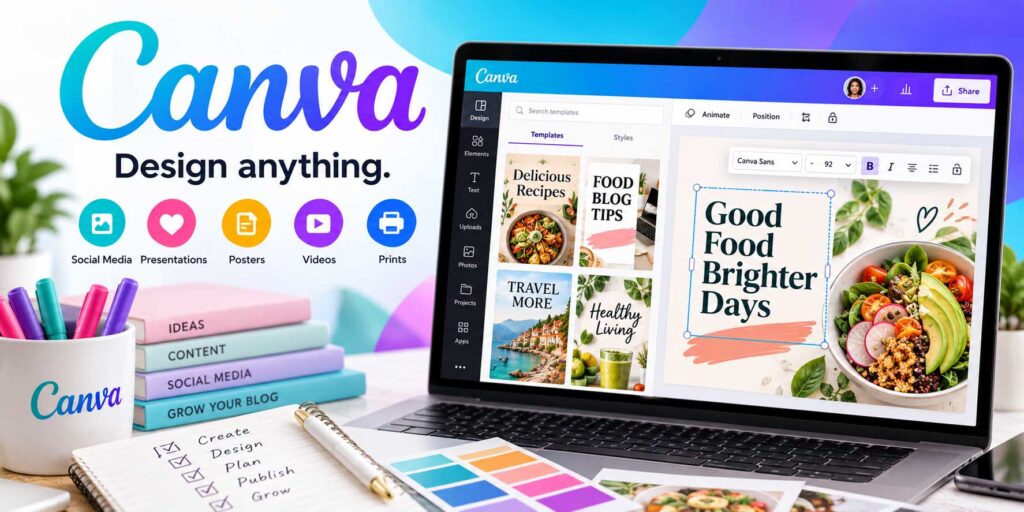
A seasonal promotion, a new product announcement, or an upcoming event usually needs a graphic. When you’re handling the marketing yourself, creating those materials can take longer than expected.
Canva makes everyday design work more approachable with a drag-and-drop editor and ready-made templates. You can add your own photos, change the wording, and adjust the colors without building each design from scratch.
A local shop could create a reusable layout for weekly specials. A freelancer might use it for service brochures, presentations, and social media posts.
Key Features
Canva brings templates, editing tools, and a media library into one workspace. You can combine images, text, shapes, and other design elements to create materials for print or online use.
Uploading your own photos and logo helps make a template feel more relevant to your business. Reusing a few established layouts can also keep your marketing consistent and reduce preparation time.
What Does the Free Plan Include?
Canva Free includes the drag-and-drop editor, a selection of free templates and media, and cloud storage. You can upload your own assets and create designs using the content available within the free plan.
Premium templates, stock assets, and various advanced tools require payment. Check individual elements before using them, since a template may contain premium content even when you can open it in the editor.
Pros and Cons
| Pros | Cons |
|---|---|
| Approachable editor for routine marketing tasks | Some templates and design elements require payment |
| Templates provide a useful starting point | Popular templates can make designs look similar to other businesses |
| Supports social graphics, flyers, presentations, and other formats | Advanced editing and brand tools may require a paid plan |
| Lets you upload your own photos and logo | You need to check the licensing terms for your intended use |
| Reusable layouts can save time on recurring promotions | Templates still need careful editing for readability and consistency |
Who Should Use Canva?
Canva is a good fit for small business owners, solopreneurs, and freelancers who create their own everyday marketing materials. It’s especially useful when you need to produce straightforward graphics regularly.
For projects with detailed print specifications or complex artwork, check that Canva’s editing and export options meet the requirements before starting.
Our Recommendation
Create a small set of reusable designs for the materials you publish most often. A social media promotion, customer announcement, and simple flyer are useful places to begin.
Use your own images where possible, keep fonts and colors consistent, and choose free elements deliberately. Canva’s free plan can cover plenty of routine work when you build your layouts around what it includes.
4. Calendly: Best for Simple Appointment Scheduling
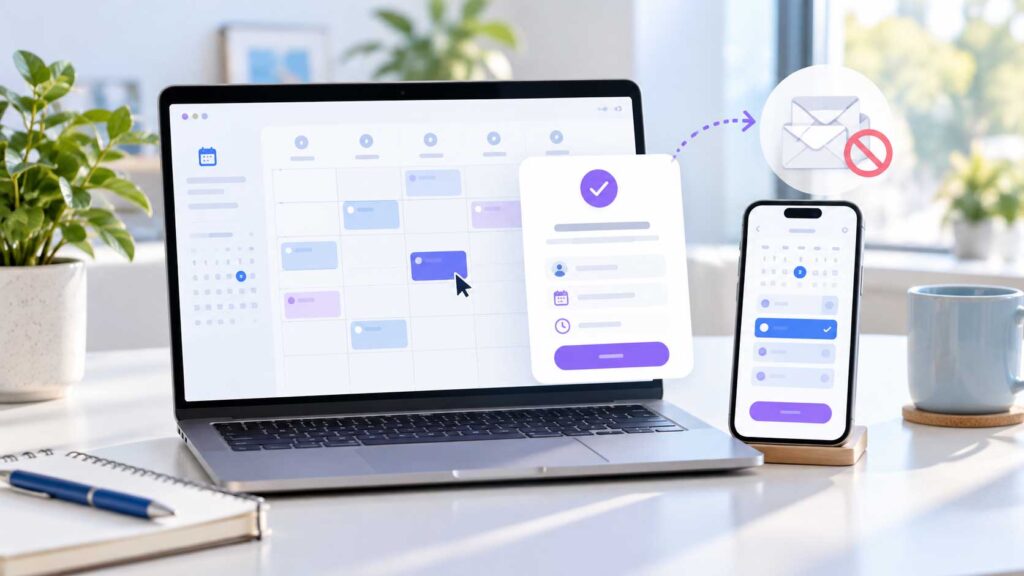
Arranging a short call can turn into several emails just to find a time that works. Calendly lets customers choose an available appointment through a booking link, reducing the back-and-forth.
You set your availability and share your booking page. Calendly checks your connected calendar for conflicts so people can select from the times you offer.
For a consultant, that could mean booking introductory calls with prospective clients. A freelancer might use it to schedule project discussions without interrupting other work to coordinate each meeting.
Key Features
Calendly combines a booking page with calendar availability checks and one-on-one scheduling. You can define your meeting duration and available hours, giving customers a clear way to book time with you.
The booking link can be shared in emails or added to your website. Keep the appointment description clear so visitors understand what the meeting covers and how to prepare.
What Does the Free Plan Include?
Calendly Free includes one event type, one connected calendar, and unlimited one-on-one meetings. For example, you could offer a single 20-minute introductory call that customers book whenever a suitable slot is available.
Multiple event types, additional calendar connections, automated reminder workflows, and payment integrations require a paid plan. One event type means one kind of appointment—not just one booking.
Pros and Cons
| Pros | Cons |
|---|---|
| Reduces emails spent coordinating meeting times | Free plan is limited to one event type |
| Checks your connected calendar for scheduling conflicts | Only one calendar connection is included |
| Allows unlimited one-on-one bookings | Automated reminder workflows require a paid plan |
| Booking link is easy to share with prospective customers | Collecting payments through integrations requires an upgrade |
| Works well for a standard introductory call or consultation | More complex staff and service scheduling may need another solution |
Who Should Use Calendly?
Calendly is a good fit for solopreneurs, freelancers, and consultants who offer one main type of appointment. Its free plan is particularly practical for discovery calls or initial client discussions.
If you offer appointments of different lengths, manage several calendars, or coordinate multiple staff members, compare those requirements with its paid plans.
Our Recommendation
Start with the appointment customers request most often. Give it a clear name, explain its purpose, and set availability you can reliably maintain.
If your main goal is to make introductory calls easier to book, Calendly’s free plan provides a straightforward starting point.
Explore Calendly’s Free Plan →
5. Brevo: Best for Starting Email Marketing
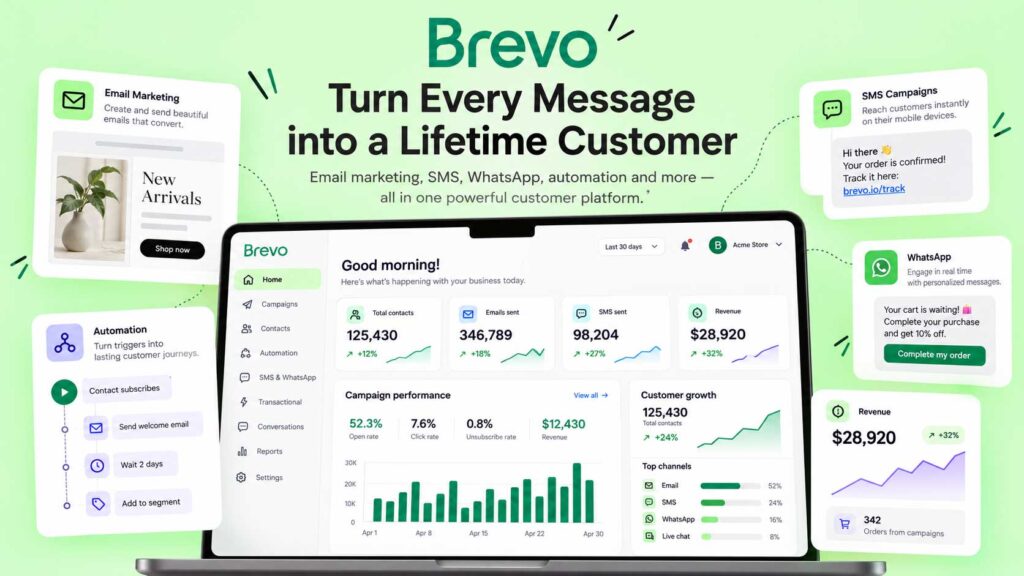
An email list gives you a way to reach people who have asked to hear from your business. You can announce new products, share helpful advice, or let previous customers know when you have availability.
Brevo helps you create and send email campaigns without needing a paid subscription from the start. For a small business building its first list, that provides room to establish a sending routine before taking on another monthly expense.
A local shop could send product updates, while a freelancer might share practical tips and invite subscribers to book a consultation.
Key Features
Brevo’s email editor and templates help you put together newsletters and promotional messages. Contact management tools organize your audience, while campaign reports help you assess how recipients respond.
Keep each campaign focused on a clear purpose. A useful update with one relevant next step is easier to act on than an email crowded with unrelated offers.
What Does the Free Plan Include?
Brevo’s free plan includes up to 300 email sends per day. Each recipient counts toward that allowance: sending one email to 200 people uses 200 sends, leaving 100 for the rest of the day.
Unused sends do not carry over. The daily allowance can suit a small list, but it becomes restrictive when you want to reach more than 300 subscribers on the same day. Review the current plan comparison for branding restrictions and access to additional marketing features.
Pros and Cons
| Pros | Cons |
|---|---|
| Ongoing free plan provides a starting point for email marketing | Sending is capped at 300 emails per day |
| Editor and templates simplify campaign creation | Larger lists cannot receive a full campaign within one day’s free allowance |
| Contact tools help organize subscribers | Unused daily sends do not carry over |
| Campaign reports help you evaluate responses | Some features and branding options require payment |
| Suitable for modest sending needs | Daily limits are less convenient for time-sensitive announcements |
Who Should Use Brevo?
Brevo is a good fit for small business owners and solopreneurs starting an email list or sending to a modest audience. It can work well when your campaigns fit comfortably within the daily allowance.
If your business depends on sending promotions to a larger list at a specific time, compare paid sending options before choosing your platform.
If you plan to sell courses or digital products, explore these online course platforms.
Our Recommendation
Start with a clear signup offer and a manageable publishing schedule. Tell subscribers what they will receive, then send useful updates that match that promise.
Brevo’s free plan is a practical starting point when its daily allowance fits your audience. Consider upgrading when that limit begins to interfere with how and when you need to communicate.
6. Notion: Best for Business Notes and Procedures
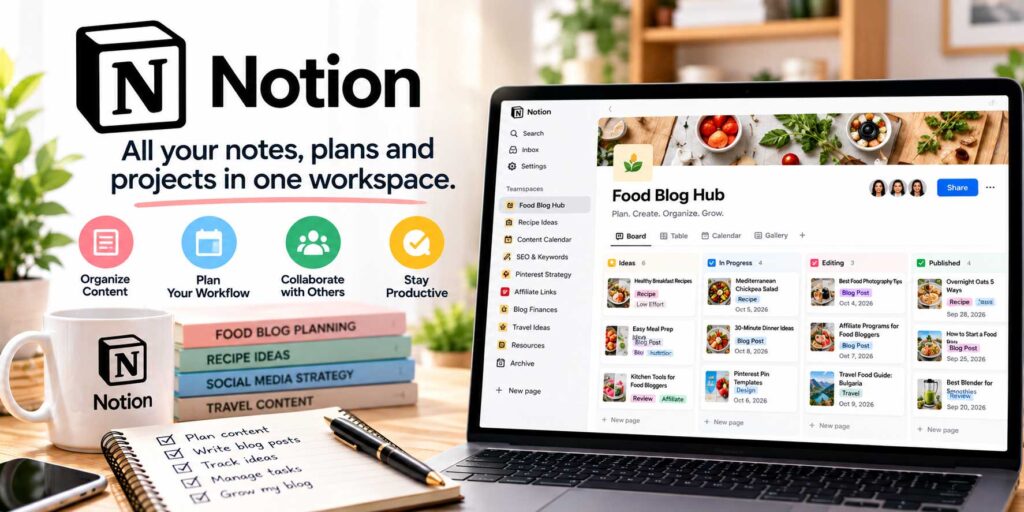
Client onboarding steps, meeting notes, and recurring checklists are easier to use when they have a clear home. Notion brings that information together in pages and databases, helping you spend less time searching through scattered documents.
You can create a page for each process, group related information, and update instructions as your business changes. A solopreneur might use it to organize project notes and weekly priorities. Those same pages can later help a contractor understand how to complete a task.
For example, a client onboarding page could contain your welcome email checklist, questions to ask, and the steps required before work begins.
Key Features
Notion combines documents, checklists, tables, and databases in a flexible workspace. Pages can hold detailed instructions, while databases help organize information such as projects, content ideas, or business resources.
Templates provide a starting point, but you can also build a simple structure yourself. Linking related pages makes it easier to move from an overview to the instructions or notes you need.
What Does the Free Plan Include?
Notion’s free plan includes unlimited pages and blocks for individual use. Blocks are the pieces that make up a page, such as paragraphs, images, and checklist items.
Workspaces with two or more members have block limits. The free plan also limits uploads to 5 MB per file and provides seven days of page history. Notion AI is available as a limited trial rather than an unrestricted free feature.
Pros and Cons
| Pros | Cons |
|---|---|
| Keeps notes, checklists, and procedures in one workspace | Flexible setup can take time to organize |
| Unlimited pages and blocks for individual use | Workspaces with multiple members have block limits |
| Pages can grow into useful instructions for contractors | Free uploads are limited to 5 MB per file |
| Databases help organize projects and reference information | Free page history covers only seven days |
| Templates can simplify the initial setup | Notion AI access is a limited trial |
Who Should Use Notion?
Notion is a good fit for solopreneurs, freelancers, and business owners who want to document repeatable work. It is particularly useful when important instructions currently live in your memory or across several disconnected files.
If several employees need to create and maintain content together, review the collaboration limits before choosing the free plan.
Our Recommendation
Start with a few pages you will use regularly: client onboarding, recurring tasks, meeting notes, and business procedures. Document one process as you complete it, then improve the instructions the next time.
Keep the workspace easy to navigate. Notion is most useful when you can quickly find and update the information you need.
7. Slack: Best for Team Conversations
When project updates, questions, and customer requests are scattered across text messages and email threads, teammates can miss information or repeat the same conversations.
Slack organizes team discussions into channels, giving each project or topic a dedicated space. You might create channels for active client work, customer support, and company announcements.
A small agency could use a project channel to discuss feedback and delivery dates. A business working with contractors could keep day-to-day questions together instead of spreading them across individual messages.
Key Features
Slack combines channels, direct messages, threaded replies, and file sharing. Channels keep related discussions together, while threads let teammates respond to a specific message without interrupting the main conversation.
Search helps you retrieve information within the history available on your plan. Notification settings also let you choose which conversations need your attention.
What Does the Free Plan Include?
Slack’s free plan provides access to the most recent 90 days of message and file history. Content outside that window becomes inaccessible, and data more than one year old is deleted under its free-plan rules.
That makes the free plan useful for current conversations, but restrictive for retrieving older discussions. Keep lasting procedures, approved documents, and important decisions in a separate system where you can retain them.
Pros and Cons
| Pros | Cons |
|---|---|
| Channels keep project and team discussions organized | Free message and file history is limited to the most recent 90 days |
| Threads help keep replies connected to the original question | Data more than one year old is deleted on the free plan |
| Direct messages support quick individual conversations | Frequent messages can become distracting |
| File sharing keeps supporting materials near the discussion | Important records need a separate, lasting home |
| Useful for coordinating employees and contractors | May add unnecessary complexity for a solo business |
Who Should Use Slack?
Slack is a good fit for small teams that need regular communication throughout the week. It is particularly useful when several people work on the same projects and need visibility into updates.
If you work alone or exchange only occasional messages with a contractor, your existing communication tools may already cover your needs.
Our Recommendation
Start with a few clearly named channels and agree on what belongs in each one. Use threads for replies and adjust notifications so routine discussions do not interrupt focused work.
Treat Slack as a place to coordinate work. Save final decisions and reusable instructions in your project management or documentation system so they remain available after the free history window closes.
8. Zoho Invoice: Best for Invoicing Clients
Creating an invoice is only one step in getting paid. You also need to explain your payment terms, track outstanding balances, and follow up when a payment is overdue.
Zoho Invoice brings quoting, invoicing, and payment follow-ups into one place, making it easier to manage client billing without creating every document manually.
A freelancer could turn an approved quote into an invoice, while a service business could record billable hours and expenses before sending the final balance.
Key Features
Zoho Invoice includes customizable invoices, quotes, time tracking, and expense recording. You can add your business details and payment terms, then send customers a clear breakdown of the work they are paying for.
Payment reminders help reduce manual follow-ups. A customer portal gives clients a place to view invoices, approve quotes, and access payment information.
What Does the Free Plan Include?
Zoho offers Invoice as free invoicing software, with tools for creating invoices, sending quotes, tracking time and expenses, and managing payment reminders.
Review Zoho’s current usage limits before adopting it, especially if you expect a high volume of invoices or need access for several people.
Payment processing fees are separate from the invoicing software. If you connect a provider to accept online payments, check its transaction fees, supported payment methods, and availability in your country.
Pros and Cons
| Pros | Cons |
|---|---|
| Brings quotes, invoices, and payment follow-ups together | Online payment providers may charge processing fees |
| Customizable invoices help present billing details clearly | Usage limits should be checked against your billing volume |
| Time and expense tracking support client billing | Recording expenses does not replace full bookkeeping |
| Payment reminders reduce repetitive follow-up work | Payment options depend on the connected provider and region |
| Customer portal gives clients access to billing information | Businesses needing payroll or inventory accounting require additional tools |
Who Should Use Zoho Invoice?
Zoho Invoice is a good fit for freelancers, consultants, and service businesses that primarily need to quote and bill clients. It is particularly useful when manually prepared invoices make it difficult to track what has been sent, paid, or left overdue.
If you need full bookkeeping, payroll, or inventory accounting, assess those requirements before choosing your wider software setup.
Our Recommendation
Create a reusable invoice template with clear service descriptions, due dates, and payment instructions. Establish a consistent reminder schedule and review outstanding balances regularly.
Zoho Invoice is worth considering when client billing is your main priority. Check its current usage terms and your payment provider’s fees so you understand the costs involved before sending your first invoice.
9. Clockify: Best for Tracking Working Time

A project that seems to take three hours can involve much more once you include research, emails, revisions, and administration. Without tracking those activities, it is easy to underestimate the workload.
Clockify helps you record time spent on projects and everyday tasks, giving you a clearer picture of where your working hours go.
A freelancer could use it to compare estimated hours with actual project time. A small team might track client work alongside meetings and administrative tasks to plan workloads more realistically.
Key Features
Clockify lets you track work with a timer or enter time manually. Organizing entries by project and activity helps you review how much attention different parts of your business require.
Time records can also help you spot work that regularly takes longer than expected. That information is useful when preparing estimates, adjusting schedules, or deciding which tasks need a better process.
What Does the Free Plan Include?
Clockify’s free-plan documentation specifies a limit of five users. Its free option provides a starting point for basic time tracking, while reporting, administration, and other capabilities vary by subscription.
Check the current comparison for any reporting periods, export options, or management features your business requires. Features available during a trial may not remain available on the ongoing free plan.
Pros and Cons
| Pros | Cons |
|---|---|
| Helps reveal the full time spent on client projects | Accurate records depend on consistent tracking |
| Timer and manual entries accommodate different working habits | Forgotten timers or missing entries need correction |
| Project organization makes time records easier to review | Free access is limited to five users |
| Tracking internal work supports more realistic planning | Reporting and administrative features vary by plan |
| Useful for comparing estimated and actual hours | Time records alone do not show overall project profitability |
Who Should Use Clockify?
Clockify is a good fit for freelancers, consultants, and small teams that need a clearer understanding of their working hours. It is especially useful when projects frequently take longer than quoted or administrative work reduces your available client time.
If you need payroll calculations, attendance controls, or detailed management reports, check those requirements against the relevant plan before adopting it.
Our Recommendation
Start by tracking a typical working week. Include customer projects, marketing, meetings, and administration so you can see the full workload.
Use a few clear project names and review your entries regularly. The goal is to collect information that helps you make better estimates and plan your time—not create another complicated task to maintain.
Explore Clockify’s Free Plan →
10. Microsoft 365 for the Web: Best for Documents and Spreadsheets
Proposals, project trackers, and presentations are part of everyday business administration. You may need familiar document tools without needing a full desktop software subscription.
Microsoft 365 for the web provides free browser versions of Word, Excel, and PowerPoint, giving you a starting point for creating and editing straightforward files.
A freelancer could draft a client proposal in Word, while a small business owner might use Excel to organize project information or PowerPoint to prepare a service presentation.
Key Features
The web apps cover common document, spreadsheet, and presentation tasks. You can format text, organize data, and build slides through your browser.
Files saved in OneDrive can be shared for online collaboration, helping people work from the same document instead of exchanging several versions by email.
What Does the Free Option Include?
A free Microsoft account includes access to Word, Excel, and PowerPoint for the web, plus 5 GB of OneDrive storage.
These are browser-based applications with fewer features than the full paid desktop versions. Check compatibility before relying on them for complex spreadsheets, specialized formatting, or files that depend on desktop-only functions.
The free option also differs from a Microsoft 365 business subscription. If you need company-managed accounts, business email, or centralized administration, compare the relevant business plans separately.
Pros and Cons
| Pros | Cons |
|---|---|
| Free access to familiar document, spreadsheet, and presentation tools | Fewer features than the paid desktop applications |
| Browser access avoids installing a full desktop suite | Best suited to working online |
| Shared files support real-time collaboration | Free OneDrive storage is limited to 5 GB |
| Useful for straightforward proposals, trackers, and presentations | Complex files may require desktop-only features |
| Works with commonly used Microsoft Office formats | Free accounts lack the management capabilities of business subscriptions |
Who Should Use Microsoft 365 for the Web?
Microsoft’s web apps are a good fit for solopreneurs and small business owners who prefer Office formats and have straightforward document needs. They are particularly convenient when most of your work happens online.
If your workflow depends on advanced spreadsheet features, complex layouts, or company-managed access, assess those requirements before choosing the free option.
Our Recommendation
Try the web apps with a typical proposal, spreadsheet, and presentation before moving your regular work into them. Check formatting, sharing, and any functions you use frequently.
If they handle those files comfortably, the free option may cover your everyday needs. Keep folders organized and monitor storage as your document collection grows.
Explore Free Microsoft 365 Web Apps →
Which Free Apps Should You Start With?
Start with the task that regularly slows you down or gets overlooked. The best free small business apps are the ones that solve a problem you already have.
If customer inquiries disappear into your inbox, prioritize a CRM. If deadlines slip because work is scattered across notes and messages, start with a task manager. If you spend too long creating promotions, build a few reusable design templates.
For a solo service business, these four apps could cover the essentials:
| Business Need | App to Consider | Where to Start |
|---|---|---|
| Organizing work | Trello | Create one board for active projects and deadlines |
| Following up with customers | HubSpot CRM | Record current inquiries and assign each a next step |
| Creating marketing materials | Canva | Build reusable layouts for your most frequent promotions |
| Billing clients | Zoho Invoice | Set up an invoice template with clear payment terms |
You can introduce them one at a time. Set up the tool that addresses your biggest problem, use it during a typical working week, and see whether it makes the task easier.
If you’re also building your business website, compare these website builders for small businesses.
Add scheduling, email marketing, or time tracking when the need becomes clear. If an existing tool already handles a task well, keep using it. A few tools you use consistently are more helpful than a longer list of apps you rarely update.
How to Choose Free Small Business Apps
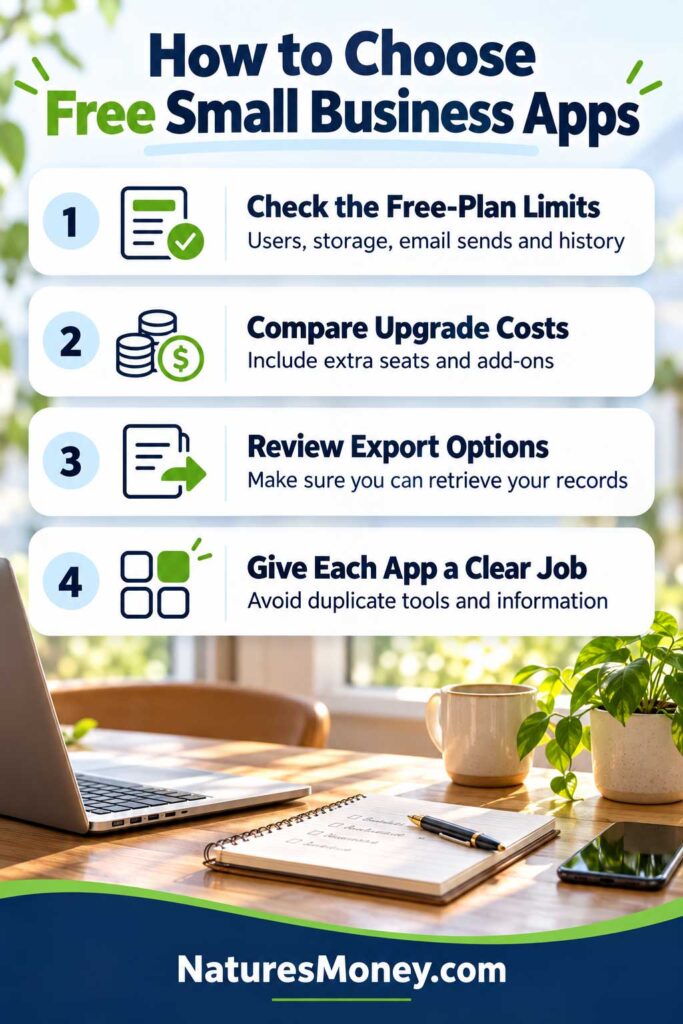
The best free small business apps should fit your daily work and leave room for your next stage of growth. Before committing, check what the free plan includes, how you can access your information, and what would trigger an upgrade.
Check the Limit That Will Affect You First
Focus on the restriction you are most likely to reach.
A two-user limit matters if a third person needs access. A daily email allowance matters when you want every subscriber to receive a promotion on the same day. Restricted message history becomes a problem when you need an older conversation.
Test the app with a typical business task. That will tell you more about its suitability than a long feature list.
Look at the Cost of Growing
Review the first paid plan you would realistically need, even if you intend to stay on the free version initially.
Calculate the cost for your expected number of users and check whether essential features require add-ons or a higher subscription tier. Pay attention to annual billing commitments, too.
Knowing the likely upgrade cost helps you decide whether the app remains affordable as your workload grows.
Check How You Can Retrieve Your Information
Before adding substantial business information, find out what you can export and in which formats. Check whether exports include the details you need, such as contact notes, invoice records, attachments, or task history.
Where practical, try an export with a few sample records. You should understand how to retrieve your information before you depend on the app.
Give Each App a Clear Job
Decide which tool holds your tasks, customer records, billing information, and final documents.
For example, your CRM might track customer conversations while your project manager tracks delivery deadlines. Clear boundaries reduce duplicate entries and make it easier to keep information current.
If two apps serve the same purpose, consider whether you need both before adding another system to maintain.
When Is It Worth Paying for a Business App?
A paid plan becomes worth considering when a free-plan limit regularly delays work, creates extra administration, or prevents someone from doing their job.
You might need another employee to access your CRM, enough email capacity to reach your subscribers on the same day, or automation that replaces a repetitive task.
Connect the upgrade to a specific, measurable benefit. Estimate how much time it would save each month, which costs it would replace, or what essential capability it would provide. Compare that benefit with the full subscription cost, including additional users and add-ons.
If possible, test the paid feature with a real task during a trial. Check that it solves the problem and confirm which subscription tier includes it before committing.
Keep using the free plan while it meets your needs. Upgrade when you can clearly explain what your business gains from paying.
Common Mistakes to Avoid When Choosing Free Business Apps
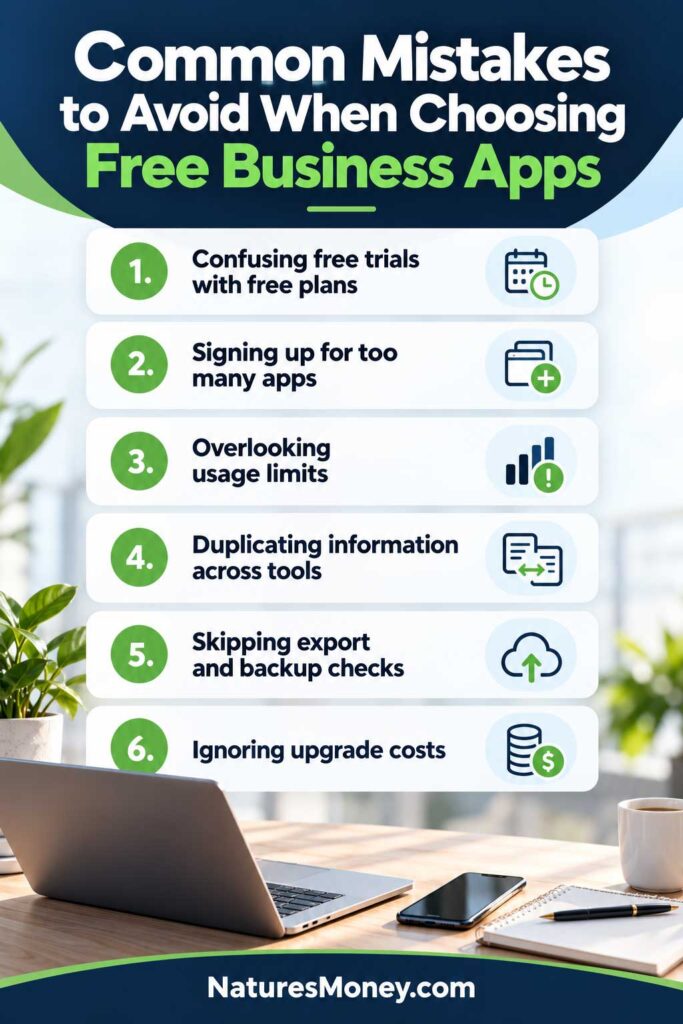
Free software can help keep costs down, but a poorly matched tool can create extra work. These are the mistakes to watch for when building your setup.
Confusing a Free Trial With a Free Plan
A trial may give you access to features that disappear when it ends. Before setting up your workflow, check which tools remain available on the ongoing free plan and whether the trial automatically converts to a paid subscription.
Signing Up for Too Many Apps
Adding several tools at once makes it harder to learn them and decide where information belongs. Start with one clear need, establish a routine, and add another app when it solves a separate problem.
Overlooking the Limits That Affect Daily Work
A free plan may look generous until you reach its user limit, sending allowance, or storage cap. Check the restrictions against a typical working week, including who needs access and how much activity you expect.
Keeping the Same Information in Several Places
When customer details, deadlines, or project updates appear in multiple apps, records can become inconsistent. Give each tool a clear purpose and decide where the main record belongs.
For example, keep customer follow-ups in your CRM and delivery tasks in your project manager.
Skipping Export and Backup Checks
Before adding important records, check what you can download and whether exports include notes, attachments, and other details you need. Keep appropriate backup copies of essential documents rather than relying entirely on access to one account.
Choosing Without Checking Upgrade Costs
A free app can become expensive if the next suitable plan requires several paid seats or additional features. Review the likely upgrade cost before building your business around it, especially if you expect to hire or increase usage soon.
FAQs About Free Small Business Apps
What are the best free apps for a small business?
It depends on what you need help with. Trello can organize tasks, HubSpot CRM can track customer follow-ups, Canva can help with marketing graphics, and Zoho Invoice can manage client billing. Start with the tool that solves your biggest day-to-day problem.
Can You Run a Small Business Using Free Apps?
Free apps can cover many everyday activities, including task management, document creation, customer tracking, and invoicing. They can be particularly useful for solopreneurs and businesses with straightforward requirements.
As your team or workload grows, you may need paid features. Review each tool when its limits begin to affect your work rather than upgrading everything at once.
What Is the Difference Between a Free Plan and a Free Trial?
A free plan provides ongoing access within defined limits. A free trial temporarily unlocks features that usually require payment.
Before starting a trial, check its end date, whether it renews automatically, and which features remain available afterward. This helps you avoid building a process around functionality you do not intend to pay for.
Do Free Business Apps Include Every Feature?
Free plans generally include a selection of a product’s features. Common restrictions involve users, storage, email volume, automation, reporting, and access to older records.
Check the features needed for your actual tasks. A generous storage allowance, for example, will not help if the plan excludes an essential export option.
Which App Should a Solopreneur Set Up First?
Choose the app that solves the problem you encounter most often. Start with a task manager if deadlines slip, a CRM if customer follow-ups get missed, or invoicing software if billing takes too much time.
Many tools work through a browser, so installing several apps is unnecessary. Set up one, use it consistently, and add others when you have a clear reason.
Our Recommendation
Start with the tools that help you complete work, serve customers, and get paid. For many small businesses, that means a task manager, a place to maintain customer records, and a reliable invoicing process.
Trello, HubSpot CRM, and Zoho Invoice are options to consider for those needs. Canva can support regular marketing work, while scheduling, email marketing, and time tracking tools can follow when they solve a recurring problem.
Keep your setup manageable and your information current. Review free-plan limits as your business grows, and pay for upgrades when the benefit justifies the cost.
Read More Small Business Software Guides
Explore these related guides to compare tools for your next business need:
- Best Small Business Apps — Explore free and paid options for managing everyday work.
- Best Free CRM Software for Small Businesses — Compare tools for organizing contacts and customer follow-ups.
- Best Project Management Software for Small Businesses — Find tools for managing tasks, deadlines, and team projects.
- Best Email Marketing Software for Small Businesses — Compare platforms for newsletters and customer campaigns.
- Best Accounting Software for Small Businesses — Explore options for bookkeeping, financial reports, and billing.