



When you run a small business, it’s easy to focus on getting customers and forget how much work goes into managing the money. Between unpaid invoices, software subscriptions, supplier bills, and everyday expenses, keeping your books organized can become a job of its own.
Accounting software helps bring those details together. But the best option for a freelancer sending five invoices a month won’t necessarily work for a retailer managing inventory or a company with employees.
This guide compares eight accounting platforms, including their pricing, strengths, limitations, and the businesses they’re best suited for.
Quick Answer: What Is the Best Accounting Software for Small Businesses?
For most small businesses, QuickBooks Online is our top overall recommendation. It brings together essential accounting features, including invoicing, expense tracking, bank reconciliation, and financial reporting. It also offers more advanced tools as your business grows.
However, QuickBooks isn’t always the most practical or affordable choice, especially if you’re self-employed or just starting out.
Affiliate disclosure: Some links in this article may be affiliate links. If you make a purchase or sign up through one of them, NaturesMoney may earn a commission at no additional cost to you.
Here are our top picks based on different business needs:
- Best overall: QuickBooks Online – A well-rounded option for businesses that need reliable accounting tools and room to grow.
- Best for growing businesses: Xero – A good fit for companies with multiple team members who need access to financial records.
- Best value: Zoho Books – Offers useful accounting features at competitive prices, including a free plan for eligible businesses.
- Best free bookkeeping software: Wave – Ideal for freelancers and very small businesses with straightforward bookkeeping needs.
- Best for freelancers: FreshBooks – Makes it easier to manage client invoices, track expenses, and organize project-related finances.
- Best for accounting and payroll: Patriot Software – An affordable option for US small businesses that want accounting and payroll services from the same provider.
- Best for integrated business management: Odoo – Worth considering if you want to connect accounting with inventory, sales, CRM, and other business operations.
- Best for advanced accounting: Sage 50 – Designed for established businesses that need more detailed inventory tracking, job costing, and financial controls.
If you’re running a small business with only a handful of monthly transactions, you probably don’t need an expensive accounting subscription. Wave or Zoho Books may provide everything you need to get started.
On the other hand, if you’re managing employees, processing more transactions, or working closely with an accountant, QuickBooks Online or Xero may be worth the additional cost.
Our recommendation: Start with the features you’ll actually use, then compare the regular subscription prices. The best accounting software isn’t necessarily the one with the most features. It’s the one that makes managing your business finances easier without adding unnecessary expenses.
Best Accounting Software for Small Businesses: Comparison Table
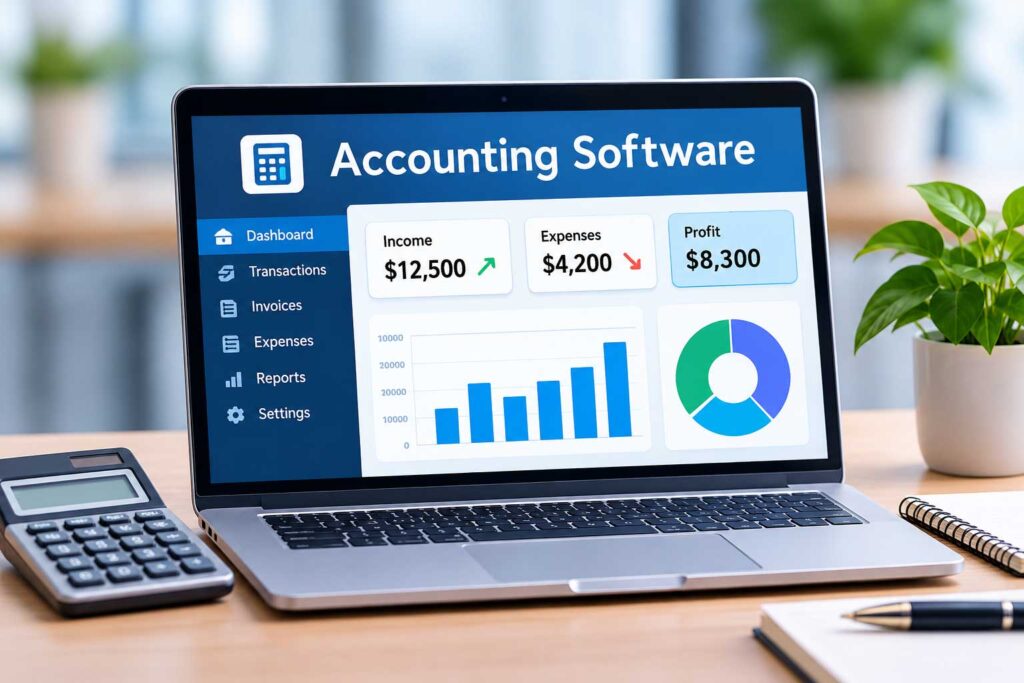
Not sure which accounting software is right for your business? The table below gives you a quick look at our eight recommended platforms, what they’re best suited for, and how much they cost.
We’ve listed regular US subscription prices rather than temporary promotional discounts, so you can get a better idea of what you might pay over time.
| Accounting Software | Best For | Starting Price | Free Plan |
|---|---|---|---|
| QuickBooks Online | Small businesses needing comprehensive accounting features | $38/month | No free plan for the full QuickBooks Online plans reviewed |
| Xero | Growing businesses and teams | $27/month | No |
| Zoho Books | Startups and budget-conscious businesses | Free; paid plans from $20/month | Yes |
| Wave | Freelancers and very small businesses | Free; Pro from $19/month | Yes |
| FreshBooks | Freelancers, consultants, and service businesses | $23/month | No |
| Patriot Software | US businesses needing accounting and optional payroll | $20/month | No |
| Odoo | Businesses connecting accounting with sales, CRM, and inventory | Free for one app; paid plans available | Yes |
| Sage 50 | Established businesses needing advanced accounting and inventory features | From $132.17/month for Sage 50 Cloud; desktop pricing varies | No |
Which Accounting Software Offers the Best Value?
If keeping costs low is your biggest priority, Wave and Zoho Books are good places to start. Both offer free accounting options, although certain features and eligibility requirements differ.
For businesses that need more advanced financial reporting, bank reconciliation, and room to expand, QuickBooks Online and Xero are worth comparing.
FreshBooks is particularly appealing if you work directly with clients and spend a lot of time creating invoices or tracking project expenses.
Before choosing a platform, think about how many transactions you handle each month, whether you need payroll or inventory management, and which features would actually save you time.
A note about pricing: The prices shown reflect published US rates reviewed in October 2026 and may change. Your total cost may also include payment processing fees, payroll services, additional users, integrations, or other optional features. Some platforms offer discounts for annual billing.
Xero updated its US subscription prices on October 1, 2026, so you may see lower figures in older reviews. Always check the provider’s official pricing page before subscribing.
What Is Small Business Accounting Software?
Small business accounting software helps you keep track of your company’s money without having to manage everything manually. It organizes your income, expenses, invoices, and other financial records in one place, making it easier to see how your business is performing.
Instead of spending hours entering transactions into spreadsheets or searching through receipts, you can use accounting software to handle many everyday bookkeeping tasks.
Depending on the platform and plan you choose, you can:
- Track income and expenses: See how much money your business earns and where it’s being spent.
- Create and send invoices: Bill customers, monitor outstanding payments, and send reminders.
- Connect business bank accounts: Import transactions automatically and keep financial records more organized.
- Manage bills and payments: Keep track of upcoming expenses and what you owe suppliers.
- Generate financial reports: Review profits, losses, cash flow, and other important financial information.
- Prepare for tax season: Organize records and expense categories so they’re easier to review with your accountant.
Accounting software is only one part of a small business’s toolkit. If you’re also looking for affordable scheduling, project management, and productivity tools, explore our best free small business apps.
How Does Accounting Software Work?
Imagine you run a small web design business. Each month, you receive payments from clients, pay for website hosting, renew software subscriptions, and occasionally hire freelancers to help with projects.
Without accounting software, you might track everything in a spreadsheet, save receipts in different folders, and manually calculate your expenses at the end of the month.
With accounting software, you can connect your business bank account, import transactions, categorize expenses, and create invoices from one dashboard.
You can also generate reports to see how much revenue you’ve earned, how much you’ve spent, and whether your business is making a profit.
If your business records $8,000 in revenue and $3,000 in operating expenses, that’s $5,000 before other expenses, taxes, and accounting adjustments. It doesn’t necessarily mean you have $5,000 available in your bank account.
That makes it easier to understand your finances and decide where to cut costs or invest more money.
Do Small Businesses Really Need Accounting Software?
Not every small business needs a paid accounting subscription. If you’re just starting out and have very few transactions, a well-organized spreadsheet might be enough.
However, as your business grows, keeping accurate records manually can become more difficult and time-consuming.
The Internal Revenue Service (IRS) explains that businesses should maintain records that clearly show their income and expenses. Accurate recordkeeping also helps with tax preparation and monitoring business performance.
Accounting software can help with these responsibilities, but it doesn’t replace the need to review your financial information or seek professional accounting advice when necessary.
Our recommendation: If you’re spending too much time organizing receipts, tracking unpaid invoices, or updating spreadsheets, accounting software is worth considering. Even a free platform like Wave or Zoho Books may help you stay organized and spend more time running your business.
8 Best Accounting Software Options for Small Businesses in 2026
Choosing accounting software can feel overwhelming when so many platforms offer similar features. Some focus on simple bookkeeping and invoicing, while others provide advanced reporting, inventory management, payroll integrations, and tools for growing businesses. To make your decision easier, we’ve selected eight accounting software options worth considering in 2026. Below, we’ll take a closer look at what each platform offers, how much it costs, its advantages and limitations, and which types of businesses it works best for.
1. QuickBooks Online — Best Overall Accounting Software for Small Businesses
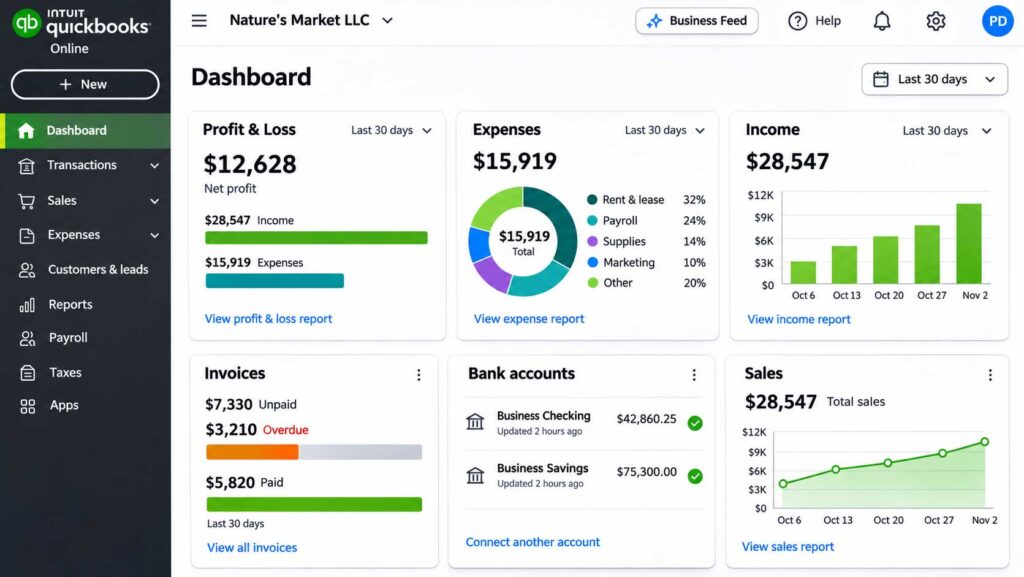
Best for: Growing small businesses, consultants, service providers, and companies that need reliable bookkeeping, invoicing, and detailed financial reporting.
QuickBooks Online handles the everyday accounting work many small businesses need, from invoicing and expense tracking to bank reconciliation and financial reports.
Its main advantage is flexibility: you can start with basic bookkeeping and move to plans with more advanced tools when you need them.
If you’re self-employed or running a small operation, you can start with a basic plan that covers essential bookkeeping tasks. As your business expands, you can move to a higher subscription tier for additional users, inventory management, project profitability tracking, and more advanced reporting.
For example, imagine running a home repair business. You need to invoice customers, record payments, track equipment purchases, and monitor operating expenses. QuickBooks helps keep those records organized so you can see what you’re earning and spending without constantly updating spreadsheets.
It’s not the cheapest accounting software available, but its combination of features and flexibility makes it a strong option for businesses that want a long-term accounting solution.
Key Features
QuickBooks Online includes a wide range of accounting tools, although some features are available only with higher-priced subscriptions.
- Income and expense tracking: Connect supported bank accounts and credit cards, import transactions, and organize business expenses.
- Professional invoicing: Create invoices, accept supported payment methods, and track outstanding customer balances.
- Bank reconciliation: Compare recorded transactions with bank statements to help identify missing or incorrect entries.
- Financial reporting: Generate reports such as profit and loss statements, balance sheets, and cash flow reports.
- Receipt management: Upload or capture receipts and keep supporting documentation with your financial records.
- Bill management: Track supplier bills and upcoming payments on eligible plans.
- Inventory tracking: Monitor products and inventory-related costs with supported higher-tier plans.
- Project profitability: Track income and expenses associated with individual projects on eligible plans.
- Business integrations: Connect QuickBooks with compatible payment, ecommerce, payroll, and other business applications.
You probably won’t need every feature when you’re starting out. The advantage is having the option to add more functionality as your accounting requirements become more demanding.
QuickBooks Pricing
QuickBooks Online offers several subscription plans designed for businesses of different sizes.
| Plan | Regular Monthly Price |
|---|---|
| Simple Start | $38 |
| Essentials | $85 |
| Plus | $140 |
| Advanced | $340 |
Prices reflect previously published regular US rates reviewed in October 2026. Check the official website for current pricing, promotions, and plan details.
Simple Start is designed for businesses that need essential bookkeeping, invoicing, and financial reports.
Essentials adds features such as bill management, time tracking, and support for additional users.
Plus is more suitable for businesses that need inventory tracking and project profitability tools.
Advanced is intended for companies requiring more users, advanced reporting, and additional financial management capabilities.
QuickBooks also offers more limited Free and Lite products, but these should not be confused with the full QuickBooks Online accounting plans.
Keep in mind that payroll, payment processing, and certain other services may cost extra.
You can review the latest plans and features on the official QuickBooks pricing page.
What We Like
A comprehensive set of accounting tools
QuickBooks handles many of the financial tasks small-business owners deal with regularly. Instead of using separate applications for invoicing, expense tracking, and financial reporting, you can manage these activities from one platform.
Room to grow
You don’t necessarily need to change accounting software when your business becomes larger or more complicated. Moving to a higher plan can provide access to additional capabilities.
Useful financial reports
QuickBooks makes it easier to review revenue, expenses, outstanding invoices, and overall financial performance. These reports can help you identify problems and make more informed business decisions.
Accountant collaboration
QuickBooks supports accountant access, making it easier to share financial information with a professional who works with the platform.
Potential Drawbacks
Higher subscription costs
QuickBooks can become expensive, particularly when you need inventory management, additional users, or advanced reporting. Its higher-tier plans may be difficult to justify for a small business with straightforward bookkeeping needs.
Some features require upgrades
Not every feature is available with Simple Start. Businesses that need inventory tracking, project profitability, or more users may need a more expensive subscription.
Additional service fees
Payroll, payment processing, and certain optional services can increase the total monthly cost.
A learning curve for beginners
Although QuickBooks offers tools for small businesses, setting up accounts, categories, and financial reports can take time if you’re unfamiliar with bookkeeping.
Who Should Use QuickBooks?
QuickBooks Online is worth considering if you:
- Run a growing small business with regular income and expenses.
- Need invoicing, bank reconciliation, and financial reports in one place.
- Work with an accountant or bookkeeper.
- Want the option to add inventory, project tracking, or additional users later.
- Prefer a comprehensive accounting platform over several separate tools.
On the other hand, if you’re a freelancer sending only a few invoices each month, QuickBooks may offer more features than you actually need. Wave or Zoho Books could be more affordable alternatives.
Our Recommendation
QuickBooks Online is our top overall choice for small businesses that need comprehensive accounting features and room to grow.
For businesses with straightforward bookkeeping needs, Simple Start may be enough. If you manage supplier bills or need additional users, compare Essentials. Businesses that require inventory tracking or project profitability should evaluate Plus.
Before subscribing, check which features are included in your preferred plan and calculate the regular monthly cost after any introductory discount expires.
Explore QuickBooks Online Plans and Pricing
2. Xero — Best Accounting Software for Growing Businesses
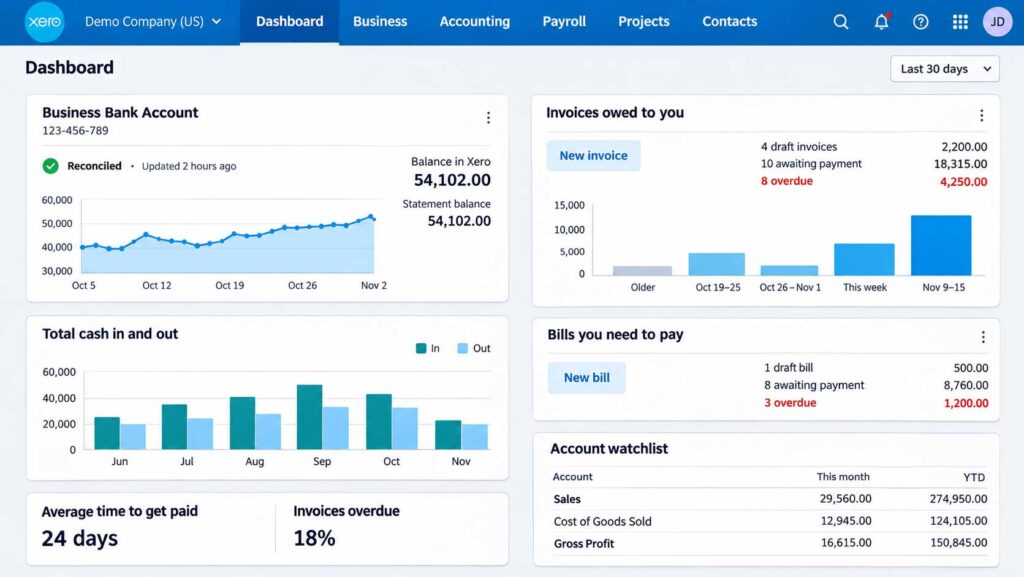
Best for: Growing small businesses, companies with multiple team members, and business owners who want cloud-based accounting software that can handle more complex financial tasks over time.
Xero is a cloud-based accounting platform that helps small businesses manage invoices, expenses, bank transactions, and financial reports in one place.
It’s particularly appealing to businesses that are expanding and need more than one person involved in managing their finances.
For example, imagine you run a small marketing agency. You handle client relationships, your office manager sends invoices, and an outside accountant reviews your financial records. With Xero, everyone can access the information they need without constantly exchanging spreadsheets or emailing updated reports.
One of Xero’s biggest advantages is that all three US subscription plans support unlimited standard users at no additional per-user subscription charge. That’s useful for growing teams that need to collaborate without worrying about paying for another accounting software seat.
Xero also connects with a wide range of third-party business applications, making it easier to integrate accounting with other parts of your operations.
While it may take some time to learn, especially if you’re new to bookkeeping, Xero offers a good balance of everyday accounting features and tools for businesses with more demanding financial needs.
Key Features
Xero includes essential bookkeeping tools along with more advanced capabilities on higher subscription plans.
- Online invoicing: Create professional invoices, send them to customers, track outstanding balances, and manage payment reminders.
- Bank connections and reconciliation: Import transactions from supported financial institutions and match them with your accounting records.
- Expense tracking: Record business expenses and organize transactions to understand where your money is going.
- Bill management: Keep track of supplier invoices, upcoming payments, and outstanding bills.
- Financial reporting: Generate profit and loss statements, balance sheets, and other reports to monitor business performance.
- Unlimited standard users: Invite team members and accounting professionals without additional per-user subscription fees.
- Cash flow visibility: Review upcoming bills, outstanding invoices, and financial information to better understand your cash position.
- Multiple currency support: Manage transactions in different currencies with the Established plan.
- Project tracking: Track project-related income, expenses, and profitability with eligible plans and features.
- Third-party integrations: Connect Xero with compatible payroll, ecommerce, payment processing, and other business applications.
Not every business needs these capabilities immediately. If you’re just starting out, invoicing and expense tracking may be enough. As your company grows, additional reporting and project management features can become more valuable.
Xero Pricing
Xero offers three main accounting plans for US businesses.
Its regular US subscription prices increased on October 1, 2026.
| Plan | Regular Monthly Price |
|---|---|
| Early | $27 |
| Growing | $59 |
| Established | $97 |
Prices reflect published US subscription rates effective October 1, 2026. Promotional discounts may be available, and additional services can increase the total cost.
Early — $27/month
The Early plan is designed for small businesses with limited accounting activity. It includes essential bookkeeping features but restricts the number of invoices and bills you can process each month.
That makes it more appropriate for freelancers or very small businesses with relatively few transactions.
Growing — $59/month
Growing removes the Early plan’s invoice and bill limits, making it a more practical option for businesses with regular customer transactions and supplier expenses.
For many expanding small businesses, this plan provides a useful balance between accounting functionality and monthly cost.
Established — $97/month
Established adds more advanced capabilities, including multiple currency support, project tracking, and expense management features.
It’s better suited to businesses with international transactions, project-based work, or more complicated financial operations.
You can compare the latest features and subscription prices on the official Xero pricing page.
What We Like
Unlimited users on every plan
This is one of Xero’s most attractive features. You can provide access to your accountant, bookkeeper, or employees without paying a separate subscription fee for each standard user.
For a growing business, that can make a noticeable difference in long-term software costs.
Easy collaboration with your accountant
Because Xero is cloud-based, your accountant can review financial records and work with your team without needing files sent back and forth.
Useful integrations
Xero supports integrations with many business applications. This can be especially helpful if you’re already using separate tools for payroll, ecommerce, inventory, or customer management.
Room for business growth
You can begin with basic bookkeeping and upgrade as your accounting requirements become more complicated.
Clear financial reporting
Xero provides reports that help you understand revenue, expenses, outstanding invoices, and overall financial performance.
Potential Drawbacks
The Early plan has transaction limits
If your business sends invoices regularly or receives many supplier bills, you may outgrow the Early plan quickly.
Advanced features cost more
Multiple currency support, project tracking, and certain expense management capabilities require the Established plan.
Payroll isn’t included as a complete built-in service
Businesses that need payroll generally have to use a compatible integration or separate provider, which can introduce additional costs.
Some setup and learning are required
If you’ve never used accounting software before, understanding reconciliation, financial categories, and reporting may take time.
Who Should Use Xero?
Xero is worth considering if you:
- Run a growing business with increasing accounting needs.
- Want multiple employees or outside accountants to access financial information.
- Need invoicing, expense tracking, bank reconciliation, and reporting in one platform.
- Use other business applications and want compatible integrations.
- Expect to manage more complicated financial operations in the future.
For example, a small consulting company with several employees may benefit from Xero’s unlimited standard users and collaborative accounting features.
However, if you’re self-employed and only send a few invoices each month, Wave or Zoho Books may be more affordable choices.
Our Recommendation
Xero is one of our top recommendations for growing small businesses that need collaborative accounting without additional per-user subscription fees.
For most businesses with regular invoicing and expenses, the Growing plan is worth considering because it removes the Early plan’s invoice and bill limits.
If your company handles multiple currencies or needs advanced project and expense management, compare the Established plan.
Before subscribing, check whether your accountant works with Xero and confirm that the integrations your business needs are available.
Compare Xero Accounting Plans and Pricing
3. Zoho Books — Best Value Accounting Software for Small Businesses
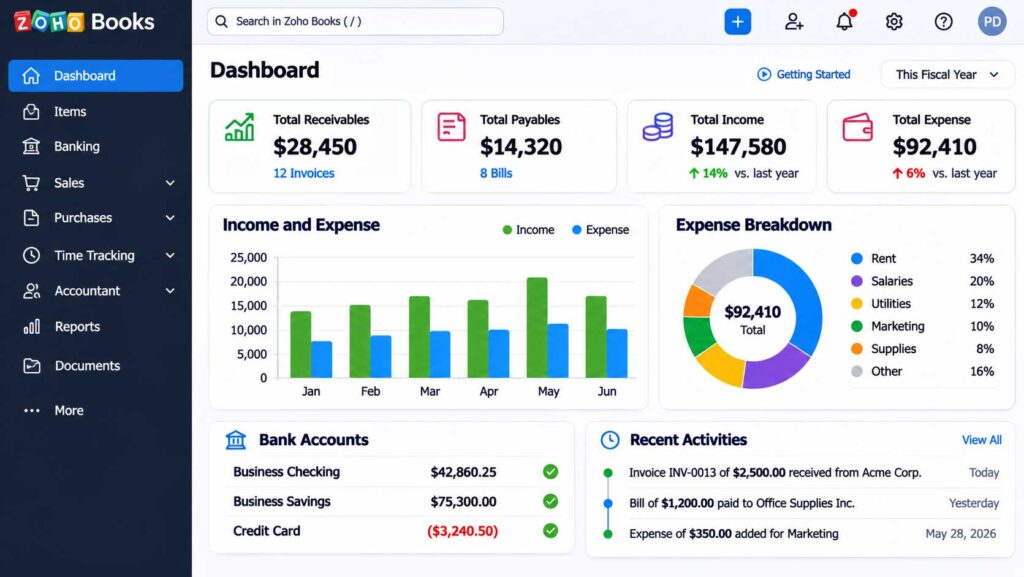
Best for: Startups, freelancers, solopreneurs, and small-business owners who want reliable accounting features without paying for an expensive subscription.
Zoho Books is one of the more affordable accounting platforms for small businesses, offering a free plan for eligible companies and several paid options as their needs grow.
Zoho Books gives eligible small businesses a way to manage invoices and expenses without starting with a paid subscription. You can create invoices, track expenses, manage customer information, and generate financial reports without immediately committing to a paid plan.
For example, imagine you’ve recently started a small consulting business. You have a few regular clients, pay for software subscriptions, and need to keep your business expenses organized. Zoho Books can help you handle those everyday financial tasks without adding a large monthly bill.
As your business grows, you can upgrade to access features such as automated bank feeds, purchase orders, inventory tracking, and more advanced reporting.
Zoho Books is also worth considering if you already use other Zoho applications, such as Zoho CRM or Zoho Inventory. Using compatible tools from the same provider may make it easier to keep customer, sales, and financial information connected.
It’s not necessarily the best option for every business, but Zoho Books offers an attractive balance of affordability, functionality, and room for growth.
Key Features
Zoho Books includes a range of accounting tools, with additional capabilities available on higher subscription plans.
- Professional invoicing: Create customized invoices, send them to customers, and track payments and outstanding balances.
- Income and expense tracking: Record business transactions and organize expenses into categories.
- Customer and vendor management: Keep customer details, supplier information, and transaction histories organized.
- Financial reporting: Generate reports such as profit and loss statements, balance sheets, and other financial summaries.
- Bank reconciliation: Match recorded transactions with bank activity to help maintain accurate financial records.
- Automated bank feeds: Import transactions from supported financial institutions on eligible paid plans.
- Recurring invoices: Automate regular billing for customers who pay monthly or on another schedule, subject to plan features.
- Purchase orders: Create and manage purchase orders with supported subscriptions.
- Inventory tracking: Monitor product quantities and inventory-related transactions on eligible higher-tier plans.
- Workflow automation: Automate certain accounting processes, reminders, and approvals with supported plans.
- Zoho integrations: Connect with compatible Zoho products and other supported business applications.
You may not need all these features immediately. For a freelancer or new business, basic invoicing and expense tracking could be enough. As your transaction volume increases, the automation and reporting features may become more useful.
Zoho Books Pricing
Zoho Books offers a free plan along with several paid subscriptions.
Here are four options worth comparing:
| Plan | Regular Monthly Price |
|---|---|
| Free | $0 |
| Standard | $20 |
| Professional | $50 |
| Premium | $70 |
Prices reflect previously published US monthly rates reviewed in October 2026. Annual billing may reduce the monthly equivalent. Additional plans, users, and optional services may affect the total cost.
Free — $0/month
Zoho Books offers a Free plan for eligible businesses with annual revenue of $50,000 or less. It includes invoicing, expense tracking, bank reconciliation, and financial reports, subject to transaction and user limits.
For a new business with straightforward accounting needs, this may be enough to get started without a monthly subscription.
This can be a useful starting point for a new business that doesn’t need automated bank feeds or advanced inventory tools.
Standard — $20/month
Standard adds functionality for businesses that need more automation and flexibility.
Depending on the current plan terms, features include bank feeds, recurring expenses, additional transaction capacity, and more advanced accounting tools.
It’s worth considering when manual bookkeeping begins taking too much time.
Professional — $50/month
Professional is designed for businesses with more involved financial operations.
It adds features such as purchase orders, inventory tracking, and other tools that may be useful for businesses selling products or managing suppliers.
Premium — $70/month
Premium offers additional automation, customization, and reporting capabilities.
It’s more suitable for businesses that have outgrown the lower-priced subscriptions and need greater control over their accounting processes.
Zoho Books also offers higher-tier plans for businesses with more advanced requirements.
You can review the latest features and pricing on the official Zoho Books pricing page.
What We Like
A genuinely useful free plan
Unlike some platforms that only provide a short free trial, Zoho Books offers an ongoing free subscription for businesses that meet its eligibility requirements.
For a new business trying to control expenses, that’s a meaningful advantage.
Affordable paid subscriptions
Zoho Books provides a relatively low-cost entry point compared with several larger accounting platforms.
You can begin with basic functionality and move to a more advanced subscription when necessary.
Good selection of accounting features
Even smaller businesses can benefit from organized invoicing, expense tracking, customer records, and financial reports.
Higher plans introduce additional tools without requiring an immediate switch to another provider.
Integration with other Zoho products
If your business already uses Zoho CRM, Zoho Inventory, or other compatible applications, Zoho Books may fit naturally into your existing workflow.
Flexible upgrade options
The different subscription tiers allow businesses to add more functionality as their needs change.
Potential Drawbacks
The free plan has eligibility limits
Businesses exceeding the published annual revenue threshold cannot continue using the free subscription under the same terms.
The free plan also has transaction and user limits.
Important features require paid plans
Automated bank feeds, inventory management, purchase orders, and advanced workflow capabilities aren’t all included in the free subscription.
Some features take time to configure
Zoho Books provides numerous settings and options. If you’re new to accounting software, setting up financial categories, tax preferences, and automation may require some learning.
The broader Zoho ecosystem isn’t necessary for everyone
Integrations with other Zoho applications can be useful, but businesses using unrelated software should confirm compatibility before subscribing.
Who Should Use Zoho Books?
Zoho Books is worth considering if you:
- Are starting a business and want to keep monthly expenses low.
- Need invoicing, expense tracking, and basic financial reports.
- Run a freelance, consulting, or small service business.
- Want affordable accounting software with room to expand.
- Already use Zoho CRM or other compatible Zoho applications.
- Prefer starting with a free plan before paying for advanced features.
For example, a freelance web designer who sends several invoices each month and pays for a handful of business subscriptions may find that the Free plan covers their initial bookkeeping needs.
A growing online store, however, may need Professional or another higher-tier subscription for inventory and purchasing features.
Our Recommendation
Zoho Books is our top value recommendation for small businesses that want capable accounting software without unnecessary monthly expenses.
If you’re eligible for the Free plan and only need basic invoicing and bookkeeping, start there. There’s little reason to pay for advanced features before your business actually needs them.
As your business grows, Standard is worth comparing for its additional accounting capabilities and automation.
If you sell physical products or need purchase order and inventory management features, take a closer look at Professional.
Before choosing, review the current plan limits, confirm compatibility with your business bank, and make sure the features you need are included.
Explore Zoho Books Free and Paid Plans
4. Wave — Best Free Accounting Software for Small Businesses
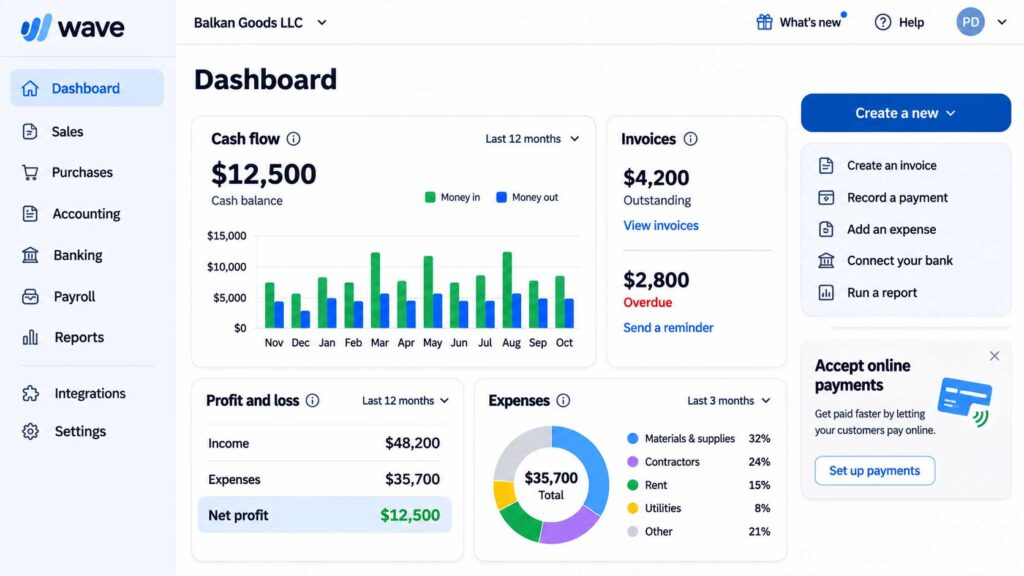
Best for: Freelancers, independent contractors, solopreneurs, and very small businesses that need simple bookkeeping and invoicing without paying a monthly subscription.
Wave is a practical starting point for freelancers who need invoicing and bookkeeping without another monthly bill. Unlike many accounting tools that only offer a limited free trial, Wave provides an ongoing free Starter plan with essential bookkeeping and invoicing features.
If you’re just starting a business, adding another monthly software subscription might be the last thing you want. Wave gives you a way to organize your financial records, create invoices, and track income and expenses without immediately paying for accounting software.
For example, imagine you’re a freelance photographer. You work with a few clients each month, send invoices after completing projects, and have expenses such as camera equipment, editing software, and transportation.
You probably don’t need complicated inventory management or advanced financial forecasting. You just need a reliable way to record payments, keep track of expenses, and see how much your business is earning.
As your business grows, you can upgrade to Wave Pro for features such as automatic bank transaction imports, receipt capture, and additional invoicing automation.
Wave isn’t designed to handle every accounting requirement, particularly for larger businesses with complex inventory or operational needs. But for freelancers and microbusinesses, it offers a useful combination of simplicity and affordability.
Key Features
Wave focuses on everyday bookkeeping and invoicing tasks. Some features are included in the free Starter plan, while others require Wave Pro or additional paid services.
- Income and expense tracking: Record business revenue and expenses to keep your financial information organized.
- Professional invoicing: Create customized invoices, send them to customers, and track outstanding payments.
- Estimates: Prepare estimates for potential customers before starting a project.
- Financial reporting: Review reports such as profit and loss statements and other basic financial summaries.
- Bill tracking: Record bills and keep track of money owed to suppliers.
- Customer management: Store customer information and review invoice and payment histories.
- Online payment acceptance: Offer supported payment methods on invoices, subject to payment processing fees.
- Bank transaction imports: Automatically import transactions from supported bank accounts with Wave Pro.
- Receipt capture: Upload and organize business receipts with eligible paid features.
- Recurring invoices: Automate regular customer billing with supported Pro functionality.
- Accounting collaboration: Share access with supported users or accounting professionals, subject to plan permissions.
For many freelancers, the free bookkeeping and invoicing tools may be enough. Businesses that want to reduce manual data entry will likely find the Pro features more useful.
Wave Pricing
Wave keeps its main accounting subscription options relatively simple.
| Plan | Regular Price |
|---|---|
| Starter | Free |
| Pro Monthly | $19/month |
| Pro Annual | $190/year |
Prices reflect previously published US rates reviewed in October 2026. Check the official website for current subscription prices and feature availability.
Starter — Free
Wave Starter provides basic accounting and invoicing functionality without a monthly subscription.
You can record transactions, create invoices, track expenses, and generate financial reports.
However, certain automation features are unavailable or limited. For example, you may need to enter transactions manually or import them through supported methods rather than relying on automatic bank connections.
This plan is most suitable for businesses with relatively few monthly transactions.
Pro — $19/month
Wave Pro adds features designed to save time on repetitive bookkeeping tasks.
These include automatic bank transaction imports, receipt capture, and additional invoicing automation.
For business owners who process transactions regularly, these features may reduce the amount of manual bookkeeping required.
Pro Annual — $190/year
The annual subscription provides the Pro features at a lower effective monthly cost than paying $19 every month.
However, annual billing requires a larger upfront payment.
Wave also offers payment processing and payroll services, where available, for additional fees.
You can compare the latest plans on the official Wave pricing page.
What We Like
A free plan that covers essential bookkeeping
Wave’s biggest advantage is that you can start organizing your business finances without paying a monthly subscription.
For a new freelancer or small service business, that can be particularly valuable.
Simple invoicing
Wave makes it possible to create professional invoices and keep track of customer payments without needing a separate invoicing application.
This is useful for consultants, designers, photographers, and other service providers.
Affordable upgrade option
If your business grows and manual bookkeeping becomes too time-consuming, Wave Pro offers additional automation without requiring an especially expensive subscription.
Useful financial reports
Even small businesses need to understand their income, expenses, and profitability.
Wave provides basic financial reports that can help business owners review their performance and prepare records for an accountant.
Suitable for businesses with straightforward finances
If you don’t need complicated inventory management or advanced accounting features, Wave may provide everything necessary for everyday bookkeeping.
Potential Drawbacks
Limited automation on the free plan
Wave Starter doesn’t include the same automatic bank transaction imports and receipt management capabilities as Pro.
If you handle many transactions each month, manual bookkeeping can become time-consuming.
Not ideal for inventory-heavy businesses
Wave doesn’t provide the same advanced inventory management capabilities as some larger accounting platforms.
Businesses selling numerous physical products may need another solution.
Payroll and payment processing cost extra
Although the basic accounting plan is free, accepting online payments and using payroll services can introduce additional charges.
Limited advanced accounting features
Businesses that require complex financial reporting, project costing, or sophisticated operational accounting may eventually outgrow Wave.
Availability varies by country
Wave primarily serves businesses in the United States and Canada. Companies operating elsewhere should verify whether the service is available for their location.
Who Should Use Wave?
Wave is worth considering if you:
- Are starting a business and want to avoid monthly accounting software fees.
- Work as a freelancer, consultant, or independent contractor.
- Send a relatively small number of invoices each month.
- Need basic income and expense tracking.
- Want to create professional invoices without buying separate software.
- Don’t require advanced inventory management or complicated financial reporting.
For example, a freelance graphic designer who works with five regular clients may find Wave Starter perfectly adequate for invoicing and tracking business expenses.
However, a growing ecommerce company processing hundreds of transactions each month may benefit from a platform with more automation, integrations, and inventory capabilities.
Our Recommendation
Wave is our top free accounting software recommendation for freelancers and very small businesses with straightforward bookkeeping needs.
If you’re just getting started, try Wave Starter before paying for a more advanced accounting platform. It provides a practical way to organize your income, expenses, and customer invoices without adding another monthly bill.
If your business begins handling more transactions and manual bookkeeping becomes frustrating, compare the Pro subscription. Automatic bank imports and receipt capture may be worth the additional cost.
For businesses that need inventory management, detailed project accounting, or more advanced financial controls, consider QuickBooks Online, Xero, or Zoho Books instead.
Get Started With Wave for Free
5. FreshBooks — Best Accounting Software for Freelancers
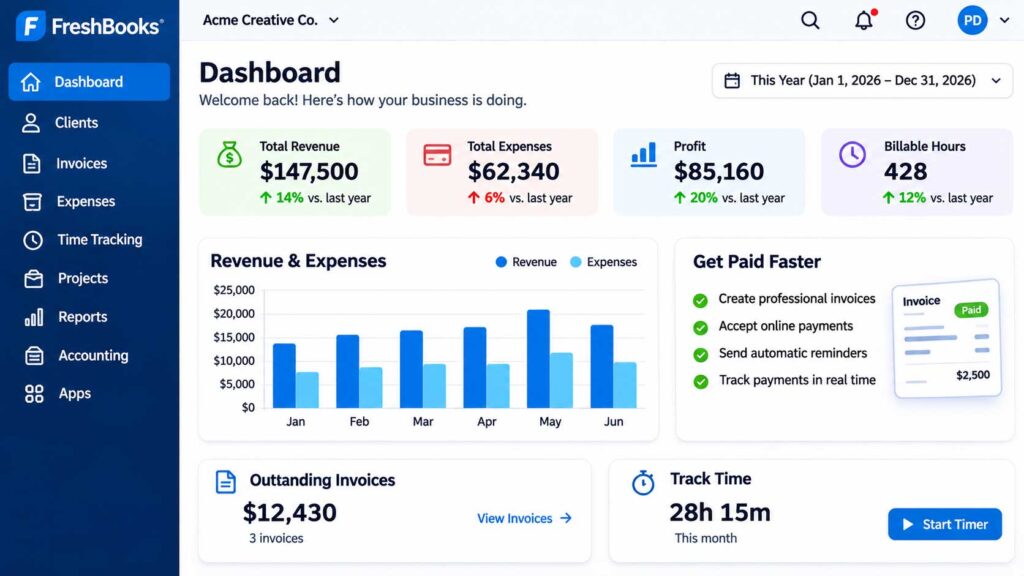
Best for: Freelancers, consultants, graphic designers, marketing agencies, and service-based businesses that need easy invoicing, expense tracking, and client management.
FreshBooks is an accounting platform built with freelancers and service businesses in mind. While many accounting tools focus primarily on bookkeeping and financial reports, FreshBooks puts a strong emphasis on managing clients, sending invoices, tracking billable time, and getting paid.
If you work with clients regularly, you know that running a service business involves more than completing projects. You also need to prepare estimates, send invoices, follow up on unpaid bills, and keep track of business expenses.
FreshBooks brings many of these tasks together in one place.
For example, imagine you’re a freelance web designer working with several small businesses. One client pays a monthly website maintenance fee, another hires you for a website redesign, and a third needs occasional updates billed by the hour.
With FreshBooks, you can track time spent on projects, create invoices, record expenses, and monitor which clients have paid. Depending on your plan, you can also set up recurring invoices for ongoing services.
That makes FreshBooks particularly useful for professionals who sell their time, expertise, or creative services rather than physical products.
It’s not necessarily the cheapest accounting software, especially as your client list grows, but its client-focused tools can help simplify everyday business administration.
Key Features
FreshBooks combines essential accounting features with tools designed for freelancers and client-based businesses.
- Professional invoicing: Create customized invoices, add your business branding, and send them directly to clients.
- Online payment collection: Allow customers to pay invoices through supported payment methods, subject to processing fees.
- Expense tracking: Record business purchases, organize expenses, and keep financial records in one place.
- Time tracking: Track billable hours and use recorded time when preparing client invoices.
- Estimates and proposals: Prepare estimates for potential projects, with more advanced proposal features available on eligible plans.
- Recurring invoices: Set up automatic invoices for clients who pay monthly or on another regular schedule.
- Payment reminders: Send reminders to customers with unpaid invoices using supported automation features.
- Project management: Organize client projects, track time, and monitor project-related financial information.
- Financial reporting: Review profit and loss statements, expense reports, and other financial summaries.
- Client management: Store customer details, review invoice histories, and manage billing information.
- Retainers: Manage recurring client arrangements and related billing on eligible plans.
- Bank connections: Connect supported business bank accounts to help organize and reconcile transactions.
Some of these features are limited to particular subscription plans, so it’s important to compare what each tier includes before signing up.
FreshBooks Pricing
FreshBooks offers several subscription plans based on the size and needs of your business.
| Plan | Regular Monthly Price |
|---|---|
| Lite | $23 |
| Plus | $43 |
| Premium | $70 |
| Select | Custom pricing |
Prices reflect previously published regular US monthly rates reviewed in October 2026. FreshBooks frequently offers introductory discounts, and annual billing may provide additional savings. Check the official website for current prices.
Lite — $23/month
Lite is designed for freelancers and very small service businesses that work with a limited number of clients.
It supports invoicing up to five clients and includes essential tools for tracking expenses, accepting payments, and managing basic accounting tasks.
If you only work with a few regular customers, this plan may be enough.
However, the five-client limit can become restrictive if you’re actively growing your business.
Plus — $43/month
Plus supports invoicing up to 50 clients and adds features such as recurring invoices, automated payment reminders, and additional billing capabilities.
This plan is worth considering if you manage ongoing client relationships or send invoices regularly.
Premium — $70/month
Premium supports unlimited billable clients and includes more advanced features for businesses with larger customer lists and more demanding accounting requirements.
It may be a better fit for established freelancers, consultants, and small agencies.
Select — Custom Pricing
Select is intended for businesses with more complex billing requirements that need customized pricing and additional services.
Businesses considering this plan should contact FreshBooks to discuss their specific needs.
Keep in mind that adding team members, using certain payment services, or purchasing optional features may increase your total cost.
You can compare the latest subscriptions on the official FreshBooks pricing page.
What We Like
Designed around freelancers and service businesses
FreshBooks focuses on the tasks that independent professionals handle regularly, such as invoicing clients, tracking time, and managing project expenses.
That makes it a practical option for businesses that don’t need complicated inventory or warehouse management.
Professional invoicing tools
You can create invoices with your business branding, monitor outstanding payments, and offer supported online payment options.
For freelancers who want to look professional without spending too much time on administration, this is a useful advantage.
Built-in time tracking
If you bill clients by the hour, time tracking can help you record your work and prepare more accurate invoices.
This is particularly useful for consultants, designers, developers, and other professionals who charge for their time.
Recurring billing options
FreshBooks supports recurring invoices on eligible plans, making it easier to bill customers for ongoing services.
For example, a marketing consultant charging clients a monthly retainer can automate part of the invoicing process.
Useful project-related features
Tracking billable time and expenses by project can help you understand how much work goes into each client relationship and whether projects are financially worthwhile.
Potential Drawbacks
Client limits on lower-priced plans
FreshBooks Lite supports only five billable clients, while Plus supports up to 50.
If you regularly take on new customers, you may need to upgrade sooner than expected.
Additional users can increase costs
Depending on the plan and user role, adding employees or contractors may require additional paid seats.
Not ideal for complex inventory management
FreshBooks is primarily designed for service businesses.
If you operate an ecommerce store or manage a large inventory of physical products, QuickBooks Online, Xero, or another inventory-focused platform may be more appropriate.
Subscription costs can add up
The monthly price may become relatively expensive when you need a higher plan, additional users, or optional payment services.
Some advanced features require upgrades
Recurring billing, advanced proposals, and certain financial management tools aren’t available on every plan.
Who Should Use FreshBooks?
FreshBooks is worth considering if you:
- Work as a freelancer, consultant, designer, or independent professional.
- Run a service-based business that invoices clients regularly.
- Bill customers by the hour or manage project-based work.
- Need estimates, invoices, expense tracking, and payment records in one platform.
- Offer recurring services or monthly client retainers.
- Want accounting software that emphasizes client billing rather than inventory management.
For example, a freelance graphic designer working with several regular clients may benefit from FreshBooks’ invoicing and time-tracking features.
A small digital marketing agency could also use FreshBooks to organize client billing, recurring services, and project-related expenses.
However, if you’re just starting out and only send a few invoices each month, Wave or Zoho Books may be more affordable alternatives.
Our Recommendation
FreshBooks is our top recommendation for freelancers and service-based businesses that want to simplify invoicing, client billing, and project-related bookkeeping.
If you work with five or fewer billable clients, Lite may provide enough functionality to get started.
For freelancers with a growing client list or recurring monthly services, Plus is worth considering because it offers additional billing automation and supports more clients.
If you manage a larger number of customers, compare Premium before committing to a subscription.
Before choosing FreshBooks, calculate how many clients you invoice regularly, whether you need additional users, and which features are included in your preferred plan.
Compare FreshBooks Plans and Pricing
6. Patriot Software — Best Affordable Accounting and Payroll Combination
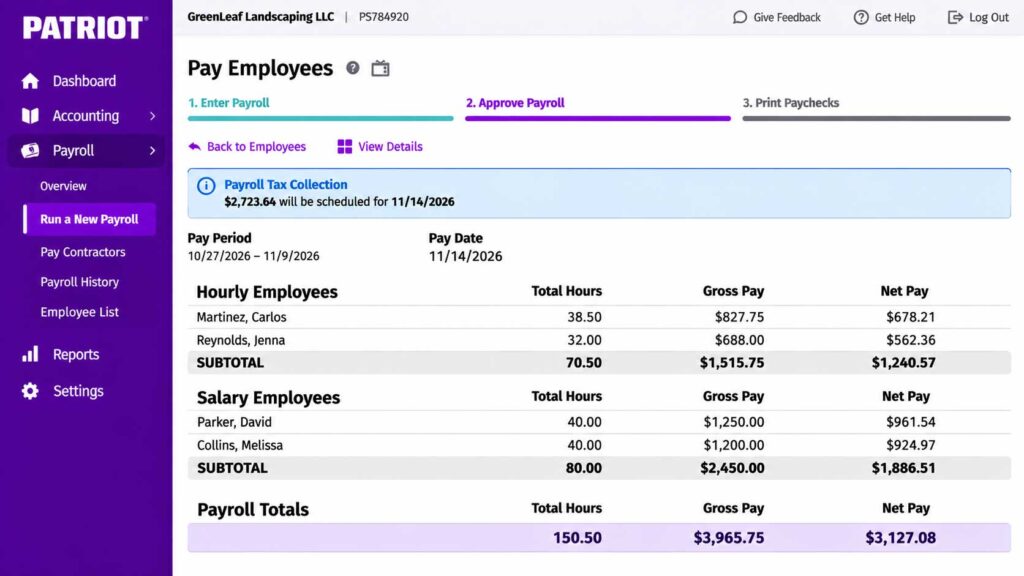
Best for: US small businesses, local service providers, and small employers that want straightforward accounting software with the option to manage payroll through the same company.
Patriot Software is a small-business software provider focused on making accounting and payroll more manageable for American business owners.
Unlike platforms that offer dozens of advanced financial management tools, Patriot focuses on the essentials. Its accounting software helps you record income and expenses, send invoices, reconcile bank transactions, and generate financial reports.
Patriot also sells payroll software, making it useful to compare if you employ people or plan to hire.
If you run a business with employees, having accounting and payroll services available from the same provider can simplify some of your administrative work.
For example, imagine you own a small cleaning company with five employees. You need to invoice customers, track cleaning supply purchases, record business expenses, and process employee paychecks.
Patriot offers accounting software for managing your business finances and separate payroll products for paying employees.
You don’t have to purchase payroll to use Patriot Accounting, but the option may be useful as your business grows.
Patriot isn’t designed to replace every advanced accounting or business management system. However, for US small businesses that want practical bookkeeping tools without paying for a large software package, it’s worth considering.
Key Features
Patriot offers two accounting subscriptions, Basic and Premium, along with separate payroll products.
Its accounting features include:
- Income and expense tracking: Record money coming into your business and organize operating expenses.
- Professional invoicing: Create invoices, send them to customers, and track outstanding payments.
- Bank transaction imports: Connect supported financial accounts to import transactions and reduce manual data entry.
- Bank reconciliation: Compare accounting records with bank statements to identify missing or incorrect transactions.
- Financial reporting: Generate reports such as profit and loss statements and other accounting summaries.
- Customer and vendor management: Organize contact information and transaction records for customers and suppliers.
- Recurring invoices: Automatically generate invoices for regular customers with Accounting Premium.
- Estimates: Prepare estimates for prospective customers with the Premium subscription.
- Payment reminders: Help follow up on unpaid invoices using eligible Premium features.
- User permissions: Provide different levels of access to accounting information, depending on the plan.
- Payroll integration: Use compatible Patriot payroll products to help manage employee compensation and related records.
The biggest advantage is that Patriot covers many everyday bookkeeping tasks without requiring businesses to purchase a complicated accounting system.
Patriot Software Pricing
Patriot offers two main accounting plans for US businesses.
| Plan | Regular Monthly Price |
|---|---|
| Accounting Basic | $20 |
| Accounting Premium | $30 |
Prices reflect previously published regular US rates reviewed in October 2026. Promotional offers, trials, and subscription terms may change.
Accounting Basic — $20/month
Accounting Basic is designed for businesses that need essential bookkeeping features.
It includes income and expense tracking, invoicing, bank transaction imports, reconciliation, and financial reports.
For a small service business with straightforward accounting requirements, Basic may provide enough functionality without paying for advanced features.
Accounting Premium — $30/month
Accounting Premium includes the Basic features along with additional invoicing and management tools.
These include recurring invoices, estimates, payment reminders, and expanded user permissions.
If you regularly bill the same customers or want to automate parts of your invoicing process, Premium may be worth the additional cost.
What About Payroll?
Patriot also offers payroll subscriptions, but they are priced separately from its accounting software.
Payroll costs generally include a monthly base subscription plus additional charges based on the number of employees or contractors.
The total cost depends on the payroll plan and services selected.
If you’re comparing Patriot with another accounting platform, make sure you’re evaluating the combined accounting and payroll cost rather than looking at the accounting subscription alone.
You can review current plans and optional services on the official Patriot Software pricing page.
What We Like
Straightforward accounting features
Patriot focuses on the bookkeeping tasks many small-business owners actually need.
You can record transactions, send invoices, reconcile accounts, and review financial reports without paying for a large collection of unrelated business tools.
Affordable starting price
Accounting Basic offers a relatively inexpensive entry point for businesses that want paid accounting software.
For companies that don’t need advanced inventory management or complicated reporting, the lower subscription cost may be appealing.
Accounting and payroll from one provider
Businesses with employees can evaluate Patriot’s payroll products alongside its accounting software.
Using compatible services from the same company may help simplify payroll-related recordkeeping.
Useful invoicing automation
Accounting Premium includes recurring invoices and payment reminders.
These features can save time for businesses that charge customers on a regular schedule.
Designed for US small businesses
Patriot’s products are focused on the needs of American businesses, particularly those that require US payroll services.
Potential Drawbacks
Payroll costs extra
Although Patriot offers both accounting and payroll software, the accounting subscription does not automatically include payroll processing.
Businesses with employees need to calculate the additional subscription and per-worker costs.
Limited advanced accounting capabilities
Patriot may not provide the same depth of inventory management, project costing, or sophisticated financial reporting as more comprehensive accounting platforms.
Primarily focused on US businesses
Patriot isn’t the ideal choice for companies that require extensive international accounting or payroll support across multiple countries.
Some features require Accounting Premium
Recurring invoices, estimates, payment reminders, and certain user management capabilities aren’t included in Accounting Basic.
May not suit complex business operations
Companies with multiple locations, complicated inventory requirements, or specialized financial workflows may need a more advanced solution.
Who Should Use Patriot?
Patriot Software is worth considering if you:
- Run a US-based small business with straightforward accounting needs.
- Want affordable software for invoicing, expenses, and financial reporting.
- Employ workers or expect to hire employees in the future.
- Prefer having accounting and payroll options available from one provider.
- Operate a local service business, repair company, cleaning service, or similar small operation.
- Don’t need advanced inventory management or enterprise-level accounting features.
For example, a small home maintenance company could use Patriot Accounting to track customer invoices, equipment purchases, and operating expenses.
If the company hires employees, it could also evaluate Patriot Payroll instead of purchasing payroll software from an unrelated provider.
However, if your business requires extensive inventory tracking, international transactions, or complex financial reporting, QuickBooks Online or Xero may offer more suitable capabilities.
Our Recommendation
Patriot Software is a good choice for US small businesses that want affordable accounting tools and the option to add payroll services as they grow.
If you mainly need invoicing, expense tracking, bank reconciliation, and basic financial reports, Accounting Basic may be sufficient.
For businesses with recurring customers, Accounting Premium is worth considering because it adds estimates, recurring invoices, and payment reminders for a relatively small additional monthly cost.
If you also need payroll, compare Patriot’s combined accounting and payroll pricing with alternatives before making a decision.
Explore Patriot Accounting Software and Pricing
7. Odoo — Best Accounting Software for Integrated Business Operations
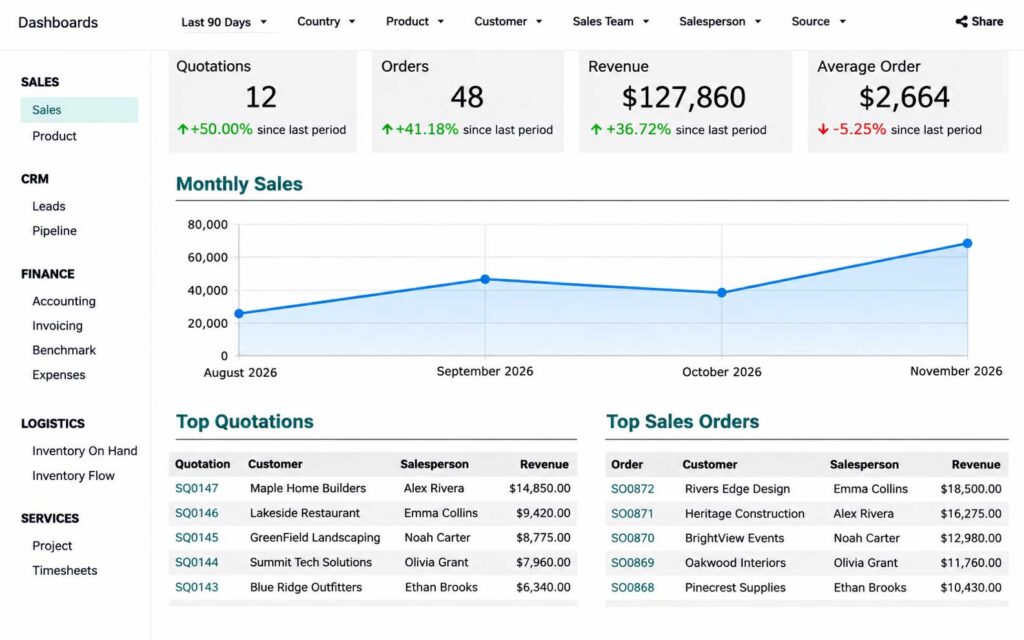
Best for: Growing small businesses, ecommerce companies, retailers, and businesses that want to connect accounting with inventory, sales, CRM, and other daily operations.
Odoo combines accounting with business applications for sales, inventory, CRM, and other operations. Instead of focusing only on bookkeeping, it offers a collection of business applications designed to work together.
If your business also needs customer newsletters or automated follow-up campaigns, compare the best email marketing software for small businesses before deciding which tools to connect.
Its accounting software is part of a larger business management system that includes customer relationship management (CRM), inventory, ecommerce, sales, purchasing, project management, and other tools.
If customer management is one of your priorities, compare our best CRM software for small businesses to see whether a dedicated CRM would be a better fit than an all-in-one business platform.
This approach can be useful if your business has outgrown using several disconnected applications.
For example, imagine you run a small online store. You manage customer orders through your website, track products in a separate inventory system, record sales in accounting software, and maintain customer information in a spreadsheet.
Keeping everything updated can become frustrating, especially when orders increase.
With Odoo, you can connect compatible applications so that sales, inventory, customer information, and accounting records work together more closely. Instead of manually transferring information between unrelated systems, you can build a more connected workflow.
That doesn’t mean Odoo is automatically the easiest or cheapest choice. Setting up several applications can require planning, configuration, and employee training.
However, if you’re looking for more than basic bookkeeping, Odoo offers an interesting alternative to standalone accounting software.
Key Features
Odoo provides accounting tools alongside a broader collection of business applications. Available functionality depends on the apps installed, subscription plan, and configuration.
- Accounting and bookkeeping: Record financial transactions, manage accounts, and organize income and expenses.
- Customer invoicing: Create invoices, track customer balances, and manage payments.
- Bank reconciliation: Import supported bank transactions and match them with accounting records.
- Financial reporting: Generate reports such as profit and loss statements, balance sheets, and other accounting summaries.
- Expense management: Record business expenses and manage employee expense submissions through compatible applications.
- Inventory management: Track product quantities, stock movements, and inventory-related operations using Odoo Inventory.
- Sales management: Manage quotations, sales orders, and customer transactions through connected sales applications.
- CRM integration: Organize leads, customers, and sales opportunities with Odoo CRM.
- Ecommerce integration: Connect online store operations with compatible sales, inventory, and accounting workflows.
- Purchase management: Manage supplier orders and purchasing activities using supported applications.
- Project management: Organize projects, tasks, and related business activities.
- Business automation: Configure supported workflows to reduce repetitive administrative work.
One of Odoo’s biggest strengths is that these applications are designed to operate within the same ecosystem.
However, some workflows require multiple apps, additional configuration, or paid services. It’s important to verify how the applications you need will work together before choosing a subscription.
Odoo Pricing
Odoo offers a free option for businesses that need only one application, along with paid plans for companies that want access to multiple applications.
| Plan | Starting Price | Best For |
|---|---|---|
| One App Free | $0 | Businesses using one Odoo application |
| Standard | Approximately $24.90/user/month with annual billing | Businesses needing multiple integrated applications |
| Custom | Higher per-user pricing | Businesses requiring customization and advanced deployment options |
Prices are indicative US rates previously published in 2026. Actual pricing depends on billing frequency, users, subscription terms, and implementation requirements. Confirm current pricing directly with Odoo.
One App Free — $0
Odoo’s One App Free plan allows businesses to use one application without a subscription fee, subject to the program’s terms.
For example, a business interested primarily in Odoo Accounting may be able to begin with the accounting application.
However, if you need additional applications such as CRM, Inventory, or Sales, you should verify whether your setup remains eligible for the free plan.
Standard — Starting at Approximately $24.90/user/month
The Standard plan provides access to Odoo’s broader collection of business applications under a per-user subscription model.
This is where Odoo becomes more interesting for businesses that want accounting connected with other operations.
For example, a company could use compatible applications for accounting, customer management, sales, and inventory rather than maintaining separate systems.
Custom — Higher Per-User Pricing
The Custom plan is designed for businesses that need more flexibility, including certain customization, development, integration, and deployment options.
It’s more appropriate for companies with specialized workflows or more demanding technical requirements.
Keep in mind that implementation, migration, training, third-party services, and additional users may increase the overall cost.
You can review the latest plans on the official Odoo pricing page.
What We Like
Accounting connected with other business applications
Odoo’s biggest advantage is the ability to manage accounting alongside sales, inventory, CRM, and other business functions.
For companies using several disconnected tools, this can make daily operations more organized.
A free option for businesses with simple needs
The One App Free plan gives eligible businesses an opportunity to use an Odoo application without immediately purchasing a subscription.
This can be useful if you want to explore the platform before expanding into additional applications.
Flexible business management tools
Odoo offers applications for many different business functions.
You can choose the tools that match your operations rather than relying on a single accounting-focused product.
Useful for ecommerce and product-based businesses
Retailers and online stores may benefit from connecting sales transactions, inventory movements, purchasing, and accounting records.
Room for customization
Businesses with specialized requirements can evaluate Odoo’s customization and deployment options.
This flexibility may become valuable as operations grow more complex.
Potential Drawbacks
More complicated setup
Odoo can require more planning and configuration than a basic bookkeeping platform.
If you only need invoicing and expense tracking, the broader system may be unnecessary.
Costs increase with additional users
Paid Odoo subscriptions generally use per-user pricing.
A business with several employees needing system access should calculate the total subscription cost before committing.
Implementation may require technical assistance
Connecting several applications, configuring workflows, and migrating existing business records can take time.
Some businesses may need help from an Odoo partner or experienced developer.
Not every application is necessary
Odoo includes many business management tools, but that doesn’t mean every small business will benefit from using them.
Purchasing a larger system than you need can introduce unnecessary complexity.
Advanced requirements may increase costs
Customization, third-party integrations, implementation services, and specialized configurations can add to the total investment.
Who Should Use Odoo?
Odoo is worth considering if you:
- Run a growing business with several connected operational needs.
- Sell physical products and need accounting alongside inventory management.
- Operate an ecommerce store and want to connect sales and financial records.
- Need CRM, purchasing, sales, and accounting tools within one ecosystem.
- Want to reduce manual data transfers between separate business applications.
- Have the time or technical support needed to configure a broader management system.
For example, a small wholesale business managing customers, purchase orders, inventory, and invoices may benefit from Odoo’s integrated approach.
An ecommerce company could also use compatible Odoo applications to connect online orders with inventory and accounting records.
However, if you’re a freelancer who only needs to send invoices and track a few monthly expenses, Wave, FreshBooks, or Zoho Books may be simpler and more affordable.
Our Recommendation
Odoo is our top recommendation for businesses that want accounting software connected with a broader business management system.
If you only need basic accounting, start by evaluating the One App Free option and confirming which features are included.
For businesses that need accounting alongside CRM, sales, inventory, or ecommerce applications, compare the Standard plan.
If your company requires extensive customization or specialized integrations, the Custom plan may be more appropriate.
Before subscribing, identify which applications your business actually needs, calculate the cost for all required users, and consider whether implementation or training will be necessary.
Explore Odoo Accounting and Pricing
8. Sage 50 — Best Accounting Software for Advanced Business Needs
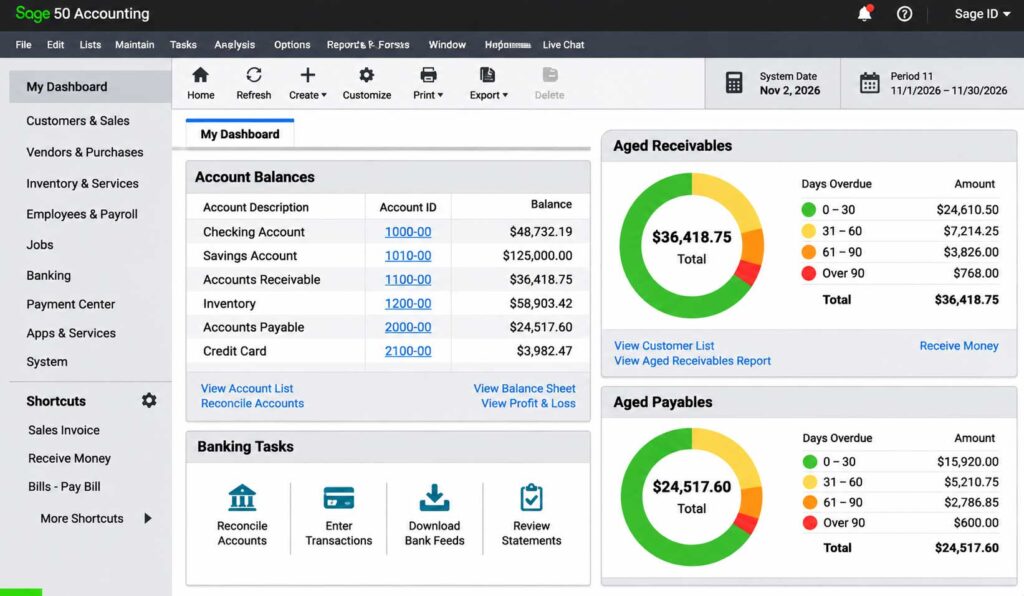
Best for: Established small businesses, wholesalers, manufacturers, contractors, and companies that need detailed financial reporting, inventory management, job costing, and stronger accounting controls.
Sage 50 is designed for businesses that need more than basic bookkeeping and invoicing. It offers a more comprehensive set of accounting tools for managing financial records, tracking inventory, monitoring job costs, and preparing detailed reports.
While platforms like Wave and FreshBooks are often better suited to freelancers and small service businesses, Sage 50 focuses on companies with more complicated accounting requirements.
For example, imagine you run a small construction company. You purchase materials, hire subcontractors, manage several projects, and need to understand how much each job actually costs.
Simply tracking income and expenses may not give you enough information to make good financial decisions.
Sage 50 can help you organize project-related costs, monitor accounts payable and receivable, and generate financial reports that provide a clearer picture of your business.
It’s also worth considering for companies that manage physical inventory or need more detailed financial controls.
However, Sage 50 isn’t necessarily the easiest accounting platform to learn. Its advanced capabilities can require more setup, bookkeeping knowledge, and ongoing management than simpler cloud-based alternatives.
Sage 50 makes the most sense when detailed inventory, job costing, or accounting controls justify the extra setup and cost.
Key Features
Sage 50 provides a range of accounting and financial management tools. The exact features depend on the product edition and subscription selected.
- Income and expense tracking: Record business revenue, operating expenses, and financial transactions.
- Accounts payable and receivable: Manage customer balances, supplier bills, and outstanding payments.
- Professional invoicing: Create customer invoices and monitor payment activity.
- Bank reconciliation: Compare accounting records with bank statements to help maintain accurate financial information.
- Financial reporting: Generate profit and loss statements, balance sheets, cash flow reports, and other financial summaries.
- Inventory management: Track products, inventory quantities, and related costs using supported features.
- Job costing: Monitor expenses and financial activity associated with individual jobs or projects on eligible editions.
- Purchase orders: Organize purchasing activity and supplier transactions.
- Budgeting and forecasting: Compare financial performance with budgets and evaluate business spending.
- Multi-company accounting: Manage accounting records for multiple businesses with supported editions.
- User access controls: Assign permissions to help manage access to sensitive financial information.
- Audit trails: Review recorded accounting activity and changes to financial records.
Not every business will need these capabilities. However, companies with inventory, multiple projects, or more demanding reporting requirements may benefit from having them available.
Sage 50 Pricing
Sage offers different Sage 50 products and subscription options, including desktop-focused and cloud-connected editions.
Pricing varies depending on the edition, number of users, and included features.
| Product | Published price | Best for |
|---|---|---|
| Sage 50 Cloud Pro Accounting | $132.17/month | One-user accounting |
| Sage 50 Cloud Premium Accounting | $182.50/month | Advanced reporting, inventory, and job costing |
| Sage 50 Cloud Quantum Accounting | $271.17/month | Larger accounting teams |
| Sage 50 Desktop | Check current pricing | Businesses preferring locally installed software |
Sage 50 is available in cloud-based and desktop editions, so compare the deployment options carefully before subscribing. The prices above are published US rates for Sage 50 Cloud. Desktop pricing, payroll services, additional users, and optional features may affect the total cost. Check Sage’s official pricing page for the latest offers and plan details.
Sage 50 Desktop Pro Accounting
This edition is aimed at businesses that need core accounting functionality, including financial reporting, invoicing, and expense management.
It may be suitable for smaller companies that prefer a desktop-focused accounting system.
However, businesses should verify which inventory, job costing, and collaboration features are included.
Sage 50 Cloud-Connected Editions
Sage also offers cloud-connected editions with additional capabilities, depending on the product.
These may provide enhanced accounting features, collaboration options, and access to selected connected services.
Cloud-connected does not necessarily mean the software operates entirely through a web browser. Businesses should review the installation and access requirements before subscribing.
Advanced and Multi-User Options
More advanced editions may support additional users, inventory capabilities, job costing, reporting, and other financial controls.
The total subscription cost can increase considerably depending on the edition and number of users.
You can review available products and pricing on the official Sage 50 website.
What We Like
Detailed financial reporting
Sage 50 offers reporting capabilities that can help established businesses understand revenue, expenses, profitability, and other important financial information.
This can be particularly valuable for companies that need more than basic monthly income and expense summaries.
Inventory management capabilities
Businesses that purchase, store, and sell physical products may benefit from Sage 50’s inventory-related features.
Depending on the edition, these tools can help organize stock information and inventory costs.
Job costing for project-based businesses
Companies that manage multiple jobs or projects often need to understand the expenses associated with each one.
Sage 50’s supported job costing features can help businesses monitor project-related financial information.
Stronger accounting controls
Features such as user permissions, audit trails, and detailed transaction records can be useful for companies where several people are involved in financial management.
Suitable for established businesses
Sage 50 is designed for companies with more demanding accounting requirements, making it worth considering when simpler software no longer provides enough functionality.
Potential Drawbacks
Higher subscription costs
Sage 50 can be considerably more expensive than basic accounting platforms, particularly when businesses require advanced editions or multiple users.
For a freelancer or very small business, the additional cost may be difficult to justify.
A steeper learning curve
Sage 50 offers more advanced accounting functionality, which can make it less approachable for beginners.
Business owners unfamiliar with accounting principles may need additional training or professional assistance.
Desktop-related requirements
Some Sage 50 products require local installation and have specific computer or operating system requirements.
Businesses looking for a fully browser-based accounting platform should carefully compare Sage 50 with cloud-native alternatives.
Advanced features vary by edition
Inventory management, job costing, multi-company accounting, and other specialized capabilities may differ between products and subscription tiers.
It’s important to confirm that the edition you’re considering includes the tools your business needs.
May be unnecessary for simple bookkeeping
If you only need to send invoices, track expenses, and prepare basic financial reports, Sage 50 may introduce more complexity than necessary.
Who Should Use Sage 50?
Sage 50 is worth considering if you:
- Run an established business with more complicated accounting requirements.
- Need detailed financial reports and stronger accounting controls.
- Manage inventory, purchasing, or supplier transactions.
- Operate a construction, manufacturing, wholesale, or project-based business.
- Need to monitor job costs and project profitability.
- Have an accountant or bookkeeper who can help manage more advanced accounting processes.
- Prefer a desktop-focused accounting solution with supported connected features.
For example, a small manufacturing company that purchases materials, produces finished products, and manages inventory may benefit from Sage 50’s more advanced accounting capabilities.
A construction company managing several projects may also find job costing and detailed expense tracking useful.
However, if you run a small consulting business or freelance operation with straightforward finances, QuickBooks Online, Zoho Books, or Wave may be easier and more affordable.
Our Recommendation
Sage 50 is our recommendation for established small businesses that need advanced accounting features, particularly inventory management, job costing, and detailed financial controls.
If your business has relatively simple accounting needs, start by comparing more affordable platforms before investing in Sage 50.
However, if you manage complex inventory, multiple projects, or detailed financial reporting, Sage 50 deserves a closer look.
Before purchasing, confirm which edition includes your required features, check the total subscription cost for all users, and review any installation or technical requirements.
If you work with an accountant, ask whether Sage 50 is a good fit for your existing financial processes.
Explore Sage 50 Accounting Software and Pricing
Best Accounting Software by Business Type
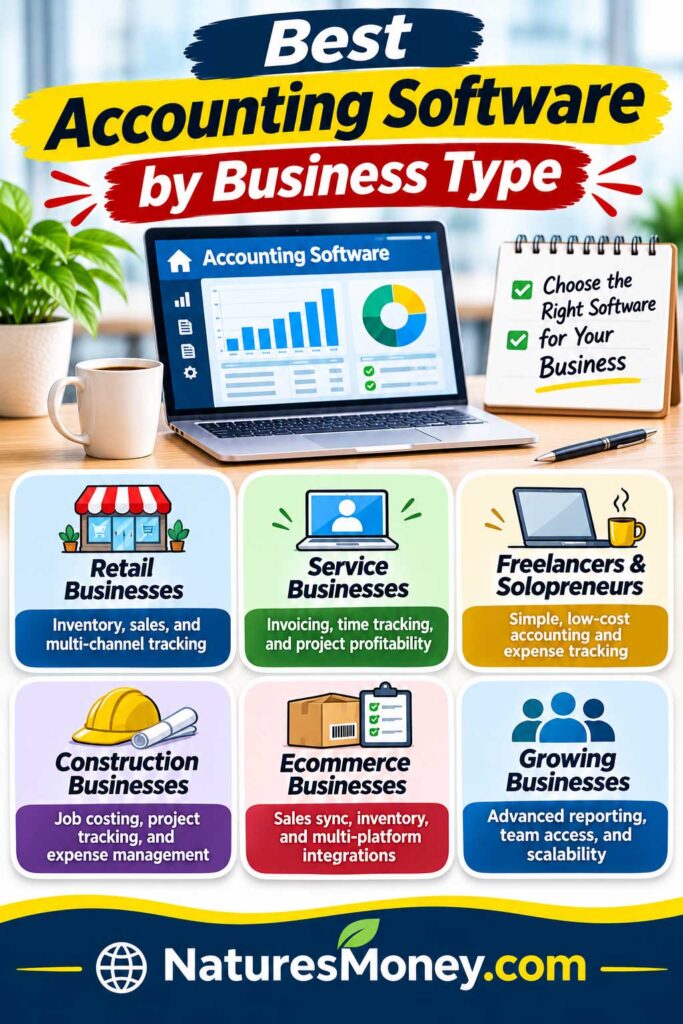
Not every small business needs the same accounting features. A freelancer sending a few invoices each month has different priorities from an ecommerce store managing inventory, refunds, and hundreds of customer transactions.
That’s why choosing accounting software based on your business type often makes more sense than comparing every feature available.
Some businesses need simple invoicing and expense tracking, while others require payroll integrations, inventory management, or detailed financial reports.
Here’s which accounting software we recommend for different types of small businesses and why.
Best Accounting Software for Freelancers and Independent Contractors
Freelancers and independent contractors usually need a straightforward way to send invoices, track business expenses, record payments, and prepare financial information for tax season.
If you’re a freelance writer, graphic designer, web developer, or consultant, you probably don’t need advanced inventory management or complicated accounting features.
Instead, look for software that makes client billing easy and helps you keep business finances separate from personal expenses.
Our recommended options:
- FreshBooks: Best for freelancers who regularly invoice clients, track billable hours, and manage projects.
- Wave: Best for independent contractors who want free bookkeeping and invoicing.
- Zoho Books: Best for budget-conscious freelancers who want accounting features with room to grow.
Which One Should You Choose?
If you work with several clients and bill by the hour, FreshBooks is worth considering. Its time-tracking and invoicing tools can help you organize client work and prepare accurate invoices.
If you’re just starting out and only send a few invoices each month, Wave Starter may be all you need. It provides essential bookkeeping features without a monthly subscription.
Zoho Books is another good option, especially if you qualify for its free plan and expect your accounting needs to grow over time.
Best Accounting Software for Small Service Businesses
Service businesses often have more moving parts than freelancers. You may be managing several customers, paying contractors, purchasing supplies, and handling recurring appointments or service agreements.
Accounting software helps manage the financial side, but you may also need a way to organize leads and customer relationships. Our comparison of the best free CRM software covers options for businesses that aren’t ready for another paid subscription.
For example, a cleaning company needs to track customer invoices, cleaning supplies, employee expenses, and payments. A computer repair business may also need to record equipment purchases, software subscriptions, and ongoing maintenance contracts.
The right accounting software should help you stay organized without creating additional administrative work.
Our recommended options:
- QuickBooks Online: Best for growing service businesses that need comprehensive bookkeeping and financial reporting.
- FreshBooks: Best for companies that rely heavily on client invoices, estimates, and recurring services.
- Patriot Software: Best for US service businesses looking for affordable accounting with optional payroll services.
Which One Should You Choose?
QuickBooks Online is a strong choice if your business has regular expenses, multiple customers, and increasingly complicated financial records.
FreshBooks may be more convenient if you spend much of your time preparing estimates, billing clients, or tracking project-related work.
For businesses that also rely on repeat customers, email marketing software can help manage newsletters, follow-ups, and promotional campaigns alongside your invoicing workflow.
Patriot Software is worth considering if you want straightforward accounting features and may eventually need payroll.
Best Accounting Software for Ecommerce Businesses
Running an online store introduces accounting challenges that many service businesses don’t have.
In addition to recording sales and expenses, you may need to track inventory, customer refunds, shipping costs, payment processing fees, and sales tax.
If you sell through Shopify, WooCommerce, or multiple marketplaces, keeping financial records accurate can become even more complicated.
For example, an online store might generate $10,000 in sales during a month, but that doesn’t mean it earned $10,000 in profit.
You still need to account for product costs, shipping, advertising, payment processing fees, refunds, and other operating expenses.
Accounting software can help organize this information and provide a clearer picture of your store’s financial performance.
Our recommended options:
- QuickBooks Online: Best for ecommerce businesses that need comprehensive accounting and inventory features on eligible plans.
- Xero: Best for growing online stores that need multiple users and compatible ecommerce integrations.
- Odoo: Best for businesses that want accounting connected with inventory, sales, and ecommerce operations.
Which One Should You Choose?
QuickBooks Online is a practical option for many small online stores, particularly when you need financial reporting and inventory tracking.
Xero is worth considering if you work with a bookkeeper, accountant, or several team members who need access to financial information.
Odoo may be a better fit if you want to connect accounting with inventory management, purchasing, and ecommerce operations within one system.
Before choosing, check whether the accounting software integrates with your ecommerce platform.
Also, verify that the integration handles refunds, processing fees, inventory costs, and sales tax information correctly. Some integrations require separate subscriptions or additional configuration.
Best Accounting Software for Small Businesses With Employees
Once you start hiring employees, managing business finances becomes more complicated.
In addition to tracking income and expenses, you may need to handle payroll, employee-related costs, payroll taxes, and other financial obligations.
Accurate records become especially important as your business grows.
For example, a small landscaping company with six employees needs to track customer payments, equipment purchases, wages, and operating expenses.
Using compatible accounting and payroll software can make these tasks easier to manage.
Our recommended options:
- QuickBooks Online: Best for businesses that need comprehensive accounting and optional payroll services.
- Xero: Best for growing teams that want collaborative accounting and compatible payroll integrations.
- Patriot Software: Best for US small employers looking for accounting and payroll products from the same provider.
Which One Should You Choose?
QuickBooks Online is worth considering if you want a broad accounting platform with the option to add payroll services.
Xero may be more attractive if several employees, managers, or accounting professionals need access to financial information.
Patriot Software is particularly relevant for smaller US employers that want straightforward accounting and payroll options.
Keep in mind that payroll usually costs extra, even when it’s offered by the same company as your accounting software.
Best Accounting Software for Startups on a Tight Budget
When you’re starting a business, every monthly expense matters.
You may already be paying for website hosting, business software, marketing, equipment, and other startup costs.
If you’re trying to keep those expenses down, our guide to best free small business apps covers useful tools for managing projects, appointments, marketing, and everyday business tasks.
Adding an expensive accounting subscription before you actually need its features can put unnecessary pressure on your budget.
The same principle applies to your website. If you’re launching a new business, our guide to the best free website builders can help you compare affordable ways to establish an online presence.
Fortunately, you don’t have to spend much to start keeping your financial records organized.
Our recommended options:
- Wave: Best for startups that want free basic accounting and invoicing.
- Zoho Books: Best for eligible startups that want a free plan with an upgrade path to more advanced features.
Which One Should You Choose?
Wave is a good starting point if you need to create invoices, record transactions, and monitor expenses without paying a monthly subscription.
Zoho Books may be more suitable if you want access to additional accounting capabilities as your business expands.
However, Zoho Books’ free plan has eligibility and transaction limits, so make sure your business qualifies.
Before choosing either platform, consider how many transactions you expect to process and whether you’ll need automatic bank feeds, inventory tracking, or additional users.
The goal isn’t to find the most expensive or feature-packed accounting software. It’s to choose a reliable system that helps you stay organized today while giving your business enough flexibility for tomorrow.
Free vs. Paid Accounting Software: Which Is Better?
One of the first decisions you’ll face when choosing accounting software is whether to use a free platform or pay for a subscription.
If you’re starting a business, free accounting software can be appealing. You already have enough expenses to worry about, and paying another $20, $50, or even $100 each month may not seem necessary.
Free accounting software can handle more than you might expect. Wave and Zoho Books offer basic bookkeeping and invoicing, although their free plans have different restrictions.
However, free doesn’t always mean better value.
Some free plans require more manual bookkeeping, limit the number of transactions you can process, or exclude features such as automatic bank feeds and recurring invoices.
Paid accounting software can save time by automating repetitive tasks and providing more advanced financial tools.
The right choice depends on how complicated your business finances are and how much time you’re spending managing them.
When Free Accounting Software Makes Sense
Free accounting software is often a practical choice for freelancers, solopreneurs, and new businesses with relatively simple financial needs.
If you only receive a few customer payments each month and have a small number of expenses, you may not need advanced bookkeeping automation or detailed financial reporting.
For example, imagine you’re a freelance writer working with four regular clients. Each month, you send a few invoices, pay for website hosting and software subscriptions, and record your business expenses.
A free accounting platform may handle those tasks without any major limitations.
Benefits of Free Accounting Software
- No monthly subscription fees: Keep operating expenses low while your business is getting established.
- Basic invoicing: Create invoices, send them to customers, and track payments.
- Income and expense tracking: Organize business transactions without relying entirely on spreadsheets.
- Financial reports: Review basic information about revenue, expenses, and profitability.
- Opportunity to learn: Get familiar with accounting software before committing to a paid subscription.
Wave Starter and Zoho Books Free are two options worth considering.
Wave is particularly useful for freelancers who need straightforward invoicing and bookkeeping. Zoho Books may appeal to businesses that want an upgrade path to more advanced accounting features.
However, Zoho Books has eligibility requirements for its free plan, and both platforms reserve certain capabilities for paid subscriptions.
When Free Software May Not Be Enough
Free accounting software can become less convenient as your business grows.
You may find yourself spending more time entering transactions manually, organizing receipts, or working around feature limitations.
If you need inventory management, multiple users, automated bank imports, or advanced reporting, a paid subscription may become necessary.
When Paid Accounting Software Is Worth It
Paid accounting software becomes more valuable when your business handles more transactions, works with several customers or employees, or requires more detailed financial information.
The biggest advantage isn’t necessarily having more features. It’s having tools that can reduce the amount of time you spend on bookkeeping.
For example, imagine you run a small home repair company.
You receive payments from customers, purchase equipment and supplies, pay contractors, and manage recurring business expenses.
If you’re manually entering every transaction and organizing receipts, bookkeeping could take several hours each month.
A paid accounting platform with automatic bank feeds, expense categorization, and recurring invoices may help reduce that workload.
Benefits of Paid Accounting Software
- Automated bank transactions: Import activity from supported accounts instead of entering everything manually.
- Recurring invoices: Automate billing for customers with regular payment schedules.
- Advanced financial reporting: Get more detailed information about business income, expenses, and profitability.
- Inventory management: Track products and related costs with supported plans.
- Multiple users: Allow employees, bookkeepers, or accountants to access financial records.
- Business integrations: Connect accounting with compatible ecommerce, payroll, CRM, and payment applications.
- Additional automation: Reduce repetitive tasks such as payment reminders, receipt organization, and transaction categorization.
QuickBooks Online, Xero, FreshBooks, and paid Zoho Books plans are worth comparing when your business needs more than basic bookkeeping.
However, not every paid plan includes every feature. Inventory management, payroll, and advanced reporting may require higher subscription tiers or additional services.
Is Paid Accounting Software Worth the Monthly Cost?
A useful way to evaluate paid software is to compare its subscription cost with the time it could save.
Let’s say you spend four hours each month manually organizing transactions, entering expenses, and preparing invoices.
If a $30-per-month accounting subscription saves you three of those hours, the software may be worth the cost.
For example:
| Factor | Example |
|---|---|
| Monthly software subscription | $30 |
| Bookkeeping time saved | 3 hours |
| Estimated value of your time | $25/hour |
| Estimated monthly time value saved | $75 |
| Potential net time value | $45/month |
This is an illustrative example, not a guaranteed financial saving. Actual results depend on your workflow, the software’s features, and how much time it saves.
In this scenario, paying $30 per month could make sense because the time saved is worth more than the subscription.
Of course, this calculation only works if the software genuinely reduces your workload.
Paying for features you never use won’t automatically make your business more efficient.
Free vs. Paid Accounting Software: Quick Comparison
| Feature | Free Accounting Software | Paid Accounting Software |
|---|---|---|
| Monthly subscription | Usually $0 | Monthly or annual fee |
| Basic invoicing | Often included | Usually included |
| Income and expense tracking | Usually included | Usually included |
| Bank transaction automation | Limited or unavailable on some plans | Common, depending on plan |
| Recurring invoices | May be limited | Often available |
| Advanced reporting | Usually limited | More options on eligible plans |
| Inventory management | Often unavailable | Available on selected platforms |
| Multiple users | May be restricted | Varies by provider and plan |
| Payroll integration | Limited or separate | Often available at additional cost |
| Best suited for | Freelancers, startups, and microbusinesses | Growing businesses with more complex needs |
The exact differences depend on the platform. Some free plans offer features that competing paid plans don’t, so always compare the specific subscriptions you’re considering.
Our Recommendation: Start Simple and Upgrade When Necessary
For most new businesses, free accounting software is a sensible place to start, provided it supports your bookkeeping requirements.
Wave Starter and Zoho Books Free can help you organize financial records without adding another monthly expense.
As your business grows, pay attention to how much time you’re spending on accounting tasks.
If you’re regularly struggling with manual transaction entry, recurring billing, inventory management, or financial reporting, it may be time to upgrade.
Before paying for a subscription, calculate the full cost, including payment processing, payroll, additional users, and optional integrations.
Remember, the goal isn’t simply to choose free or paid software.
It’s to find the most cost-effective way to manage your business finances accurately, save time, and keep your records organized as your business grows.
How to Choose the Best Accounting Software for Your Small Business
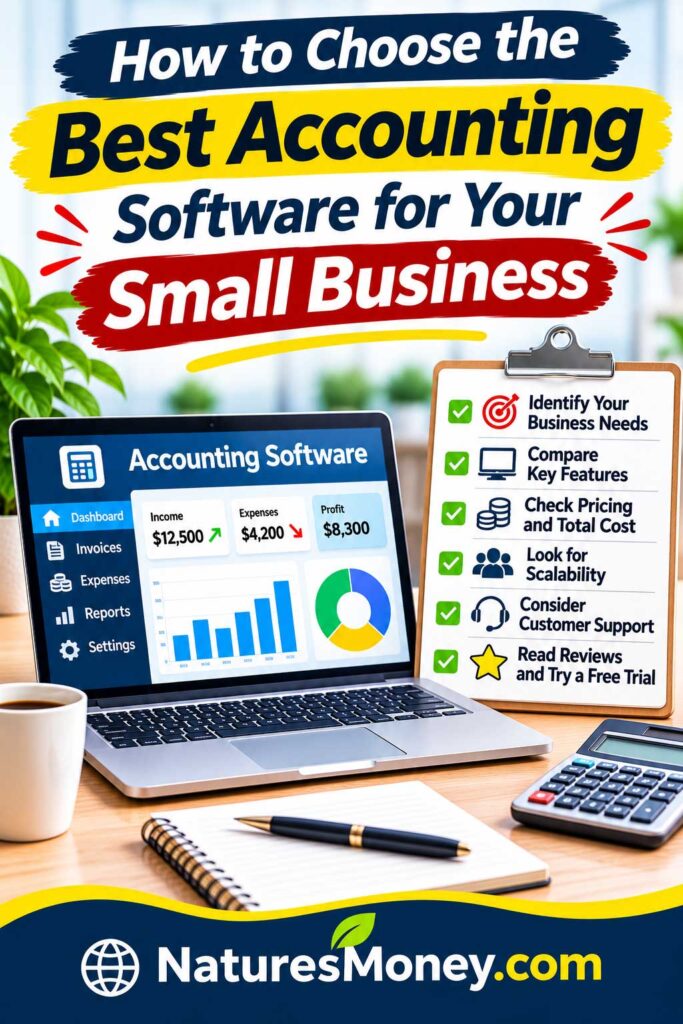
Choosing accounting software isn’t just about finding the platform with the most features or the lowest monthly price. You need something that fits the way your business operates, makes everyday bookkeeping easier, and won’t become a problem as your company grows.
A freelancer who sends a few invoices each month doesn’t need the same tools as a retailer managing inventory or a service company with employees.
Before committing to a subscription, take some time to understand what your business actually needs. These six steps will help you narrow down your options and avoid paying for features you may never use.
1. Identify Your Essential Accounting Requirements
Start by making a list of the financial tasks you handle regularly.
Do you send invoices to customers? Track business expenses? Manage inventory? Pay employees? Work with an outside accountant?
Your answers will help determine which accounting features matter most.
For example, a freelance web designer may only need invoicing, expense tracking, and basic financial reports. Wave or FreshBooks could be enough to handle those tasks.
An online retailer, however, may need inventory tracking, purchase orders, sales tax records, and integrations with an ecommerce platform. QuickBooks Online, Xero, or Odoo may be more appropriate.
A growing service company might also need recurring invoices, payroll integrations, and project profitability reports.
Features Worth Considering
- Invoicing: Create and send invoices, track payments, and follow up on overdue balances.
- Expense tracking: Organize business purchases and operating expenses.
- Bank reconciliation: Match transactions with your bank statements.
- Financial reporting: Review revenue, expenses, profits, and cash flow.
- Inventory management: Track products, quantities, and inventory costs.
- Payroll integration: Connect accounting records with employee payroll information.
- Recurring billing: Automate invoices for ongoing services or subscriptions.
2. Calculate the Real Subscription Cost
Accounting software pricing can be confusing, especially when providers advertise large introductory discounts.
A platform might offer a discounted rate for the first few months, but the regular subscription price could be significantly higher.
Before signing up, check what you’ll pay after the promotional period ends.
Also, remember that the advertised subscription price may not include everything your business needs.
Additional Costs to Check
- Payment processing fees: Charges for accepting credit cards or other online payments.
- Payroll services: Separate subscriptions for processing employee payroll.
- Additional users: Fees for employees, bookkeepers, or other people who need access.
- Premium integrations: Extra charges for connecting certain business applications.
- Advanced features: Higher subscription tiers for inventory, reporting, or automation.
- Professional support: Potential costs for setup assistance, training, or bookkeeping services.
For example, a $25-per-month accounting subscription might look affordable. But if you also need a $40 payroll service and $15 in additional integrations, your monthly software cost becomes $80 before any transaction-based fees.
That’s a meaningful difference for a small business.
3. Check Integration Compatibility
Accounting software works best when it connects with the tools your business already uses.
If you have to manually transfer information between your bank, online store, payment processor, and accounting platform, you may end up spending more time on bookkeeping than necessary.
For example, imagine you run a WooCommerce store.
You receive customer payments through a payment processor, issue occasional refunds, and manage inventory through your website.
If your accounting software doesn’t integrate properly with these systems, you may need to enter transactions manually or purchase additional software.
Important Integrations to Consider
- Business bank accounts: Import transactions from supported financial institutions.
- Payment processors: Record payments, fees, and refunds.
- Ecommerce platforms: Connect sales information from Shopify, WooCommerce, or other supported stores.
- CRM software: Link customer and sales information where supported.
- Payroll systems: Transfer relevant payroll information into accounting records.
- Inventory applications: Keep product-related financial information organized.
If you’re evaluating how accounting software fits with your sales process, our small business CRM software comparison can help you choose a customer management platform that supports your workflow.
Don’t assume that an advertised integration includes every feature you need.
Some connections only transfer basic transaction data, while others support more detailed information. Certain integrations may also require paid plans or third-party services.
4. Consider Your Accountant’s Preferences
If you already work with an accountant or bookkeeper, ask which accounting platforms they’re familiar with.
This can make a bigger difference than you might expect.
An accountant who regularly works with QuickBooks Online or Xero may be able to review your records more efficiently than someone learning an unfamiliar platform.
They may also help you configure your chart of accounts, review financial reports, and identify bookkeeping mistakes.
For example, if your accountant already uses QuickBooks with most of their clients, choosing the same platform could simplify collaboration.
However, that doesn’t automatically mean QuickBooks is the best choice for your business.
You still need to consider your budget, required features, and how comfortable you feel using the software yourself.
Questions to Ask Your Accountant
- Which accounting platforms do you regularly work with?
- Can you access my records directly through the software?
- Does the platform provide the reports you need for tax preparation?
- Will switching software create additional bookkeeping costs?
- Are there any features my business should prioritize?
5. Evaluate Financial Reporting Capabilities
Good accounting software should do more than store transactions.
It should help you understand how your business is performing.
For example, knowing that your business generated $15,000 in revenue last month is useful, but it doesn’t tell you how much money you actually earned after expenses.
You also need to understand operating costs, outstanding invoices, cash flow, and profitability.
Financial Reports Worth Looking For
Profit and Loss Statement
Shows your business revenue and expenses over a specific period, helping you understand whether your company is profitable.
Balance Sheet
Provides a snapshot of assets, liabilities, and equity at a particular point in time.
Cash Flow Statement
Helps you understand how money moves into and out of your business. Availability and detail vary by platform and plan.
Accounts Receivable Report
Shows which customers owe you money and how long their invoices have been outstanding.
Expense Reports
Help identify where your business spends money and which costs may be increasing.
Project or Product Profitability Reports
Can be useful for businesses that need to understand the financial performance of individual projects, jobs, or products.
Not every accounting platform includes all these reports, especially on free or entry-level plans.
6. Think About Future Business Growth
The accounting software that works for your business today may not be enough two or three years from now.
For example, you might currently run a one-person consulting business, but eventually hire employees, introduce new services, or open another location.
Those changes can introduce additional accounting requirements.
Switching platforms later is possible, but transferring financial records, customer information, and transaction histories can take time.
That’s why it’s worth considering how your business might grow before choosing software.
Questions to Ask Before Committing
- Can I upgrade to a more advanced plan without changing platforms?
- Does the software support additional users?
- Will it handle more transactions as my business grows?
- Can I add payroll or inventory management if needed?
- Does it integrate with other business applications?
- Can I export my financial records if I decide to switch providers?
For example, Zoho Books offers a free plan for eligible businesses along with paid subscriptions that provide additional functionality.
QuickBooks Online and Xero also offer multiple subscription tiers for businesses with different accounting requirements.
However, you shouldn’t automatically purchase an expensive plan simply because your company might grow.
Final Tip: Test the Software Before You Commit
After narrowing your options to two or three platforms, take advantage of any available free plans, trials, or product demonstrations.
Try completing the tasks you’ll perform most often, such as creating an invoice, recording an expense, connecting a bank account, or generating a financial report.
Pay attention to how easy the software is to navigate and whether the features work the way you expect.
The best accounting software for your small business is the one you’ll actually use consistently. A platform with dozens of advanced features won’t provide much value if it makes everyday bookkeeping more complicated than necessary.
Accounting Software vs. Bookkeeping Software: What’s the Difference?
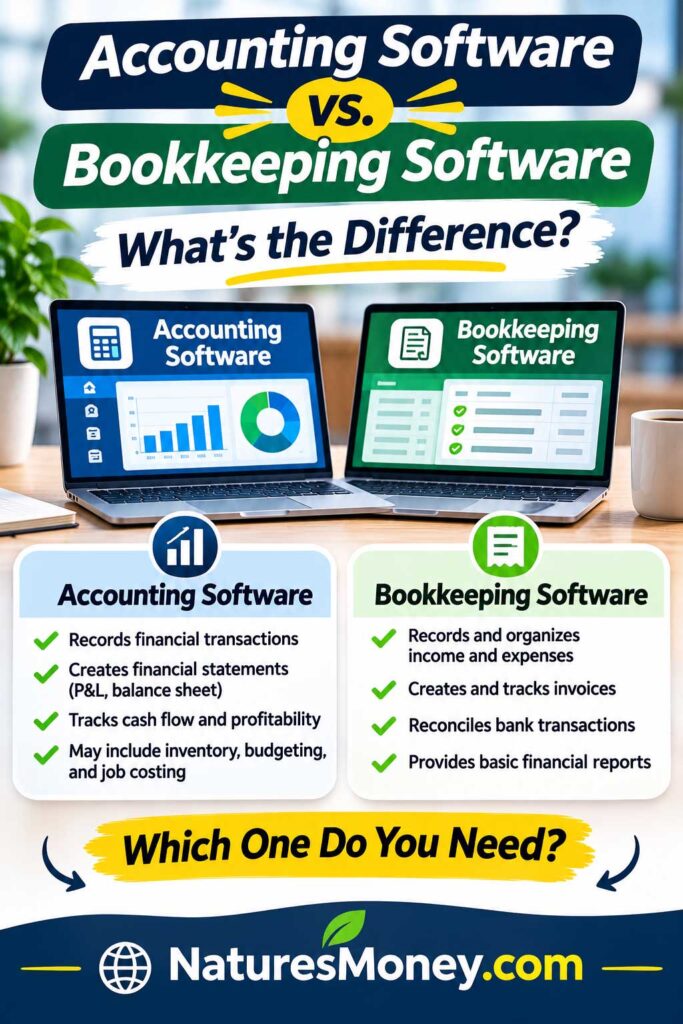
Bookkeeping and accounting are closely related, but they serve different purposes.
Bookkeeping focuses on recording and organizing financial transactions, such as customer payments, invoices, purchases, and business expenses.
Accounting uses those records to evaluate financial performance, prepare financial statements, and support business decisions.
For example, bookkeeping helps a small business track the money coming in and going out. Accounting helps the owner understand whether the business is profitable, how much it owes, and whether its financial position is improving.
Accounting Software vs. Bookkeeping Software: Quick Comparison
| Feature | Bookkeeping Software | Accounting Software |
|---|---|---|
| Record income and expenses | Yes | Yes |
| Create and track invoices | Usually | Usually |
| Bank reconciliation | Common | Common |
| Basic financial reports | Often | Usually |
| Detailed financial statements | May be limited | More commonly available |
| Budgeting and forecasting | Often limited | Available on selected plans |
| Inventory accounting | Less common | Available on selected platforms |
| Job costing | Less common | Available on selected platforms |
| Primary purpose | Financial recordkeeping | Recordkeeping, reporting, and financial analysis |
These are general distinctions, not strict software categories. Many modern accounting platforms combine bookkeeping and accounting features.
Which One Does Your Small Business Need?
For freelancers and small service businesses with straightforward finances, software that handles invoicing, expenses, bank reconciliation, and basic reporting may be enough.
Businesses with inventory, employees, multiple revenue streams, or more complex financial reporting requirements may need additional accounting capabilities.
You usually don’t need separate bookkeeping and accounting applications. Instead, choose a platform that supports your current financial tasks and offers room to grow.
Before paying for advanced features, confirm that you’ll actually use them.
How to Set Up Accounting Software for a New Small Business
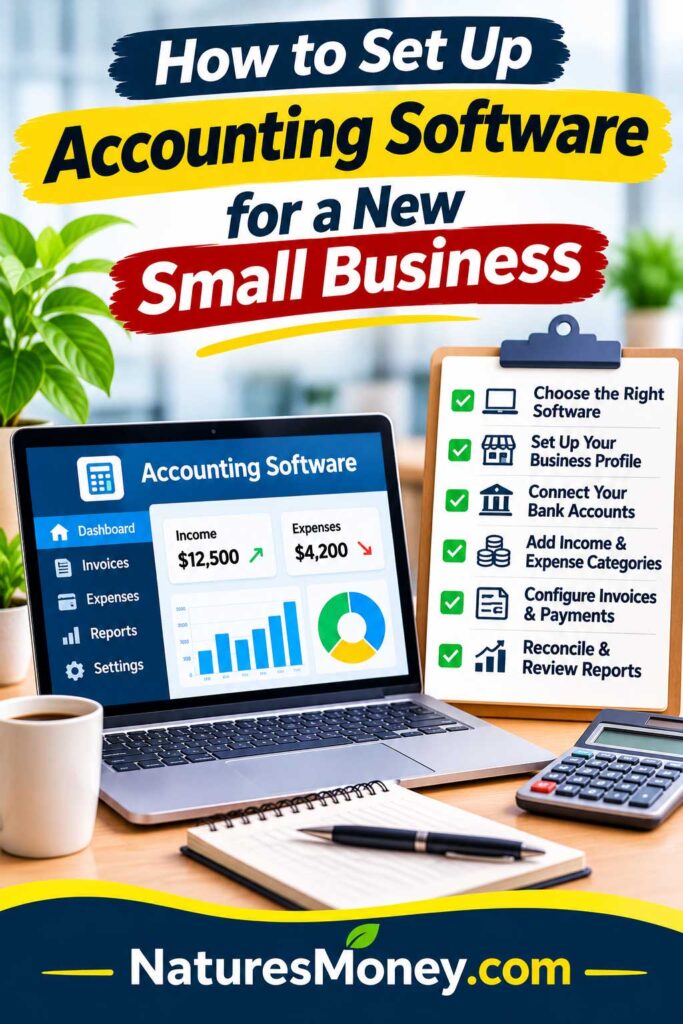
Setting up accounting software may sound complicated, especially if you’ve been managing your finances with spreadsheets or keeping track of expenses manually.
Fortunately, most modern accounting platforms are designed to make the process manageable, even if you don’t have an accounting background.
The key is to get the basics right from the beginning.
A properly configured accounting system can help you track income, organize expenses, send invoices, and prepare financial reports without constantly correcting mistakes.
Whether you choose QuickBooks Online, Xero, Wave, Zoho Books, or another platform, the following steps will help you get started.
Step 1: Organize Your Business Financial Accounts
Before opening your accounting software, gather the financial information you’ll need.
This includes your business bank accounts, credit cards, payment processors, and existing financial records.
For example, if you run a small web design business, you might receive payments through Stripe or PayPal, pay expenses using a business credit card, and keep your operating funds in a business checking account.
You’ll want to identify each of these accounts before connecting them to your accounting platform.
What to Prepare
- Business checking and savings account information.
- Business credit card accounts.
- Payment processor accounts, such as Stripe or PayPal.
- Outstanding customer invoices.
- Unpaid supplier bills.
- Recent bank and credit card statements.
- Existing bookkeeping records, if available.
- Relevant loan balances and other financial obligations.
If you’re moving from spreadsheets or another accounting platform, you’ll also need to determine which historical records should be imported.
Whenever possible, keep business and personal transactions separate. This makes bookkeeping easier and can help you maintain clearer financial records.
Our Recommendation: Start with a complete list of the accounts your business uses. If you’re switching from another system, ask your accountant how to establish accurate opening balances and avoid duplicate transactions.
Step 2: Choose Your Accounting Platform
Once you understand your financial requirements, select the software that best fits your business.
You don’t need the most expensive accounting platform to get started.
For example, a freelancer sending five invoices per month may find Wave sufficient, while a growing service business might benefit from QuickBooks Online or FreshBooks.
An ecommerce business may need additional inventory and sales integrations.
Questions to Consider
- How many transactions does your business process each month?
- Do you need invoicing, inventory tracking, or payroll?
- Will multiple people need access?
- Does the software connect with your bank?
- What financial reports do you need?
- How much can you comfortably spend each month?
Take advantage of free trials or free plans when available.
Before committing, try entering a sample expense, creating an invoice, and generating a financial report.
This can help you determine whether the software is comfortable to use.
Step 3: Configure Your Business Information
After creating your account, enter your business information and review the accounting settings.
This information may appear on invoices, reports, and other financial documents.
Information You May Need
- Legal business name.
- Business address and contact details.
- Business structure.
- Tax identification information, where required.
- Primary currency.
- Fiscal year and financial reporting period.
- Accounting method and applicable tax settings.
- Authorized users and their permissions.
You’ll also need to review whether your business uses cash-basis or accrual-basis accounting.
With cash-basis accounting, income and expenses are generally recognized when money is received or paid.
Accrual-basis accounting generally recognizes income when earned and expenses when incurred, regardless of when payment happens.
The appropriate method depends on your business circumstances and applicable accounting and tax rules.
If you’re unsure which settings to choose, consult a qualified accountant before entering large amounts of financial data.
Step 4: Connect Your Business Bank Accounts and Credit Cards
One of the most useful features of modern accounting software is the ability to import transactions from supported financial institutions.
Instead of manually entering every purchase and deposit, you can review imported transactions and assign them to appropriate categories.
For example, if your business pays for website hosting, software subscriptions, and advertising using a business credit card, supported bank feeds can help bring those transactions into your accounting system.
How to Get Started
- Open the banking or connected accounts section of your accounting software.
- Search for your financial institution.
- Follow the provider’s secure connection process.
- Select the accounts you want to connect.
- Review the available transaction history.
- Check imported transactions before accepting or categorizing them.
Some banks and account types may not support automatic connections.
If your financial institution isn’t supported, look for options to import transactions using a compatible file format.
Also, be careful when importing older transactions. Duplicate entries can create inaccurate financial reports.
Step 5: Organize Your Income and Expense Categories
Accounting software uses a chart of accounts to organize financial activity.
Think of it as the structure that determines where your business transactions belong.
For example, money earned from customers should be recorded differently from money borrowed through a business loan.
Similarly, advertising expenses, office supplies, and software subscriptions may belong in different expense categories.
Common Categories for Small Businesses
| Category | Example |
|---|---|
| Sales Revenue | Customer purchases and service income |
| Advertising and Marketing | Google Ads, social media advertising |
| Software Subscriptions | Business applications and online tools |
| Website Expenses | Hosting, domains, website maintenance |
| Office Expenses | Supplies and routine office purchases |
| Professional Services | Accounting, legal, consulting fees |
| Insurance | Business liability and other insurance |
| Rent and Utilities | Office rent, electricity, internet |
| Equipment | Computers, tools, and business equipment |
| Travel and Transportation | Eligible business travel and transportation expenses |
These are examples rather than a complete chart of accounts. Some purchases, such as equipment, may need to be recorded as assets rather than ordinary expenses.
For instance, if you operate a small marketing agency, you might want separate categories for advertising, website hosting, design software, and professional services.
This makes it easier to understand where your money is going.
However, avoid creating dozens of unnecessary categories.
An overly complicated chart of accounts can make bookkeeping harder instead of easier.
Our Recommendation: Start with a simple, consistent category structure that reflects your business. Ask your accountant to review it if you’re uncertain about how to classify equipment, loans, taxes, or other significant transactions.
Step 6: Configure Invoices and Payment Options
If you bill customers directly, spend some time setting up your invoicing system.
A professional invoice should make it easy for customers to understand what they’re paying for, when payment is due, and how to pay.
Most accounting platforms allow you to customize invoices with your business information and branding.
Invoice Settings to Review
- Business name and logo.
- Customer contact information.
- Invoice numbering.
- Description of products or services.
- Payment terms and due dates.
- Applicable sales tax settings.
- Accepted payment methods.
- Payment reminders, if supported.
For example, a computer repair company might create invoices that include diagnostic services, repair labor, and replacement parts.
A marketing consultant might use recurring invoices for monthly service agreements.
If your accounting software supports online payments, review the processing fees before enabling them.
Also, make sure you understand how customer payments will be recorded in your accounting system.
Test Your Invoice Process
Before sending invoices to real customers, create a sample invoice.
Check the formatting, payment instructions, tax settings, and email delivery process.
If possible, test how payments appear in your financial records.
Step 7: Reconcile Accounts and Review Financial Reports Regularly
Setting up accounting software is only the beginning.
To keep your financial records accurate, you need to review transactions, reconcile accounts, and monitor business performance.
Bank reconciliation involves comparing your accounting records with your bank statements to identify missing, duplicated, or incorrect transactions.
For example, your accounting software might show a customer payment that hasn’t cleared your bank account yet.
Or you might discover a bank fee that hasn’t been recorded.
Regular reconciliation helps you identify these differences before they become larger problems.
Monthly Accounting Checklist
- Review imported bank and credit card transactions.
- Categorize any outstanding expenses.
- Reconcile bank and credit card accounts.
- Review unpaid customer invoices.
- Check outstanding supplier bills.
- Examine your profit and loss statement.
- Review cash balances and upcoming expenses.
- Investigate unusual transactions or unexpected changes.
For a very small business, these tasks may only take a short amount of time each month.
Larger businesses may need more frequent reviews.
If you work with a bookkeeper or accountant, establish a regular schedule for reviewing financial records together.
Common Accounting Software Setup Mistakes to Avoid
Even good accounting software can produce inaccurate reports if the information entered into it is incorrect.
Watch out for these common mistakes:
- Mixing personal and business expenses: Makes it harder to understand your actual business costs.
- Importing duplicate transactions: Can overstate income or expenses.
- Using incorrect account categories: May distort financial reports.
- Recording transfers as income: Moving money between your own accounts generally doesn’t create business revenue.
- Ignoring opening balances: Can cause discrepancies when switching accounting systems.
- Forgetting outstanding invoices or bills: May leave important financial obligations out of your records.
- Assuming automation is always accurate: Imported transactions and suggested categories still need review.
- Giving everyone full access: Can expose sensitive financial information unnecessarily.
If you’re migrating from another platform, pay particular attention to opening balances, unpaid invoices, outstanding bills, and historical transactions.
These areas can create reporting problems when they’re transferred incorrectly.
Our Recommendation: Keep Your Accounting Setup Simple
You don’t need to become an accounting expert before using small business accounting software.
Start with the basics: organize your accounts, configure your business information, connect your bank, set up invoices, and establish a regular bookkeeping routine.
As your business grows, you can introduce additional features such as payroll integrations, inventory tracking, recurring billing, or more detailed financial reporting.
The most important thing is consistency. Even the best accounting software won’t provide reliable information if transactions aren’t reviewed and records aren’t maintained.
A simple accounting system that you use every week is far more valuable than an expensive platform that you rarely open.
Common Small Business Accounting Mistakes to Avoid
Even with good accounting software, small business owners can run into problems if they don’t manage their financial records consistently.
Some mistakes are easy to overlook. You might forget to categorize a transaction, accidentally record the same expense twice, or assume your accounting software has automatically handled everything correctly.
Others can become more expensive over time, especially when inaccurate records affect cash flow decisions, financial reports, or tax preparation.
The good news is that many common accounting mistakes are preventable.
Here are six mistakes worth avoiding and practical ways to keep your business finances organized.
1. Choosing Accounting Software Based Only on Price
It’s understandable to look for the cheapest accounting software, especially when you’re starting a business.
However, the lowest subscription price doesn’t always mean the lowest overall cost.
For example, imagine you’re running a small consulting company and using free accounting software.
At first, everything works well. But as your business grows, you find yourself manually entering transactions, following up on unpaid invoices, and spending several hours each month organizing expenses.
A paid platform with automatic transaction imports and recurring invoices might reduce some of that work.
If the software saves you enough time, the monthly subscription could be worthwhile.
How to Avoid This Mistake
- Compare features, not just subscription prices.
- Estimate how much time you currently spend on bookkeeping.
- Check whether automation features are included in your selected plan.
- Consider the cost of payroll, payment processing, and integrations.
- Review regular renewal prices instead of relying on introductory discounts.
2. Mixing Business and Personal Expenses
Mixing personal and business transactions is one of the easiest ways to make bookkeeping more complicated.
For example, imagine you use the same credit card to purchase office supplies, pay for website hosting, buy groceries, and cover family expenses.
When it’s time to review your business finances, you have to separate every personal purchase from legitimate business expenses.
This takes time and increases the chance of recording something incorrectly.
It can also make tax preparation more difficult and complicate recordkeeping for certain business structures.
How to Avoid This Mistake
- Use a dedicated business bank account when appropriate.
- Consider a separate credit card for business purchases.
- Keep receipts and supporting documentation for business expenses.
- Record owner contributions and withdrawals correctly.
- Review transactions regularly to identify personal purchases.
If you occasionally use personal funds for a business expense, record the transaction properly rather than ignoring it.
The appropriate accounting treatment depends on your business structure and circumstances.
3. Ignoring Bank Reconciliation
Connecting your bank account to accounting software is convenient, but it doesn’t guarantee that every transaction will be recorded correctly.
Bank feeds can occasionally contain duplicate transactions, missing information, or incorrect categories.
For example, your accounting software might import a $250 payment from a customer and categorize it incorrectly.
You might also accidentally record a bank transfer as business income, which could make your revenue appear higher than it actually is.
Bank reconciliation helps identify these issues.
How to Avoid This Mistake
- Compare accounting records with bank statements regularly.
- Check for missing or duplicate transactions.
- Review deposits and withdrawals that appear unusual.
- Make sure transfers between your own accounts are classified correctly.
- Investigate discrepancies before finalizing monthly reports.
For most small businesses, monthly reconciliation is a practical starting point.
Companies with higher transaction volumes may benefit from reviewing their accounts more frequently.
4. Forgetting About Additional Accounting Software Fees
A low advertised subscription price can look attractive until you discover that several features cost extra.
For example, a business owner might choose an accounting platform because it costs $25 per month.
Later, they discover that payroll requires another subscription, additional users increase the price, and certain integrations have separate fees.
The actual monthly cost could be much higher than expected.
Common Additional Costs
- Payment processing fees: Charges for accepting online customer payments.
- Payroll subscriptions: Additional costs for paying employees.
- Extra users: Fees for additional team members or accounting professionals.
- Premium integrations: Charges for connecting certain business applications.
- Advanced reporting: Features available only on higher subscription tiers.
- Setup and training: Potential costs for professional assistance.
How to Avoid This Mistake
Before subscribing, calculate your expected monthly and annual costs.
Review which features are included, how many users are supported, and whether the price increases after a promotional period.
If you need payroll or ecommerce integrations, include those costs in your comparison.
5. Relying Completely on Accounting Automation
Automation is one of the biggest advantages of modern accounting software.
It can import bank transactions, suggest expense categories, generate recurring invoices, and organize financial information.
However, automated systems can still make mistakes.
For example, your software might categorize a computer purchase as an ordinary office expense when it requires different accounting treatment.
It could also misclassify a loan deposit as revenue or fail to match a customer payment to the correct invoice.
If you never review these entries, your financial reports may become inaccurate.
How to Avoid This Mistake
- Review automatically categorized transactions.
- Check large or unusual purchases carefully.
- Verify customer payments and outstanding invoices.
- Review financial reports for unexpected changes.
- Confirm that transfers, loans, and owner transactions are recorded appropriately.
- Ask an accountant about transactions you’re unsure how to classify.
Automation should reduce repetitive work, not eliminate financial oversight.
6. Waiting Until Tax Season to Organize Financial Records
One of the most common bookkeeping mistakes is putting everything off until the end of the year.
You might be busy serving customers, managing employees, or growing your business, so bookkeeping keeps getting pushed aside.
Then tax season arrives, and suddenly you’re trying to organize months of transactions, locate missing receipts, and figure out which customers still owe you money.
This creates unnecessary stress and increases the risk of mistakes.
Keeping your records updated throughout the year is much easier.
How to Avoid This Mistake
Create a simple bookkeeping routine that fits your business.
For example:
| Frequency | Recommended Task |
|---|---|
| Weekly | Review new transactions and unpaid invoices |
| Monthly | Reconcile bank and credit card accounts |
| Monthly | Review income, expenses, and profitability |
| Quarterly | Review financial trends and discuss tax planning with an accountant when appropriate |
| Annually | Prepare and verify year-end financial records |
If your business processes hundreds of transactions each month, you may need a more frequent schedule.
For a freelancer with only a handful of invoices, a short weekly review may be sufficient.
Frequently Asked Questions About Small Business Accounting Software
What is the best accounting software for a small business?
QuickBooks Online is our best overall choice for small business accounting software in 2026 because it offers comprehensive bookkeeping, invoicing, financial reporting, and integrations with other business applications.
However, the best choice depends on how your business operates.
Xero is worth considering for growing companies that need multiple users, while Zoho Books offers good value for budget-conscious businesses. FreshBooks is particularly useful for freelancers and service providers, and Wave is a practical option for businesses looking for free accounting software.
If you’re just starting out, focus on the features you’ll use regularly rather than paying for the most advanced subscription.
Is there free accounting software for small businesses?
Yes. Several accounting platforms offer free plans for eligible small businesses.
Wave provides a free Starter plan with basic invoicing and bookkeeping capabilities. Zoho Books also offers a free plan for businesses that meet its eligibility requirements, including an annual revenue limit.
Odoo offers a One App Free option that may be suitable for businesses interested in using a single application.
However, free plans can have limitations. Features such as automatic bank transaction imports, recurring invoices, additional users, and advanced reporting may require paid subscriptions.
For freelancers and new businesses with straightforward finances, free accounting software can be a good place to start.
Is QuickBooks worth it for a small business?
QuickBooks Online can be worth the subscription cost if your business needs comprehensive accounting features, financial reporting, bank transaction management, and integrations with other tools.
For example, a growing service company that handles dozens of invoices, recurring expenses, and contractor payments may benefit from QuickBooks’ broader accounting capabilities.
However, if you’re a freelancer who sends only a few invoices each month, you may not need everything QuickBooks offers.
Wave or Zoho Books could provide a more affordable alternative.
Before subscribing, compare the regular monthly price with the features you actually need.
What is the easiest accounting software for freelancers?
FreshBooks, Wave, and Zoho Books are three options worth comparing.
FreshBooks is especially useful for freelancers who regularly invoice clients, track billable hours, and manage projects.
Wave may be easier to justify financially if you want basic invoicing and bookkeeping without a monthly subscription.
Zoho Books is another option for freelancers who want straightforward accounting tools and the ability to upgrade as their business grows.
The easiest platform ultimately depends on your workflow. Try creating an invoice, recording an expense, and generating a report before deciding.
Do small businesses really need accounting software?
Small businesses need accurate financial records, but they don’t necessarily need paid accounting software.
A freelancer with a handful of monthly transactions may be able to maintain organized records using spreadsheets or a simple bookkeeping system.
However, accounting software becomes increasingly useful when a business starts handling more customers, expenses, invoices, or employees.
It can help reduce manual data entry, organize transactions, monitor unpaid invoices, and prepare financial reports.
Even a free accounting platform may make bookkeeping easier than managing everything manually.
Can accounting software replace an accountant?
Accounting software can automate many bookkeeping tasks, but it doesn’t completely replace the expertise of a qualified accountant.
For example, software can record transactions, generate profit and loss statements, and help organize financial records.
However, an accountant may still be needed to provide tax advice, review complicated transactions, assist with financial planning, or address compliance requirements.
For many small businesses, the most effective approach is to use accounting software for everyday bookkeeping while working with an accountant when professional guidance is necessary.
What accounting software is best for an online store?
QuickBooks Online, Xero, and Odoo are worth considering for ecommerce businesses.
QuickBooks Online offers comprehensive accounting features and inventory capabilities on eligible plans.
Xero may be a good choice for growing online stores that need financial reporting, collaboration, and compatible ecommerce integrations.
Odoo is particularly interesting for businesses that want to connect accounting with inventory, sales, and ecommerce operations.
Before choosing, confirm that the software integrates with your online store and supports the financial information you need to track, including refunds, payment processing fees, inventory costs, and sales tax.
If you sell through Shopify, WooCommerce, or multiple marketplaces, check whether additional integration software is required.
Can I switch accounting software later?
Yes. Most businesses can switch accounting platforms, although the process may require careful planning.
You may need to export financial records, transfer customer and supplier information, import outstanding invoices, and reconnect bank accounts.
It’s also important to verify opening balances and make sure historical transactions aren’t duplicated or lost.
For a freelancer with simple finances, switching may be relatively straightforward.
For a larger business with inventory, employees, or several years of accounting records, migration can be more complicated.
Before switching, review the import and export options offered by both platforms and consider asking your accountant to help verify the transferred information.
How much does accounting software cost for a small business?
Small business accounting software can cost anywhere from $0 to several hundred dollars per month, depending on the provider, subscription tier, and features.
Free options such as Wave Starter and eligible Zoho Books plans can be sufficient for basic bookkeeping.
Paid entry-level subscriptions often start around $20–$40 per month, while more advanced plans can cost considerably more.
Additional charges may apply for payroll, payment processing, extra users, and integrations.
When comparing prices, calculate the total annual cost using regular subscription rates rather than introductory discounts.
What features should small businesses look for in accounting software?
Most small businesses should start with a few essential features:
- Income and expense tracking.
- Customer invoicing and payment tracking.
- Bank transaction imports and reconciliation.
- Profit and loss reporting.
- Accounts payable and receivable management.
- Secure access and appropriate user permissions.
- Integrations with essential business applications.
Depending on your business, you may also need payroll connectivity, inventory management, recurring billing, project costing, or more advanced financial reports.
Choose the features that match your actual operations rather than paying for tools you may never use.
Is cloud accounting software better than desktop accounting software?
Cloud accounting software is often more convenient for small businesses that want to access financial records from different locations or collaborate with an accountant.
Platforms such as QuickBooks Online, Xero, and Zoho Books provide online accounting services.
Desktop-focused software, such as certain Sage 50 editions, may appeal to businesses with specific accounting requirements or established desktop workflows.
Neither approach is automatically better for every company.
Consider accessibility, security controls, backup arrangements, internet requirements, available features, and total cost before deciding.
Is accounting software secure for small businesses?
Reputable accounting software providers generally offer security measures such as encrypted connections, authentication controls, and account access management.
However, security features vary by platform, and no online service is completely risk-free.
To help protect your financial information, use strong, unique passwords, enable multifactor authentication when available, and limit access to employees who genuinely need it.
You should also review the provider’s backup, data export, and account recovery options.
Can accounting software help with small business taxes?
Yes. Accounting software can help organize income, expenses, and other financial records that may be needed for tax preparation.
Some platforms also offer tax-related reports or integrations with tax and payroll services.
However, accounting software doesn’t automatically guarantee that your tax records are correct or that every expense has been classified appropriately.
Tax requirements depend on your business structure, location, and circumstances.
For complicated tax questions or business deductions, consult a qualified tax professional.
Our Recommendation: Which Accounting Software Should You Choose?
For most small businesses that need invoicing, expense tracking, bank reconciliation, and reliable financial reports, QuickBooks Online is our top overall pick. It offers a broad range of accounting tools and several plans to accommodate more demanding business needs.
But paying for QuickBooks isn’t necessary for everyone.
If you’re a freelancer or just starting your business, Wave is a practical free option. Zoho Books is another strong choice, particularly if you qualify for its free plan and want an affordable upgrade path.
For growing businesses where several people need access to financial records, Xero deserves a close look. FreshBooks is better suited to professionals who spend much of their time invoicing clients and tracking billable work.
If payroll is a priority, compare Patriot Software with other accounting and payroll combinations. Businesses that need accounting connected with inventory, sales, and CRM should evaluate Odoo, while Sage 50 may be more suitable for established companies with advanced accounting requirements.
Before making your decision, narrow your options to two or three platforms. Compare their regular prices, check the features included in each plan, and test the tasks you’ll perform most often.
You don’t need the most expensive accounting software to run a successful business. You need a system that keeps your records accurate, gives you useful financial information, and doesn’t consume hours of your week.
Read More: Helpful Tools for Managing and Growing Your Small Business
Choosing the right accounting software is an important step, but it’s only one part of running a successful business. These related guides can help you find affordable tools, manage customers, improve productivity, and grow your business.
- Best Free Small Business Apps — Discover useful free tools for managing finances, projects, appointments, and everyday business tasks.
- Best CRM Software for Small Businesses — Compare platforms for organizing customer information, tracking leads, and managing sales.
- Best Free CRM Software — Explore free customer management tools for startups and budget-conscious businesses.
- Best Email Marketing Software — Find tools for staying connected with customers, automating campaigns, and encouraging repeat business.
- Best Free Website Builders — Learn how to create a professional business website without a large upfront investment.