




The best appointment scheduling software for small businesses eliminates the frustrating back-and-forth that often comes with booking customers. You suggest Tuesday, the customer asks about Thursday, and by the time you reply, that available time has already been taken. For a busy small business owner, these conversations can interrupt the work customers are already paying them to do.
Appointment scheduling software allows customers to view your availability, select a suitable time, and receive an automatic confirmation. You control which services can be booked, when appointments are available, and how much notice customers must provide.
Calendly is our starting choice for consultations and business meetings, while Acuity Scheduling is better suited to businesses offering paid appointments. Setmore provides a useful free option for small teams. Square Appointments is worth considering if your business already uses Square for payments, while YouCanBookMe and Zoho Bookings offer flexible alternatives for customized booking pages and connected business workflows.
Our recommendations are based on current pricing, documented features, plan limits, and common small business booking needs. The right platform depends on the services you offer, the number of people managing appointments, your existing software, and whether you need payments, reminders, or multiple calendars.
Best Appointment Scheduling Software at a Glance
The table below compares the best appointment scheduling software for small businesses based on pricing, ideal use case, and the main limitation to consider.
Monthly rates marked as annual are monthly equivalents that require annual billing. Taxes, payment-processing fees, text-message charges, and optional add-ons may cost extra.
Affiliate disclosure: Some links in this article may be affiliate links. If you make a purchase or sign up through one of them, NaturesMoney may earn a commission at no additional cost to you.
| Software | Best for | Pricing reference | Main limitation to consider |
|---|---|---|---|
| Calendly | Consultations and business meetings | Free; Standard $10 per seat/month annually; Teams $16 per seat/month annually | Free includes one event type and one calendar connection |
| Acuity Scheduling | Businesses offering paid appointments | Starter $16/month annually or $20 with monthly billing | Starter supports only one calendar; no ongoing free plan |
| Setmore | Small teams seeking free booking software | Free for up to four users; Pro $5 per user/month annually | Two-way calendar sync and SMS reminders require Pro |
| Square Appointments | Service businesses already using Square | Free; Plus $49/month per location; Premium $149/month per location | Costs increase by location; payment-processing fees apply |
| YouCanBookMe | Customizable customer booking pages | Free plan available; check current paid-plan pricing | Calendar connections and booking-page allowances vary by plan |
| Zoho Bookings | Teams using Zoho business tools | Basic $6 per user/month annually or $8 monthly; Premium $9 per user/month annually or $12 monthly | Bookable resources require separately priced Premium add-ons |
How We Selected These Scheduling Tools
We reviewed each provider’s official pricing, plan limits, and documented features to identify the best appointment scheduling software for small businesses. Our comparison focused on online booking, calendar connections, staff accounts, payment collection, automated reminders, customer forms, and the features that may require a paid upgrade.
We also considered how each platform fits different types of businesses. A consultant scheduling discovery calls has different needs from a tutor collecting payment for lessons. A salon may need separate staff calendars, while a local service provider may require travel buffers, deposits, and clear cancellation rules.
Our recommendations are based on published product information and practical small business booking needs. We did not conduct timed usability tests or measure support response times, booking conversions, or reductions in missed appointments. Use the comparison to narrow the choices, then run the same realistic appointment through each shortlisted platform before paying for a plan.
1. Calendly: Best for Business Meetings
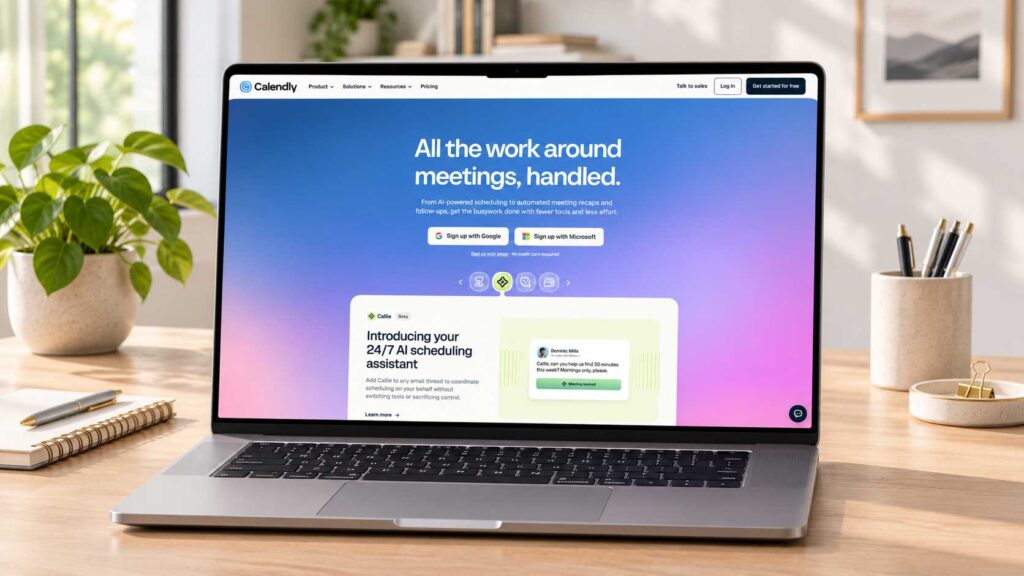
Calendly is one of the most widely recognized appointment scheduling platforms. It is particularly well suited to consultants, freelancers, agencies, recruiters, and sales teams that regularly schedule calls, consultations, interviews, and online meetings.
The Free plan includes unlimited one-on-one meetings, one active event type, and one calendar connection. Calendly Standard costs $10 per seat per month with annual billing and adds unlimited event types, up to six calendar connections, automated reminders, and Stripe and PayPal integrations. Calendly Teams costs $16 per seat per month with annual billing and adds round-robin scheduling, lead routing, and centrally managed event types.
Key Calendly Features
- Customizable booking pages
- Unlimited one-on-one meetings
- Calendar conflict checking
- Meeting polls and one-time meeting links
- Automated reminders on paid plans
- Zoom, Google Meet, and Microsoft Teams integrations
- Stripe and PayPal connections on eligible plans
- Group and multi-person meeting types on paid plans
- Round-robin scheduling and lead routing on the Teams plan
What to Consider Before Choosing Calendly
Calendly charges per user, so count everyone who needs to connect a calendar and host meetings before estimating the total cost. A small team can quickly move beyond the advertised single-seat price.
The platform works best when choosing a meeting time is the main goal. Businesses that need equipment reservations, complex service menus, employee commissions, inventory management, or integrated in-person checkout may need more specialized appointment scheduling software.
The Free plan supports only one active event type and one calendar connection. That may be enough for a solo consultant offering one introductory call, but it can become restrictive when you need several appointment types, multiple calendars, payment collection, or automated reminders.
Who Should Use Calendly?
Calendly fits consultants, freelancers, agencies, recruiters, and sales professionals whose appointments are primarily calls or online meetings.
A solo business owner can begin with one consultation on the Free plan. Standard is the likely next step when you need several meeting types, automated reminders, additional calendar connections, or payment collection. Teams is better suited to businesses that need to distribute meetings among several employees.
2. Acuity Scheduling: Best for Paid Appointments
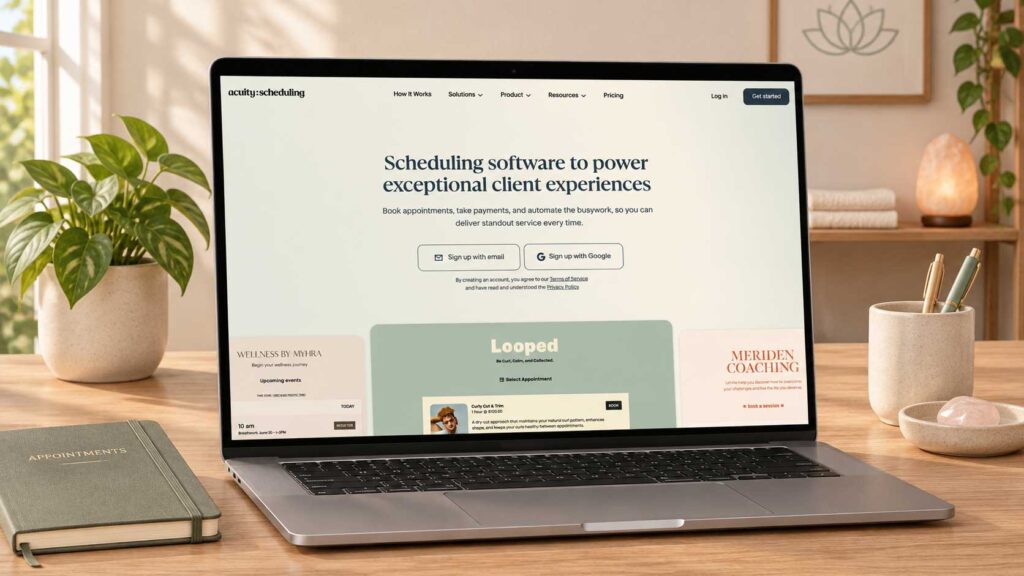
Acuity Scheduling is designed for service businesses that need customers to select an appointment, provide information, and pay a deposit or the full price during booking. It offers more service-focused features than a basic meeting scheduler, including intake forms, appointment packages, memberships, gift certificates, and multiple employee or location calendars.
The Starter plan costs $16 per month with annual billing or $20 with monthly billing. It includes one calendar, unlimited services and appointments, custom client forms, email reminders, automatic time-zone conversion, and payment integrations.
The Standard plan costs $27 per month with annual billing or $34 monthly. It supports up to six calendars and adds text reminders, appointment waitlists, packages, memberships, subscriptions, and gift certificates.
Acuity offers a seven-day free trial without requiring a credit card, but it does not provide an ongoing free plan.
Key Acuity Scheduling Features
- Client self-scheduling
- Unlimited services and appointments
- Custom intake forms
- Email confirmations, reminders, and follow-ups
- Automatic time-zone conversion
- Stripe, Square, PayPal, and Venmo integrations
- Payments and deposits during booking
- Zoom, Google Meet, and GoToMeeting integrations
- Appointment packages and payment plans on eligible plans
- Memberships, subscriptions, and gift certificates on eligible plans
- Text reminders and appointment waitlists on Standard and Premium
- Separate calendars for employees or locations
What to Consider Before Choosing Acuity
Choose a plan based on the number of calendars your business needs. A calendar can represent an employee, practitioner, location, or room. Starter includes one calendar, Standard supports up to six, and Premium supports up to 36.
Businesses offering repeat services should check whether they need Standard’s packages, memberships, subscriptions, and gift certificates. These features are unavailable on Starter.
Payment processing is handled through Stripe, Square, PayPal, or Venmo, so processor fees apply separately from the Acuity subscription. Review both costs when estimating what the booking system will cost your business.
Test a paid appointment from beginning to end before publishing your booking page. Confirm what happens when a customer books, reschedules, cancels, requests a refund, or fails to attend.
Who Should Use Acuity Scheduling?
Acuity works particularly well for coaches, tutors, photographers, fitness instructors, wellness professionals, and other providers that collect information or payment before an appointment.
Starter may be enough for a solo provider with one booking calendar. Standard becomes relevant when several employees or locations need separate calendars or when the business sells packages and memberships.
Compare Acuity Scheduling plans.
3. Setmore: Best Free Option for Small Teams
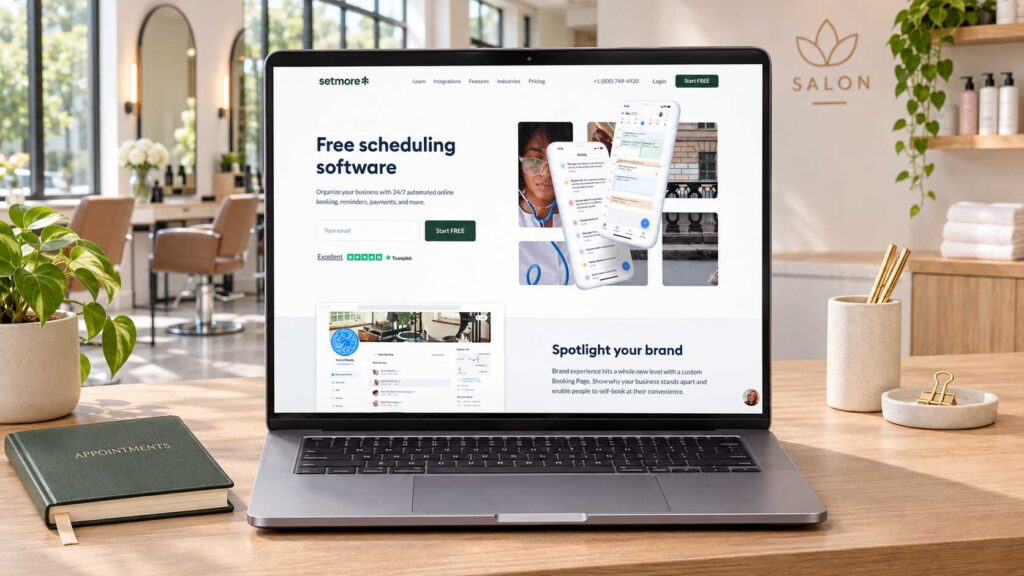
Setmore offers one of the strongest free appointment scheduling plans for small teams. The Free plan supports up to four users and includes unlimited appointments, individual staff profiles, a customer booking page, email reminders, online payments, group classes, and team scheduling tools.
Setmore Pro costs $5 per user per month with annual billing or $12 per user per month with monthly billing. It supports unlimited users and adds two-way calendar synchronization, recurring appointments, custom booking forms, deposits, SMS reminders, video appointments, and the option to remove Setmore branding.
Key Setmore Features
- Free plan for up to four users
- Unlimited appointments
- Individual staff profiles and calendars
- Customizable customer booking page
- One-on-one services and group classes
- Email confirmations and reminders
- Online and in-person payments
- Square, Stripe, PayPal, and LawPay integrations
- Website booking widget for WordPress, Wix, and Weebly
- Facebook and Instagram booking buttons
- Reserve with Google integration
- Google review requests on Pro
- Mobile and desktop applications
- Two-way calendar synchronization on Pro
- Recurring appointments and SMS reminders on Pro
What to Consider Before Choosing Setmore
Setmore’s Free plan includes individual staff calendars, but it does not include two-way synchronization with external calendars. That means events added to Google Calendar or another connected calendar may not automatically block the same time on your Setmore booking page.
This limitation matters when employees use outside calendars for personal commitments or appointments created through other systems. Create a deliberate calendar conflict and test the booking process before sharing your page with customers.
The Free plan includes one email reminder per appointment. Pro allows two reminders and provides 500 SMS credits per team member each month. SMS availability varies by country, and additional credits may require a separate purchase.
Setmore charges for each staff profile on Pro. A staff calendar counts as a user even when that person does not have login access, so include every bookable employee when calculating the subscription cost.
Who Should Use Setmore?
Setmore gives a small service team a practical way to test online booking before committing to a subscription.
The Free plan is best for teams that can manage appointments within Setmore and do not require external two-way calendar synchronization. Pro becomes more practical when the business needs recurring appointments, deposits, SMS reminders, video appointments, custom booking forms, or automatic conflict checking across connected calendars.
4. Square Appointments: Best for Businesses Using Square
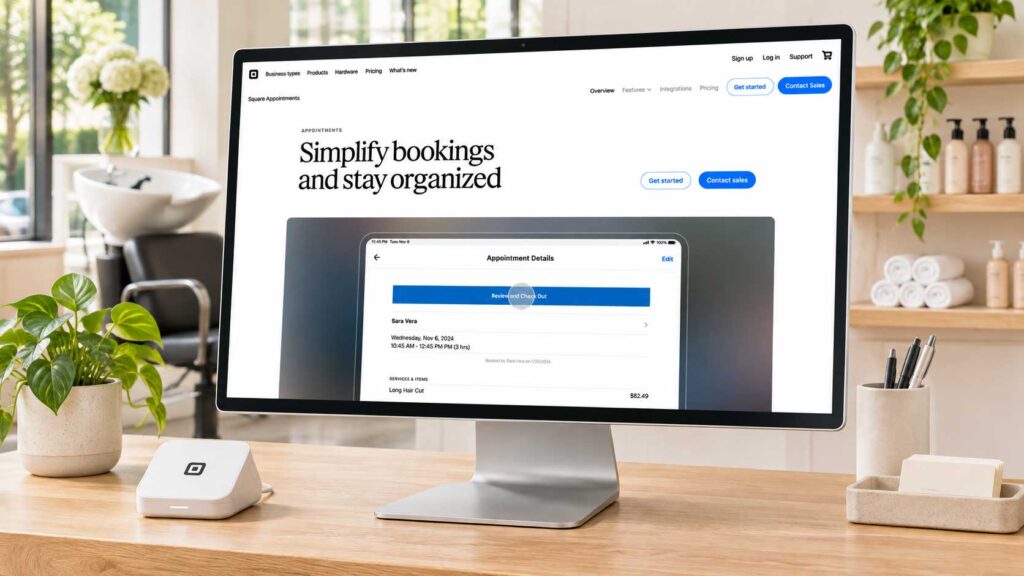
Square Appointments combines online appointment scheduling with Square’s payment processing, customer profiles, point-of-sale tools, and broader business platform. It is particularly useful for service businesses that already use Square to collect payments or manage in-person checkout.
Square Free costs $0 per month per location and includes an online booking website, appointment reminders, booking integrations, and unlimited staff calendars.
Square Plus costs $49 per month per location and adds cancellation policies, no-show fees, multi-staff appointment booking, a customer waitlist, and more advanced scheduling tools. Square Premium costs $149 per month per location and adds resource management, service-cost tracking, and future-booking reports.
Payment-processing charges apply separately. Square lists in-person processing at 2.6% plus 15 cents on Free, 2.5% plus 15 cents on Plus, and 2.4% plus 15 cents on Premium. Online processing is 3.3% plus 30 cents on Free and 2.9% plus 30 cents on Plus and Premium.
Key Square Appointments Features
- Customizable online booking website
- Unlimited staff calendars
- Email and text appointment reminders
- Customer profiles and appointment history
- Online and in-person payment collection
- Prepayments and appointment deposits
- Digital wallet payments during booking
- Instagram, Facebook, and Google booking integrations
- Google Calendar synchronization on eligible plans
- Cancellation policies and no-show fees on Plus and Premium
- Multi-staff appointment booking on Plus and Premium
- Appointment waitlist on Plus and Premium
- Resource management on Premium
- Square point-of-sale and customer-management integrations
What to Consider Before Choosing Square Appointments
Square Free includes useful scheduling features, but several important controls require Plus. Businesses that need enforceable cancellation policies, no-show fees, appointment waitlists, multi-staff services, or more advanced scheduling should include the $49 monthly location fee in their cost estimate.
Premium is designed for larger businesses with more complicated scheduling needs. Its resource-management tools can assign rooms, chairs, stations, or equipment to specific services. Smaller businesses may not need enough of these features to justify the $149 monthly fee.
Paid subscriptions are charged per location. A business operating from three locations would therefore pay for three separate Plus or Premium location subscriptions.
Payment-processing charges are separate from the monthly software cost. Estimate the subscription and processing fees together, especially if customers will pay deposits, prepay online, or complete purchases at the appointment.
Who Should Use Square Appointments?
Square Appointments makes the most sense for salons, barbershops, spas, repair services, and other local businesses that already combine appointments with Square payments.
Square Free may be enough for a solo professional or small team with straightforward booking needs. Plus is more appropriate when the business needs no-show protection, multi-staff appointments, waitlists, or more control over the scheduling process. Premium is best suited to larger salons and service businesses that need resource management and more detailed booking reports.
Compare Square Appointments plans.
5. YouCanBookMe: Best for Customizable Booking Pages
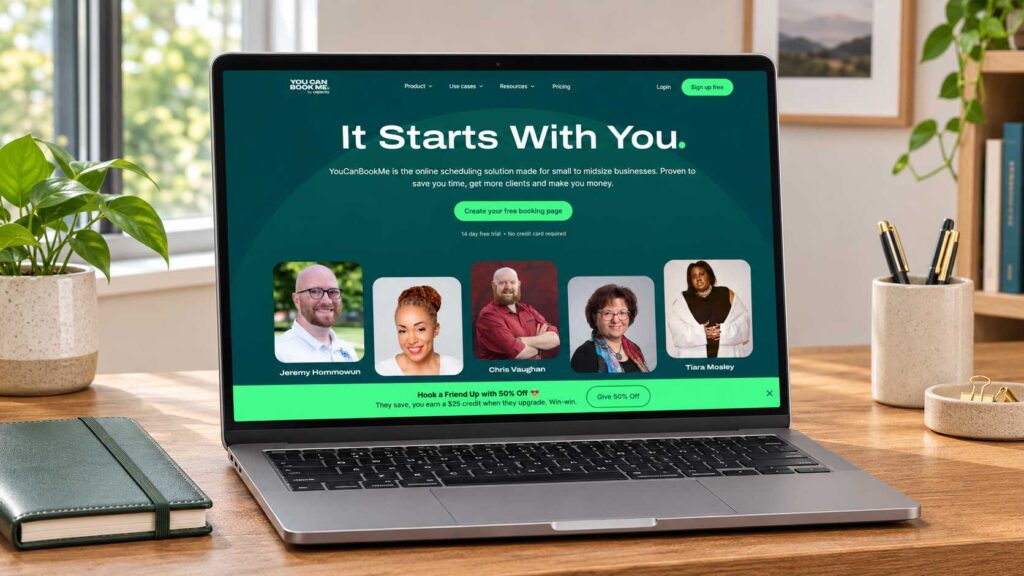
YouCanBookMe focuses on customizable booking pages, flexible availability rules, and personalized customer communication. Businesses can adjust the page text, booking questions, confirmation messages, calendar events, and website embed to create a more tailored scheduling experience.
The Free plan includes one booking page, one calendar connection, and up to 30 bookings per month. It also includes customizable form questions, confirmation emails, website embedding, rescheduling and cancellation links, video-conferencing integrations, and Stripe payment collection.
Paid plans increase the number of booking pages and calendar connections while adding unlimited bookings, reminder messages, group sessions, advanced availability controls, automated workflows, analytics, integrations, and team-management features.
Key YouCanBookMe Features
- Customizable booking pages
- Custom booking-form questions
- Google, Microsoft, Apple, and other calendar connections
- Website booking-page embeds
- Custom confirmation emails
- Rescheduling and cancellation links
- Zoom, Microsoft Teams, and Google Meet integrations
- Stripe payments with credit cards, debit cards, Apple Pay, and Google Pay
- Automatic time-zone and language detection
- Single-use booking links
- Booking-page QR codes
- Group sessions on eligible plans
- Daily booking limits on eligible plans
- Google Analytics and Meta Pixel tracking on eligible plans
- Round-robin and team scheduling on the Team plan
What to Consider Before Choosing YouCanBookMe
The Free plan allows only one booking page, one calendar connection, and 30 appointments per month. It can work for occasional scheduling, but an active service business may reach the monthly booking limit quickly.
Count booking pages and calendar connections separately when comparing plans. A business may need several pages for different services while checking only one calendar. Another business may offer one service but need several calendars checked for conflicts.
The Individual plan expands the account to two booking pages and two calendar connections. Professional supports up to ten booking pages and six calendar connections. The Team plan expands these allowances for each team member and adds centralized administration and round-robin scheduling.
SMS confirmations and reminders cost extra, including on paid plans. Estimate the expected message volume and check current SMS rates before relying heavily on text communication.
Stripe processing fees also apply when collecting appointment payments. Confirm the total cost of the YouCanBookMe subscription, SMS messages, and payment processing before choosing a plan.
Who Should Use YouCanBookMe?
YouCanBookMe suits consultants, tutors, trainers, recruiters, photographers, and freelancers that want more control over the customer-facing booking experience.
The Free plan is best for someone handling fewer than 30 monthly bookings through one page. Individual suits a solo owner who needs more branding and scheduling controls. Professional is better for businesses that need several appointment types, automated follow-ups, analytics, and business integrations. Team is designed for organizations that need shared administration and round-robin appointment distribution.
6. Zoho Bookings: Best for Connected Zoho Workflows
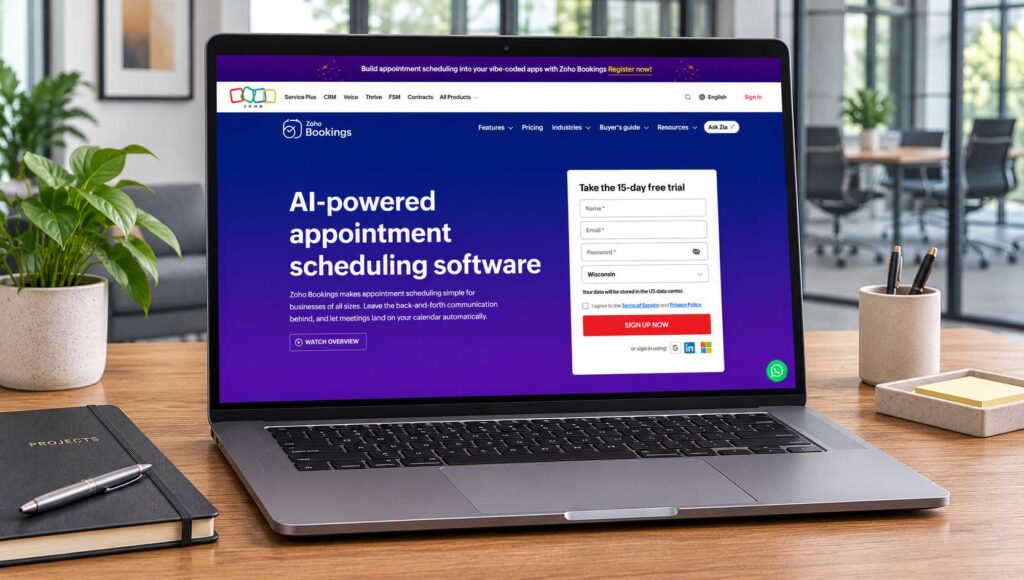
Zoho Bookings combines online appointment scheduling with Zoho CRM, Zoho Meeting, Zoho Assist, Zoho SalesIQ, Bigin, Zoho Flow, and other products in the Zoho business ecosystem. It supports solo users, service teams, and businesses operating across several locations or departments.
The Forever Free plan supports one user and includes online meetings, email notifications, reminders, and two-way synchronization with Zoho Calendar, Google Calendar, and Microsoft 365 or Outlook.com.
The Basic plan costs $6 per user per month with annual billing or $8 with monthly billing. Premium costs $9 per user per month annually or $12 month-to-month. Premium is designed for businesses that need more workspaces, online payments, advanced integrations, branding controls, or more complicated scheduling workflows.
Key Zoho Bookings Features
- Forever Free plan for one user
- Group, collective, and recurring appointments
- Round-robin and priority-based scheduling
- Two-way calendar synchronization
- Customer self-service portal
- Routing forms
- Customizable booking pages
- Workspaces for locations or departments
- Appointment and revenue reports
- Zoho CRM, Bigin, Meeting, Assist, and SalesIQ integrations
- SMS and WhatsApp integrations on eligible plans
What to Consider Before Choosing Zoho Bookings
Separate users, workspaces, and bookable resources when calculating the total cost. They serve different purposes and may carry separate charges.
A user is generally a team member who manages or accepts appointments. A workspace organizes event types by location, brand, or department. Basic includes one workspace, while Premium includes three, with additional workspaces available as paid add-ons.
A resource is a room, vehicle, chair, desk, or piece of equipment that customers can reserve. Resource booking is available as a separately priced Premium add-on and is not included in the standard Premium subscription.
Check whether the features your business needs are available on Basic or require Premium. Payment collection, advanced integrations, white labeling, custom domains, custom CSS, SMS workflows, and more complicated automation may require the higher plan or a connected third-party service.
Businesses already paying for Zoho One should check their account before purchasing a separate subscription because Zoho states that Zoho One customers receive access to the Premium version of Zoho Bookings.
Who Should Use Zoho Bookings?
Zoho Bookings deserves consideration from agencies, consultants, training businesses, and teams already managing customers through Zoho.
The Forever Free plan is suitable for a solo owner who needs basic appointment scheduling and calendar synchronization. Basic is better for small teams managing standard client bookings. Premium is more appropriate for organizations with several locations or departments that need payments, advanced integrations, stronger branding, or more involved workflows.
If you also need to organize leads, customer details, and follow-up communication, compare our guide to the best CRM software for small businesses.
How to Choose the Best Appointment Scheduling Software
The best appointment scheduling software for small businesses should fit the way your business already operates. Before comparing features, write down what customers can book, who provides the service, how long it takes, and what must happen before and after each appointment.
Use that workflow to identify the features you actually need. This will help you avoid paying for an advanced platform that makes a simple booking process harder to manage.
Decide Whether Customers Are Booking a Meeting or Paying for a Service
A free discovery call mainly requires accurate availability, a clear meeting location, and automatic confirmation. A paid appointment may also require service descriptions, intake questions, deposits, refund rules, and cancellation policies.
Location-based services add another layer. A repair technician, photographer, or mobile massage therapist may need travel buffers, service-area restrictions, and the customer’s complete address before confirming the appointment.
Write down one typical booking from beginning to end. For example, a new customer selects a 30-minute consultation, answers two questions, receives a video link, and can reschedule up to 24 hours beforehand.
Use this example when testing each platform. A realistic appointment will reveal more than comparing long feature lists.
Count Users, Calendars, Locations, and Resources Separately
Scheduling platforms often charge according to users, staff calendars, or business locations. These terms do not always mean the same thing.
One owner may need to check a personal calendar and a work calendar. Several employees might share one treatment room, vehicle, or piece of equipment. A business operating from two locations may need separate availability for each one.
List the following before comparing plans:
- Number of bookable employees
- Number of external calendars that must be checked
- Number of business locations
- Number of shared rooms, vehicles, or equipment resources
- Number of services or appointment types
Use these numbers to calculate the real subscription cost. Test the busiest realistic situation instead of setting up an empty calendar with only one employee.
Set Clear Availability and Booking Rules
An open booking page can fill your day with short gaps that are difficult to use. Decide when customers can schedule appointments and how much preparation, travel, or follow-up time you need.
Look for controls that let you set minimum booking notice, the maximum advance-booking period, buffer time between appointments, daily limits, cancellation deadlines, and separate availability for different services. Staff should also be able to block vacations and other unavailable periods without manually changing every service.
A repair visit may require extra time for driving and unexpected delays. A consultation may need ten minutes afterward for notes. Add these buffers to the scheduling system so customers cannot reserve time you need for other work.
Keep Booking Forms Short and Useful
Every required question creates another step for the customer. Ask only for information that changes how you prepare, helps determine whether the service is appropriate, or is necessary to complete the appointment.
A web designer might ask for the customer’s website and primary goal. A tutor may need the subject and student’s current level. A mobile service provider will need the customer’s address and access instructions.
Avoid turning a short introductory call into a lengthy application unless screening is necessary. Explain why you need sensitive or unusual information, and do not collect details you will not use.
Compare Payment and Cancellation Features
If customers pay when booking, check whether the platform supports full payments, deposits, cancellation fees, refunds, and the payment processor you already use.
The scheduling subscription is only one part of the cost. Payment-processing charges, SMS fees, additional users, locations, and optional resources can raise the total monthly expense.
If your business also bills customers after completing a service, compare the best invoicing software for small businesses for estimates, deposits, recurring invoices, and payment reminders.
Test a successful payment, cancellation, rescheduling request, and refund before publishing the booking page. Make sure the instructions customers see match the policy your business follows.
Review the Entire Customer Experience
Read the booking page, confirmation email, reminder, rescheduling message, and cancellation notice as one customer journey.
Customers should immediately understand what they booked, its price and duration, where the appointment takes place, how they should prepare, and how to cancel, reschedule, or contact your business.
A polished booking page cannot compensate for a confirmation containing the wrong address, time zone, or meeting link. Check your business name, contact information, service location, and appointment time wherever they appear.
Complete the booking process from a phone as well as a desktop computer. Most customers should be able to select a service, choose a time, and receive confirmation without zooming, excessive scrolling, or creating an unnecessary account.
Free vs. Paid Appointment Scheduling Software
Free appointment scheduling software can be enough for a solo owner with a simple booking process. A free plan may support one booking page, one calendar connection, basic confirmations, and a limited number of appointment types or monthly bookings.
A paid plan becomes more useful when free-plan restrictions create extra work, prevent calendar conflicts, or make the booking experience harder for customers. Upgrade for a feature you can clearly identify rather than paying for a longer feature list.
Scheduling is only one part of running a business efficiently. Our guide to the best apps for small businesses covers additional tools for communication, productivity, payments, and everyday operations.
| Business need | What to evaluate |
|---|---|
| One introductory call for one owner | Free-plan booking limits and the required calendar connection |
| Several services or meeting types | Appointment-type limits, service durations, and separate availability |
| Several staff members | Per-user pricing, staff permissions, calendar access, and customer staff selection |
| Paid appointments | Deposits, full payments, receipts, refunds, and processing fees |
| Repeat appointments | Recurring bookings, packages, memberships, and subscriptions |
| Shared rooms or equipment | Resource scheduling and separately priced add-ons |
| Several business locations | Per-location pricing and centralized management |
| Fewer missed appointments | Email and SMS reminders, message limits, and additional charges |
| Stronger branding | Custom colors, domains, booking-page design, and removal of platform branding |
| Marketing measurement | Google Analytics, tracking pixels, conversion redirects, and booking reports |
When a Free Scheduling Plan Is Enough
A free plan may be sufficient for one owner offering a small number of straightforward services through a single calendar. It can also work for a small team when the platform includes enough staff profiles and everyone manages appointments within the scheduling system.
Test calendar conflicts, monthly booking limits, reminders, and payment options before deciding that the free plan supports your actual workflow.
When It Makes Sense to Upgrade
Upgrade when a specific limitation creates recurring manual work or affects customers. Common reasons include additional staff calendars, two-way calendar synchronization, deposits, text reminders, recurring appointments, packages, cancellation fees, shared resources, or round-robin distribution.
Calculate the complete cost, including users, locations, messaging, payment processing, resources, and add-ons. Test booking, payment, rescheduling, and cancellation before committing to annual billing.
How Much Does Appointment Scheduling Software Cost?
Appointment scheduling software can cost anywhere from $0 to more than $150 per month, depending on the number of users, calendars, locations, and advanced features your business needs.
Free plans can work for solo owners with simple booking requirements. Paid plans for individual users commonly start around $5 to $20 per month, while systems designed for several employees, locations, or shared resources can cost considerably more.
Calculate the cost for your complete setup instead of relying on the advertised starting price.
Costs to Include
Your total monthly cost may include:
- Base software subscription
- Additional user or staff seats
- Separate business locations
- Extra booking pages or calendars
- Bookable rooms or equipment
- Email or SMS message charges
- Payment-processing fees
- Premium integrations
- Optional automation or branding features
- Applicable taxes
Use this formula when comparing platforms:
Monthly subscription + user or location fees + add-ons + messaging charges + estimated payment-processing fees = estimated monthly scheduling cost
For example, three Calendly Standard seats at the listed annual rate of $10 per seat would cost the equivalent of $30 per month or $360 per year before taxes and optional extras.
A Square Appointments Plus subscription for two locations would cost $98 per month before payment-processing fees. A business using paid SMS reminders or separately priced resources would need to add those expenses as well.
Compare the Cost With a Specific Business Problem
Decide what the software needs to improve before paying for it. You may want to reduce time spent coordinating appointments, prevent double bookings, collect deposits, manage several employees, or make it easier for customers to schedule outside business hours.
If booking coordination currently takes one hour each week, measure whether the trial reduces that work. Do not automatically treat every saved hour as additional revenue unless you can use the time for paid work or another valuable business task.
Track missed appointments separately. Automated reminders, deposits, and cancellation policies may help, but they do not guarantee that every customer will attend.
Review the results after the first 30 to 60 days. Compare completed bookings, cancellations, missed appointments, administrative time, and total software costs. The results will tell you whether the subscription is reducing administrative work, protecting revenue, or improving the booking experience enough to justify its cost.
How to Add Online Booking to Your Website
Adding online booking to your website gives customers a clear next step after learning about your services. Start with the service page where visitors already decide whether your business fits their needs.
Before showing the booking calendar, explain who the service is for, what the appointment includes, how long it lasts, where it takes place, and how much it costs. Include any preparation requirements and summarize your cancellation or rescheduling policy. Customers should understand what they are booking before they select a time.
A focused service page can explain the appointment and guide visitors toward one clear action. If you need a separate page for a consultation or promotional offer, compare the best landing page builders for small businesses.
Give the Booking Button a Specific Purpose
Use button text that clearly describes what will happen after someone clicks it. “Book a 20-Minute Consultation,” “Schedule a Repair Assessment,” and “Reserve Your First Tutoring Session” are more helpful than a vague phrase such as “Get Started.”
Place the main booking button near the service description. You can repeat it after pricing, frequently asked questions, or another section that helps the customer make a decision.
Some customers may need more information before scheduling. Include a secondary contact option when the service requires an estimate, eligibility check, or brief conversation before an appointment can be confirmed.
Choose Between a Booking Link and an Embedded Calendar
A booking link sends visitors to a scheduling page hosted by the software provider. This is usually the easiest option to set up and maintain.
An embedded calendar keeps the booking process on your website and can create a smoother experience. However, the calendar must remain easy to use on phones, tablets, and desktop computers.
Test whether customers can view available dates, select the correct service, complete the form, and recognize when the appointment has been confirmed. If the embedded calendar loads slowly or does not display correctly, provide a direct booking link underneath it as a fallback.
Connect the Correct Calendars
Connect every calendar containing commitments that could create a scheduling conflict. This may include your business calendar, personal calendar, employee calendars, or calendars for shared rooms and equipment.
Create a test event in each connected calendar and confirm that the same time becomes unavailable on the booking page. Repeat this test for every bookable employee or shared resource before publishing the scheduler.
Test the Complete Booking Process
Complete a test appointment as if you were a customer. Check the process on a phone and desktop computer using a different email address.
Make sure the booking button opens the correct service, available times match your working hours, and existing events prevent conflicting appointments. If you collect payments or deposits, test that process too.
Review the confirmation carefully. It should show the correct date, time, time zone, location, meeting link, and contact details. Test the rescheduling and cancellation links to make sure they work as expected.
Track Completed Bookings Separately
A click on the booking button shows interest, but it does not mean an appointment was completed. Track booking-button clicks and confirmed appointments as separate actions whenever your scheduling software and analytics setup allow it.
If the platform supports a custom confirmation page, send customers there after a successful booking and track visits to that page as completed appointments.
When direct tracking is unavailable, compare the scheduling platform’s appointment records with your website traffic and button clicks. Do not count every booking-page visit as a new customer. Separate free consultations from paid appointments so you can see which services generate inquiries and which ones produce revenue.
After someone books or completes an appointment, email can help you send follow-up information and maintain the customer relationship. Compare the best email marketing software for small businesses for newsletters, automated follow-ups, and customer updates.
Appointment Scheduling Setup Checklist
Complete these steps before making your booking page available to customers:
- Define each appointment’s name, duration, location, price, and assigned staff member.
- Set working hours, minimum booking notice, cancellation deadlines, and buffer time between appointments.
- Connect every calendar that must be checked to prevent double bookings.
- Add only the intake questions needed to evaluate or prepare for the appointment.
- Write clear confirmation, reminder, rescheduling, and cancellation messages.
- Test a new booking, payment, rescheduling request, cancellation, and refund when applicable.
- Review the complete booking process on a phone and desktop computer.
- Publish the booking page and monitor the first appointments for errors or customer confusion.
Create an event in a connected calendar and verify that the same time becomes unavailable on the booking page. If an appointment requires several employees or a shared resource, test what happens when only part of the required availability is open.
Common Appointment Scheduling Software Mistakes to Avoid
Even good appointment scheduling software can create problems when the booking process is not configured carefully. Avoid these mistakes before sharing your booking page with customers.
Publishing Before Testing Calendar Conflicts
Connecting a calendar does not automatically guarantee that every unavailable time will be blocked correctly. Some free plans support only one-way synchronization, while others limit the number of calendars they can check.
Create an event in each connected calendar and confirm that customers cannot reserve the same time. Repeat this test whenever you change calendar connections, staff assignments, working hours, or booking rules.
Offering Too Many Similar Services
A long menu of similar appointment options can make customers uncertain about what to choose. If the differences between two services are unclear, visitors may leave the page or schedule the wrong appointment.
Begin with a small number of clearly defined services. Give each one a specific name, duration, price, and short explanation. Add more choices only when customers can easily understand the difference.
Treating Reminders as a Cancellation Policy
A reminder tells customers that an appointment is approaching. A cancellation policy explains how late they can cancel, whether they can reschedule, and what happens to a deposit or payment.
Display these terms before collecting payment and repeat the most important details in the confirmation message. Make sure your staff follows the same policy that customers see during booking.
Paying for Features You Have Not Defined
Team routing, resource booking, recurring payments, appointment packages, and SMS reminders solve different problems. Paying for all of them does not make the scheduling process better if your business does not need them.
Write down your actual booking workflow before upgrading. Choose a paid plan when a specific feature removes recurring work, prevents an error, or improves the customer experience.
Collecting Too Much Information
A lengthy booking form can discourage customers from finishing the process. It can also leave your business storing information that is unnecessary for providing the service.
Ask only for details needed to prepare for the appointment, confirm that the customer is a suitable fit, or complete the service safely. Move optional questions to a later conversation when possible.
Confusing Bookings With Revenue
A full calendar can contain free consultations, cancellations, missed appointments, and inquiries that never become paying customers. Booking volume alone does not show whether the scheduling system is helping the business grow.
Review completed appointments, collected revenue, cancellations, missed appointments, and the quality of new inquiries. A smaller number of suitable bookings may be more valuable than a busy calendar filled with calls that do not lead to paid work.
Frequently Asked Questions About Appointment Scheduling Software
What is the best appointment scheduling software for small businesses?
The best appointment scheduling software for small businesses depends on what customers need to book. Calendly is our starting choice for consultations and business meetings, while Acuity Scheduling is better suited to paid service appointments. Setmore offers a strong free plan for small teams, and Square Appointments is particularly useful for businesses already using Square for payments. YouCanBookMe and Zoho Bookings are worth considering when customization or connected business workflows are priorities.
Is free appointment scheduling software enough for a small business?
Free appointment scheduling software can be enough for a solo owner or small team with a straightforward booking process. Check the limits on users, appointment types, monthly bookings, calendar connections, reminders, payments, and external calendar synchronization. Upgrade when a specific restriction creates manual work, causes scheduling conflicts, or makes booking more difficult for customers.
Can appointment scheduling software accept payments?
Many scheduling platforms can collect deposits or full payments when customers book. The available payment processors and features depend on the platform and plan. Check the subscription requirements, transaction fees, refund process, and country availability before enabling payments. Test a successful payment, cancellation, and refund before publishing the booking page.
What is the difference between a booking page and a calendar connection?
A booking page is the customer-facing page where someone chooses a service and appointment time. A calendar connection allows the scheduling software to check an external calendar for conflicts or add confirmed appointments to it. Several booking pages can use the same calendar, and having several booking pages does not necessarily mean the platform checks several calendars.
Do appointment reminders prevent missed appointments?
Appointment reminders can help customers remember upcoming bookings, but they cannot prevent every missed appointment. Clear confirmations, accurate location details, simple rescheduling instructions, deposits, and a well-explained cancellation policy may also help. Track your attendance and cancellation rates to determine whether reminders are improving results for your business.
Can I use appointment scheduling software without a website?
Yes. Most scheduling platforms provide a hosted booking page that can be shared through email, text messages, social media, or a Google Business Profile. A website is still valuable because a dedicated service page can explain the appointment, pricing, qualifications, and cancellation terms before sending customers to the scheduler.
Our Recommendation
For solo consultants, freelancers, and service providers booking introductory calls, Calendly is our starting recommendation because its plans focus on meeting availability, calendar connections, reminders, and online meeting workflows.
Choose Acuity Scheduling when customers must select a paid service, complete an intake form, or purchase packages and memberships. Setmore is our preferred free option for a small team, provided you do not need two-way external calendar synchronization. Businesses already using Square for checkout should compare Square Appointments before adding another platform.
Shortlist the two tools that best match your workflow and run the same realistic appointment through each one. Test the booking page, calendar conflict checking, confirmation, payment, rescheduling, and cancellation process. Compare the complete cost, including users, locations, text messages, add-ons, and payment-processing fees.
The best appointment scheduling software for small businesses should make booking easier for customers and reduce the time you spend managing appointments. Begin with one clearly defined service and a manageable schedule, then add more features as your booking volume and business needs grow.
Read More Small Business Software Guides
Continue building a more efficient business with these related guides:
- Best CRM Software for Small Businesses – Compare tools for managing leads, customer details, appointments, and follow-up communication.
- Best Apps for Small Businesses – Explore useful tools for scheduling, communication, payments, productivity, and daily operations.
- Best Landing Page Builders for Small Businesses – Create focused service pages that encourage visitors to schedule an appointment or request a consultation.
- Best Email Marketing Software for Small Businesses – Compare platforms for sending newsletters, automated follow-ups, promotions, and customer updates.