



The best business automation tools for small businesses help reduce repetitive tasks, from copying website inquiries into your CRM to creating client onboarding checklists and assigning appointment follow-ups. These jobs keep your business moving, but handling every step manually can take time away from serving customers.
By connecting your apps, automation software helps you organize leads, move information between systems, and keep routine work on track with fewer manual updates.
In this guide, we compare Zapier, Make, n8n, Microsoft Power Automate, Zoho Flow, and IFTTT. Each suits different needs, from straightforward app connections to more customized workflows. We explain their strengths, pricing models, and limitations to help you choose a tool that fits your business.
Best Business Automation Tools at a Glance
The right automation tool depends on the apps you use, the tasks you want to connect, and how much setup you’re comfortable handling. Here’s how our six picks compare.
| Tool | Best Suited For | Free Plan or Starting Price | What to Consider |
|---|---|---|---|
| Zapier | Connecting everyday business apps | Free: 100 tasks/month; Professional starts at $19.99/month | Check your task allowance, billing term, and whether you need premium apps or multi-step workflows. |
| Make | Building visual workflows with multiple routes | Free: 1,000 credits/month; paid plans vary | Estimate the credits your complete workflow will consume. |
| n8n | Custom workflows with technical support | Cloud Starter: €20/month billed annually, including 2,500 executions | Compare hosted and self-hosted options, execution limits, and maintenance needs. |
| Microsoft Power Automate | Businesses working primarily with Microsoft tools | Premium: $15/user/month paid yearly | Confirm connector licensing and whether you need attended or unattended desktop automation. |
| Zoho Flow | Connecting Zoho apps with other business software | Free: five flows and 100 tasks/month; paid plans vary | Check app availability, task limits, and recovery features. |
| IFTTT | Simple app connections and device routines | Free: 1,000 credits/month; Starter: $2.09/month billed annually | Compare credit allowances, processing speed, and support for multiple accounts. |
Prices and allowances can change. Tasks, credits, and workflow executions measure different things, so compare the cost of your intended workflow before choosing a plan.
Affiliate disclosure: Some links in this article may be affiliate links. If you make a purchase or sign up through one of them, NaturesMoney may earn a commission at no additional cost to you.
What Does Business Automation Software Do?
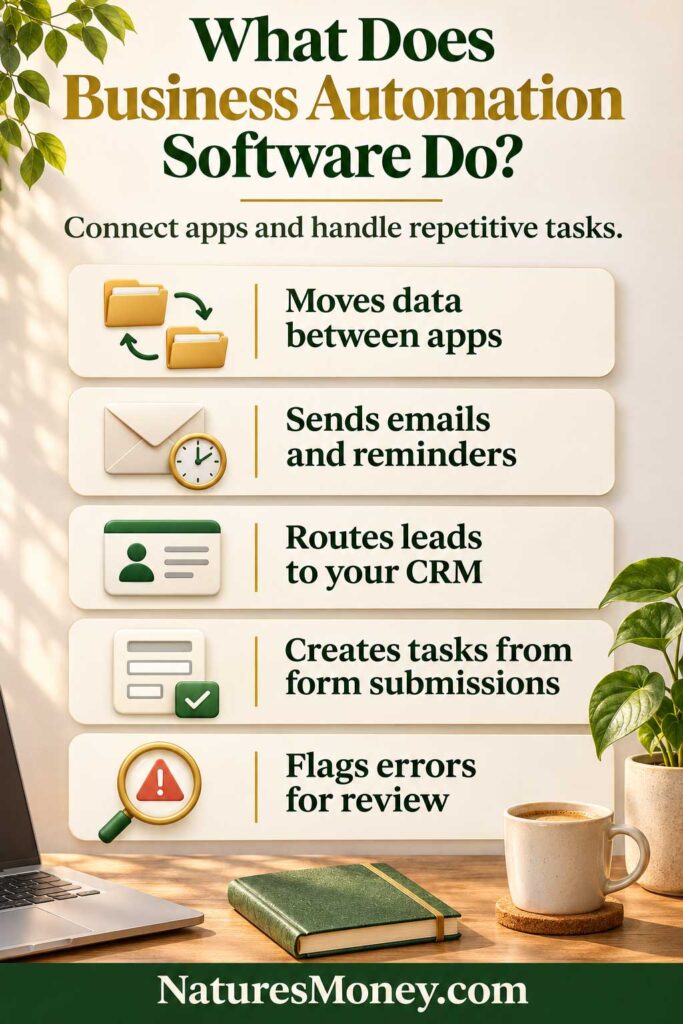
Business automation software connects routine tasks so you don’t have to complete every step manually. A trigger starts the workflow, conditions determine what happens next, and actions carry out the tasks.
For example, when someone submits a consultant’s inquiry form, a workflow could check that the required details are present, create or update the contact in a CRM, and assign a follow-up task. The person responding gets the information they need without copying it between apps.
A well-designed workflow also handles exceptions. Incomplete submissions can go to review, connection failures can trigger an alert, and repeat inquiries can update an existing contact instead of creating duplicates. These rules need to be configured and tested.
Start with one repetitive task. Making a single handoff reliable is often more useful than building a complicated workflow that nobody feels comfortable maintaining.
Automation Tools Versus Built-In App Features
Before paying for another tool, check what your existing apps already do. Your scheduling software may send appointment reminders, your email platform may handle welcome sequences, and your accounting software may send invoice reminders.
A separate automation platform becomes useful when you need to connect those systems or add rules they don’t support. Identify the missing step first, and check that another app isn’t already handling it. This helps prevent duplicate messages and unnecessary subscriptions.
For welcome sequences and subscriber follow-ups, our guide to the best email marketing software for small businesses can help you compare what each platform already handles.
Rule-Based Automation Versus AI Automation
Rule-based automation follows instructions you define. For example, when a project is marked approved, the workflow creates an onboarding task.
AI automation can help interpret information that doesn’t follow a fixed format, such as summarizing a long inquiry or drafting a reply.
Use rules when the correct action is predictable. Add AI when interpreting text serves a clear purpose, and review its output before it changes important records or makes commitments to customers.
How We Chose These Business Automation Tools
We reviewed official product documentation and pricing pages to select six tools suited to different small business needs. Our comparison considers app connections, workflow features, pricing models, and ongoing maintenance. Recommendations reflect documented capabilities; we have not conducted hands-on performance testing.
We looked beyond the number of advertised integrations. A connection is useful only if it supports the specific trigger, action, and data fields your workflow requires. We also considered how usage is billed and how users can monitor workflows and respond to failures.
Finally, we distinguished hosted platforms from self-hosted options. A hosted service handles the underlying infrastructure, while self-hosting gives you more control and responsibility for updates, backups, and recovery. Either way, your business needs someone who understands the setup and can keep it running.
1. Zapier: Best for Connecting Everyday Business Apps

Zapier connects your business apps through automated workflows called Zaps. Each Zap starts with a trigger, such as a new form submission, and performs one or more actions, such as creating a contact or assigning a follow-up task.
It’s worth considering when your team repeatedly moves information between apps. For example, a service business could use a workflow to record a website inquiry in its CRM and notify the person responsible for responding. Check that the available integrations support your specific form, CRM, and required fields before building it.
Why We Like It
Zapier lets you start with a straightforward connection and add steps as your process develops. This makes it a useful candidate for owners who want to automate a defined task without building a custom integration.
Its Free plan supports two-step Zaps, meaning one trigger followed by one action. A workflow that creates a contact, assigns a task, and sends a notification requires multi-step support.
Pricing and Limitations
The Free plan includes 100 tasks per month. Professional starts at $19.99 per month and adds multi-step workflows, premium apps, and webhooks. Confirm the billing term and task allowance for your selected price.
Estimate usage across the entire workflow. One customer inquiry can lead to several billable actions, and some AI or code actions may consume tasks differently. Check overage settings and what happens when your allowance runs out.
Who Should Use Zapier?
Zapier suits solopreneurs and small teams that want to connect everyday business apps for lead capture, client onboarding, and internal notifications.
Explore Zapier’s Plans and Pricing
2. Make: Best for Building Visual Workflows

Make lets you connect apps and build automated workflows, called scenarios, in a visual editor. You can map how information moves between steps and create different routes based on conditions you define.
For example, an agency could route inquiries by service type. A website design request might create a consultation task, while an incomplete submission could prompt someone to collect the missing details. Check that your connected apps support the required triggers and actions before building the process.
Why We Like It
The visual layout helps you follow a workflow from start to finish, especially when different situations require different actions. Seeing those routes together can make missing decisions easier to spot.
That flexibility also requires planning. Write down your rules first, then build a small scenario that you can test and explain. Adding more branches is useful only when each one serves a clear purpose.
Pricing and Limitations
Make’s Free plan includes 1,000 credits per month. Paid plans offer higher allowances and additional features; check the current price for your selected plan and billing term.
A scenario can consume multiple credits each time it runs. Many actions use one credit, while some advanced AI features consume more. Processing several records can also increase usage, so estimate costs from a realistic test rather than counting scenarios alone.
You can read Make’s explanation of credits for details on how usage is calculated.
Who Should Use Make?
Consider Make if your workflows involve several steps or different routes based on customer details, service types, or other conditions. Someone on your team should be comfortable mapping the process and maintaining it.
Explore Make’s Plans and Pricing
3. n8n: Best for Custom Workflows With Technical Support
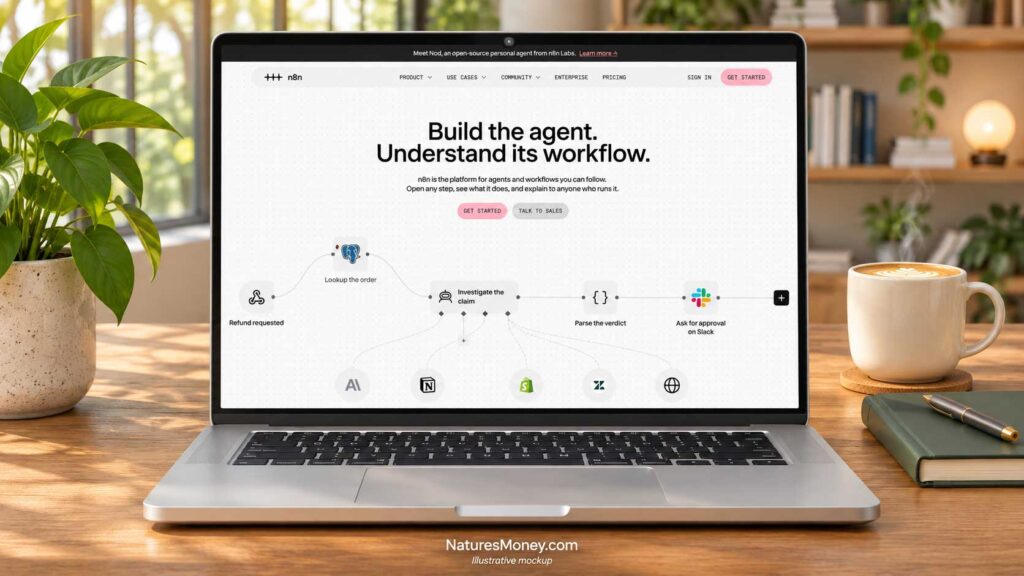
n8n combines visual workflow building with options for code and custom API requests. It’s worth considering when your business needs connections or data processing that go beyond a straightforward app-to-app handoff.
For example, a workflow could receive an inquiry, retrieve related information from another system, and prepare a structured record for review. Building that process requires someone who understands the data, account permissions, and how to troubleshoot failed steps.
Why We Like It
n8n gives technical builders room to customize workflows. Its paid plans use workflow executions as the main billing unit, with unlimited steps per execution, offering a different cost model from platforms that charge for individual actions.
That can make it worth comparing for workflows with many steps. However, execution allowances, simultaneous runs, and other limits still affect whether a plan fits your workload.
Pricing and Limitations
Cloud Starter is listed at €20 per month, billed annually, including 2,500 workflow executions per month. Keep the currency in mind when comparing it with plans priced in US dollars.
n8n also offers a self-hosted Community edition. Hosting it yourself introduces costs and responsibilities for infrastructure, updates, backups, monitoring, and recovery. Review the edition differences and licensing terms before choosing this route.
The official hosting documentation explains the available setup options.
Who Should Use n8n?
n8n is a strong candidate for businesses with a technical employee or reliable contractor, particularly when standard app connections don’t cover the work.
Choose a setup your business can maintain. Document the connections, workflow rules, and recovery steps so day-to-day operations don’t depend on one person remembering how everything works.
Explore n8n’s Plans and Pricing
4. Microsoft Power Automate: Best for Businesses Using Microsoft Tools

Microsoft Power Automate helps connect routine tasks across apps and services, including file handling, notifications, and data collection. It’s worth considering if your business already relies on Microsoft tools and wants to automate work within that setup.
For example, you might build an internal request workflow that records a submission, routes it for approval, and notifies the person responsible for the next step. Check the required connectors and account permissions before choosing a plan.
Why We Like It
Power Automate supports both cloud workflows and desktop automation, giving businesses options for different types of repetitive work.
Cloud workflows connect apps and services. Desktop flows interact with applications through their interface, which can be useful when a process involves software without a suitable app connector. The right approach depends on the task and how it needs to run.
Pricing and Limitations
Power Automate Premium costs $15 per user per month, paid yearly, and includes cloud flows and attended desktop automation. Attended automation runs with a user present.
For unattended desktop automation, Process costs $150 per bot per month, paid yearly. Hosted Process costs $215 per bot per month, paid yearly, and includes a Microsoft-hosted virtual machine.
These plans cover different licensing needs. Confirm which connectors, users, and processes require licenses, and check your existing Microsoft entitlements before purchasing.
Who Should Use Microsoft Power Automate?
Consider Power Automate if your business already relies on Microsoft services and needs internal approvals, notifications, or desktop automation.
Explore Microsoft Power Automate’s Plans and Pricing
5. Zoho Flow: Best for Businesses Using Zoho Apps
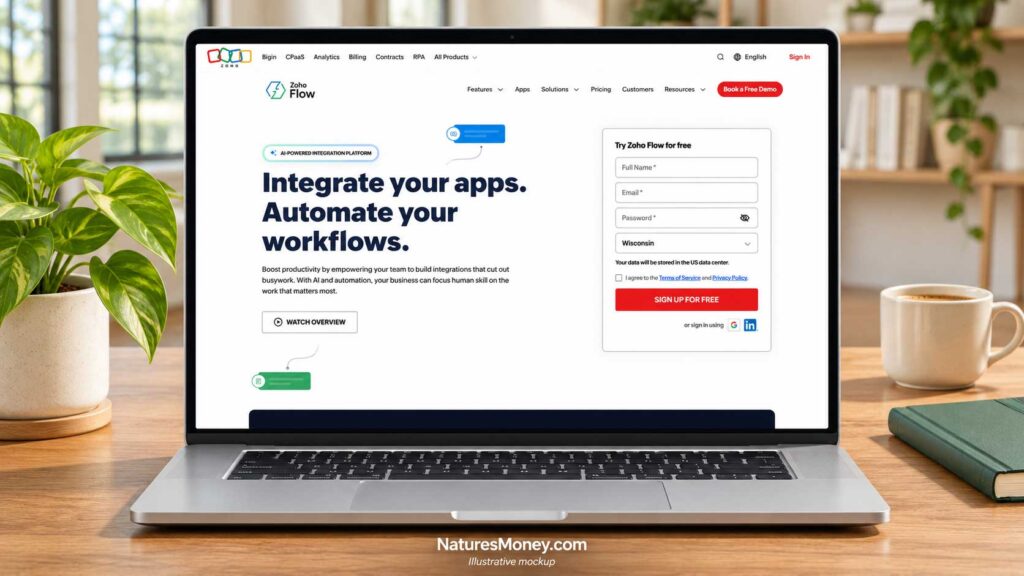
Zoho Flow connects Zoho applications with other business software through a visual workflow builder. You can combine triggers, conditions, and actions to move information between systems and reduce repetitive updates.
For example, a client onboarding form could trigger a contact update and notify the person managing the account. Before building the workflow, check that each integration supports the fields and actions your process requires.
Why We Like It
Zoho Flow is a natural starting point for businesses already using several Zoho applications. It offers a way to connect those tools with external services while keeping workflow rules in one place.
The visual builder handles standard steps, while custom functions provide options for more specialized requirements. Start with the built-in features and assess whether any custom work will need ongoing technical support.
Pricing and Limitations
The Free plan includes five flows and 100 tasks per month. A successful action counts as a task, so one workflow run can consume several tasks.
Standard and Professional offer higher task allowances and different features. Professional includes premium apps and automatic reruns, which may matter when choosing integrations and handling failed workflows. Check the current regional price for your selected allowance before subscribing.
Also decide which app controls each important field. If two systems can update the same contact, define how the workflow should handle conflicting information and repeat submissions.
Who Should Use Zoho Flow?
Consider Zoho Flow if you already use several Zoho apps and want to connect them with your other business software.
Explore Zoho Flow’s Plans and Pricing
6. IFTTT: Best for Simple App and Device Automations

IFTTT connects apps, services, and compatible devices through automated workflows called Applets. Each Applet responds to a trigger and carries out the actions you configure.
It’s worth considering for a focused routine, such as sending a notification when an event occurs or recording information from a supported service. Check the exact triggers and actions available—connecting an app does not mean every feature of that app is supported.
Why We Like It
IFTTT gives you a manageable way to start with a small automation. You can choose a ready-made Applet or build one around a specific task.
Its combination of app and device connections makes it worth exploring for everyday productivity and workspace routines. For customer-facing processes, test timing, failures, and account access before relying on it.
Pricing and Limitations
IFTTT uses credit-based pricing. The Free plan includes unlimited Applets and 1,000 credits per month.
Starter costs $2.09 per month, billed annually, with 5,000 monthly credits. Pro costs $5.49 per month, billed annually, with 20,000 credits. Pro+ costs $13.99 per month, billed annually, with 100,000 credits and support for multiple accounts per service.
Unlimited Applets do not mean unlimited usage. Applet runs and other features consume credits, so check your expected usage and the processing speed included with your plan.
Who Should Use IFTTT?
Consider IFTTT for a specific app or device routine, such as recording an event or sending a notification through a supported service.
Start with one clearly defined routine and test how consistently it works. For more complex client workflows, compare how each platform handles routing, failed runs, and recovery.
Explore IFTTT’s Plans and Pricing
Which Automation Tool Should Your Business Choose?
Start with the task you want to automate, then choose two tools to test. Build the same small workflow in both so you can compare setup, results, usage costs, and troubleshooting.
For everyday app connections, Zapier and Make are useful starting candidates. If your business relies heavily on Microsoft or Zoho, include Power Automate or Zoho Flow. Consider n8n when you have technical support for custom workflows, and IFTTT for a focused app or device routine.
Involve the person who will maintain the automation. They should be comfortable checking results, investigating failures, and updating connections when something changes.
Start With the Exact Trigger and Actions
Describe your workflow in one sentence: “When a qualified inquiry arrives, find or create the contact, record the request, and assign a follow-up task.”
Then check whether each tool supports every step. Does the trigger detect new submissions, updated records, or both? Can the actions access the fields you need? How quickly does the workflow run?
Test these details with realistic examples. A delay that works for a weekly report may be too long for an inquiry that needs a prompt response.
Decide Which App Controls Each Record
Choose a primary system for each type of information. Your CRM might control the lead stage, your project tool the delivery status, and your accounting software the invoice balance.
If information moves in both directions, define which updates take priority. Also decide how to handle repeat submissions and conflicting values. Clear rules help prevent duplicate records, overwritten information, and workflows that repeatedly trigger each other.
Five Useful Small Business Automations to Start With
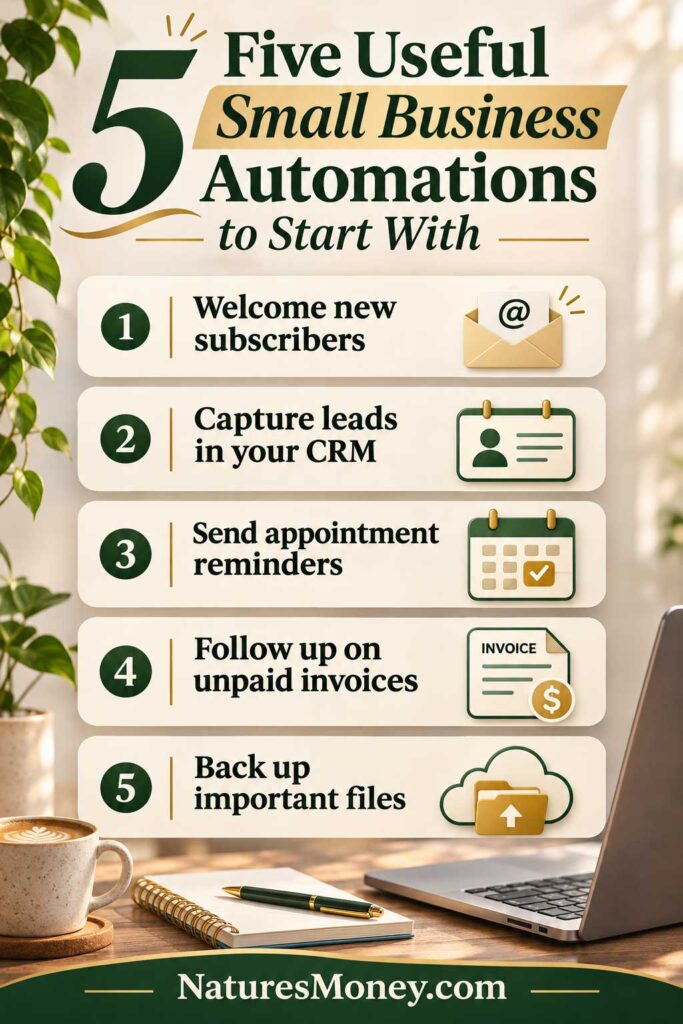
Start with a task you repeat regularly and already know how to handle manually. These five examples can help reduce copying, organize follow-ups, and keep work moving. Check that your chosen platform supports the apps and actions each workflow requires.
Lead Capture and Follow-Up
When someone submits a website inquiry, a workflow can find or create their CRM contact, record the service they’re interested in, and assign a follow-up task.
Keep the original message attached so the person responding has the full context. If you send an automatic acknowledgment, simply confirm that the inquiry arrived. Include a response timeframe only if your business can consistently meet it.
If your customer details are scattered across inboxes and spreadsheets, compare the best CRM software for small businesses before building your lead automation.
Client Onboarding
Once a client meets your requirements for starting work—such as signing an agreement and paying a deposit—automation can create a project checklist and send a request for the information you need.
Use a unique project reference and check for an existing project before creating another one or sending a welcome email. If required details are missing, route the submission for review before continuing.
Appointment Follow-Up
After an appointment is marked complete, a workflow can create a follow-up task or prepare an appropriate message. Keep separate rules for completed, canceled, rescheduled, and missed appointments.
Check your booking software’s existing reminders before adding more messages. If the next step depends on the meeting outcome, have the responsible person record that outcome first.
Invoice Payment Updates
A confirmed payment can notify your team that a project is ready to begin or that an order can move to delivery.
Use your accounting system as the source for payment status, and define how partial payments, refunds, and reversals affect the next step. A payment notification should trigger work only when it meets your business’s requirements.
If billing is the process you need to improve first, explore the best invoicing software for small businesses.
Content Production and Publishing
When content reaches an approved stage, automation can assign tasks for images, formatting, scheduling, and promotion. Keep those tasks connected through a content ID or draft link, then add the final URL after publication.
Include human review before publishing. The workflow should move content forward when the required checks are complete, with someone responsible for confirming accuracy, links, and presentation.
How to Compare Automation Costs Fairly
Compare the cost of running your workflow, including the subscription and expected usage. Platforms bill in different ways, including tasks, credits, workflow executions, users, and bot licenses. An allowance of 1,000 units in one tool may cover a different amount of work in another.
Build a small test workflow and check what it consumes. Use those results to estimate a typical month and a busier period, allowing for testing, repeat submissions, and additional runs. Include separate charges for AI services, external APIs, hosting, or connected app subscriptions.
A Simple Planning Example
Suppose you process 200 inquiries per month, with four billable actions per inquiry. If each action uses one billing unit, your estimated usage would be:
200 inquiries × 4 billable actions = 800 units per month
You would then allow extra capacity for testing and unexpected activity.
This is a hypothetical calculation. Each platform defines usage differently: some steps may be exempt, others may consume multiple units, and processing several records can increase the total. Apply the provider’s billing rules to your actual test results.
Include Setup and Maintenance Costs
Suppose handling each inquiry manually takes six minutes. At 200 inquiries per month, that adds up to 20 hours.
If automation removes four minutes per inquiry, it would free up approximately 13.3 hours per month. Valuing that time at an illustrative $30 per hour gives it a monthly planning value of about $400, before costs.
Subtract subscriptions, ongoing maintenance time, and a share of the initial setup cost to estimate the benefit. For example, you could spread the setup cost over the number of months you expect to use the workflow.
Treat recovered time separately from cash savings. It may help you serve more customers or reduce administrative work, but it becomes a cash saving only when it reduces an actual expense.
How to Launch Your First Workflow
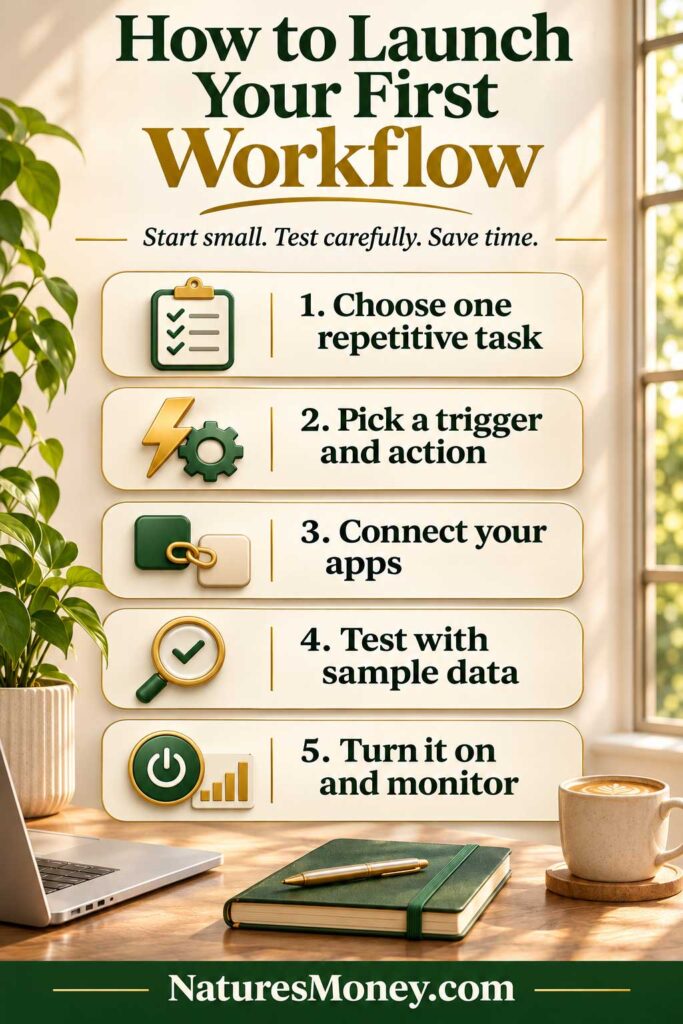
Choose a repetitive task with a clear manual process. Before automating it, record how often it happens, how long it takes, and what a successful result looks like. Start with a small trial so you can check each outcome.
Write the Rules Before Building
Define what starts the workflow, which information it needs, and what each step should do. Include instructions for incomplete or unexpected submissions.
For example: “If the submission contains a valid project reference, attach it to that project. Otherwise, create a task for someone to review it.”
Confirm these rules with the people doing the work. Keep a short explanation alongside the workflow so anyone maintaining it can understand its purpose.
Test Everyday Scenarios and Exceptions
Try a complete submission, missing information, a duplicate entry, and an existing contact. For appointment workflows, include cancellations and rescheduling. For payment workflows, check partial payments and refunds where relevant.
Also test what happens when a step fails. If a contact is created but the follow-up task fails, rerunning the entire workflow could create a duplicate. Check whether your platform can retry the failed step or add a check for an existing contact before creating one.
Assign an Owner and Review the Results
Choose someone to receive failure alerts, investigate problems, and pause the workflow when necessary. Keep a manual way to handle essential work if a connection stops working.
After the trial, compare the results with your original process. Check whether information arrived correctly, follow-ups happened on time, and manual work decreased. Include any time spent fixing errors in that comparison.
Expand once the workflow performs reliably. Review it whenever a connected app, account, or business process changes.
Common Business Automation Mistakes
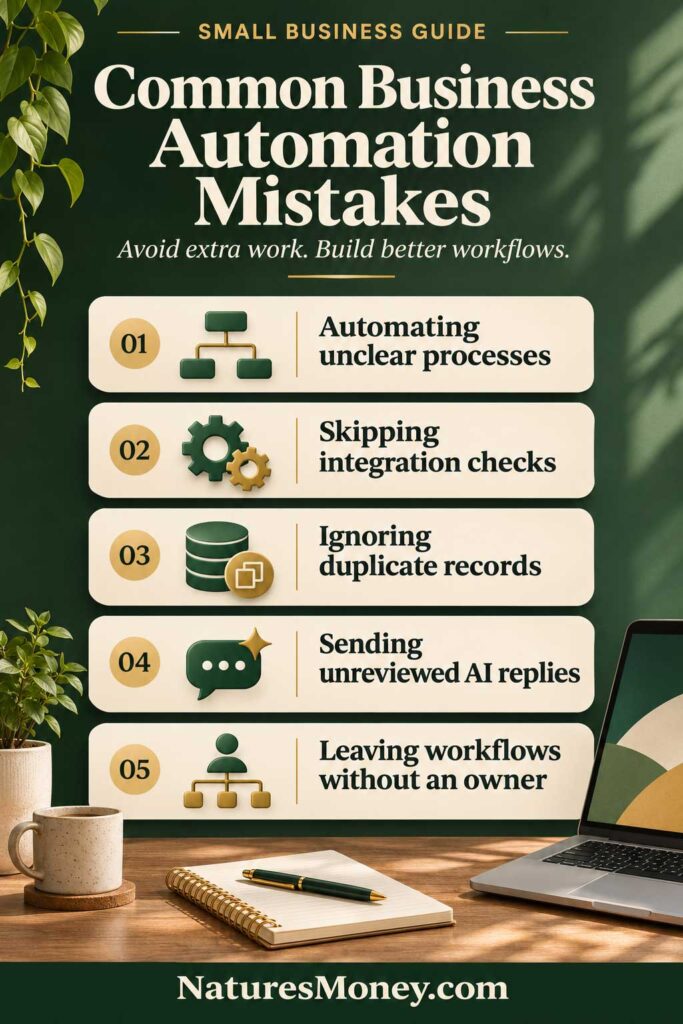
Automation works best when the process is clear and someone remains responsible for the results. These mistakes can create extra work or allow problems to go unnoticed.
Automating an Unclear Process
If your team disagrees about when a lead is qualified or a project is ready to begin, settle that question before building a workflow. Write down the requirements and identify who makes the decision. Sometimes a clearer checklist is enough to solve the problem.
Buying Before Checking Integration Details
An app may appear in a platform’s integration directory without supporting the specific action or field you need. Test your intended workflow with realistic data before subscribing. If it requires custom development, include setup and ongoing maintenance in your budget.
Ignoring Duplicates and Exceptions
Repeat submissions, missing details, and existing records need clear handling rules. Use consistent identifiers for contacts, orders, and projects, then decide when the workflow should update a record or send it for review. Test these situations alongside a normal successful run.
Letting AI Make Unreviewed Commitments
An AI-generated reply can sound convincing while including an incorrect price, service detail, or promise. Keep the original inquiry available and review drafts before sending them. Use approved business rules to control pricing and other customer commitments.
Leaving Workflows Without an Owner
Assign someone to monitor failures and maintain the setup. Document its purpose, connected accounts, and recovery steps, and review access when employees or contractors leave. Your business should be able to keep the workflow running when the original builder is unavailable.
Frequently Asked Questions About Business Automation Tools
What Is the Best Business Automation Tool for a Small Business?
Zapier and Make are useful starting points for connecting everyday business apps. Power Automate is worth considering for Microsoft-based operations, Zoho Flow for businesses using Zoho, and n8n for custom workflows with technical support. Choose based on your required connections, expected usage, and ability to maintain the setup.
Can I Automate My Business for Free?
You can automate some routine tasks using free plans or features already included in your business apps. However, usage limits and restricted features may affect what you can run. Test your complete workflow and estimate monthly usage before deciding whether a free plan is enough.
Do I Need Coding Skills?
Many basic automations use visual builders and require no coding. You still need to understand the process, map information correctly, and test the results. Custom integrations and self-hosted setups may require technical help.
What Should I Automate First?
Start with a repetitive task that has clear rules and is easy to check, such as recording website inquiries and assigning follow-up tasks. Measure how long it takes manually, then compare that with the automated process, including time spent reviewing and fixing errors.
Will Automation Increase Revenue?
Automation may help your team respond faster and spend less time on administration, but it does not guarantee more sales. Track time savings, missed inquiries, and completed follow-ups separately from revenue to understand what actually improves.
Should I Use AI in Every Workflow?
No. Standard rules are usually sufficient when the next action is predictable. Consider AI for tasks such as summarizing inquiries or drafting replies, with human review before the output makes customer commitments or changes important records.
Our Recommendation
Choose the tool that supports your actual process and that your business can maintain. Test one useful workflow, check its results, and calculate the ongoing cost before committing to a paid plan.
The first automation should solve a recognizable problem: an inquiry that gets missed, information entered twice, or a follow-up that depends on someone remembering. Once that process runs reliably, use what you’ve learned to decide what to automate next.
More Small Business Software Guides
Explore these related guides to choose the tools your automations will connect:
- Best CRM Software for Small Businesses — Organize contacts, sales opportunities, and follow-up tasks.
- Best Email Marketing Software for Small Businesses — Compare platforms for newsletters and automated email sequences.
- Best Landing Page Builders for Small Businesses — Find tools for collecting inquiries and growing your subscriber list.